I was working on answering an OTN question today (and creating a related blog post) and I came upon a little annoying thing in the Extended Spreadsheet Toolkit declarations file, essxlvba.txt.
I imported the file into VBA like I *used* to do years ago when I made a living writing Essbase Excel VBA code (and before I was fed up with it and started my own company to do things better). I used one of the essxlvba.txt constants, EssBottomLevel, in the following line:
v = EssVGetMemberInfo(Null, "Year", EssBottomLevel, True)
As always, I was using Option Explicit at the top of my module and it caught that this line of code would not compile. Why? Because EssBottomLevel was not defined. Of course, it was in the imported module:
Const EssChildLevel = 1
Const EssDescendentLevel = 2
Const EssBottomLevel = 3
Const EssSiblingLevel = 4
Const EssSameLevel = 5
Const EssSameGenerationLevel = 6
Const EssCalculationLevel = 7
Const EssParentLevel = 8
Const EssDimensionLevel = 9
What was the problem? In VBA, the above declaration limits the scope of the variable to that module. As I was using Option Explicit, that didn't present a problem to me as VBA alerted me to the issue. What about the (majority of?) VBA programmers who don't use Option Explicit? They, of course, would have a bug in their code and would have to search for the reason they didn't get 'bottom level' members returned.
The easy solution would be for Oracle to simply change the declaration to expand the scope; you can do this in your essxlvba.txt file today:
Public Const EssChildLevel = 1
Public Const EssDescendentLevel = 2
Public Const EssBottomLevel = 3
Public Const EssSiblingLevel = 4
Public Const EssSameLevel = 5
Public Const EssSameGenerationLevel = 6
Public Const EssCalculationLevel = 7
Public Const EssParentLevel = 8
Public Const EssDimensionLevel = 9
I wonder how many thousands of hours of lost productivity by hapless programmers can be attributed to this oversight?
Showing posts with label Essbase Excel Add-in. Show all posts
Showing posts with label Essbase Excel Add-in. Show all posts
Using EssCalc in Excel
There was a question on the Network54 board about our EssCalc component and how to use it in Excel. I didn't know anyone was still using the code, which was last touched in the VB5 days, but I thought the answer may make a good blog post.
EssCalc is a free utility that I wrote many years ago to show how to create and execute custom tokenized calculations from VB. It is, however, just as usable from Excel. To use it from Excel, follow these steps:
EssCalc is a free utility that I wrote many years ago to show how to create and execute custom tokenized calculations from VB. It is, however, just as usable from Excel. To use it from Excel, follow these steps:
- Download the code from the downloads area of our website at http://www.appliedolap.com/.
- Extract the code to a directory.
- In the VBA editor, import the file CEssCalc.cls into your project.
- Confirm the API declarations in CEssCalc match those for your version of Essbase.
- Import the file essxlvba.txt to get the Excel VBA declarations.
- Instead of using the code in modMain to get a context handle (hCtx), use the Excel functionEssVGetHctxFromSheet.
- Use the class to create/run a calc.
Here is the sample code that works on my system (including a calc script with a valid syntax):
Sub RunCalc()
Dim oCalc As New CEssCalc ''' calc object
Dim hCtx As Long
On Error GoTo ErrorHandler
''' get the hctx
hCtx = EssVGetHctxFromSheet(GetSheetname())
''' the context handle is required
oCalc.hCtx = hCtx
''' this is how you get a file off the server
'oCalc.CalcFile = "Test"
'oCalc.CalcFileLocal = "c:\temp\test.csc"
''' This is how you create a script in code
With oCalc
.AddLine "FIX(""T.MARKET"", ""T.PRODUCT"",""T.SCENARIO"") ", True
.AddLine " CALC DIM(""Measures""); "
.AddLine "ENDFIX;"
End With
''' this is how you show the calc string
MsgBox oCalc.CalcString
''' set the process state check to 2 seconds
oCalc.Interval = 2000
''' this how you replace one token
oCalc.ReplaceToken "T.MARKET", "New York"
''' replace a bunch of tokens (if they exist)
Dim cTokens As Collection
Dim cReplacements As Collection
Set cTokens = New Collection
Set cReplacements = New Collection
cTokens.Add "T.PRODUCT"
cTokens.Add "T.SCENARIO"
cReplacements.Add "Cola", "T.PRODUCT"
cReplacements.Add "Budget", "T.SCENARIO"
oCalc.ReplaceTokens cTokens, cReplacements
''' see the calc string again with the rest of the tokens replaced
MsgBox oCalc.CalcString
Exit Sub
ErrorHandler:
MsgBox Err.Description
End Sub
''' get the sheetname in Essbase required format
Function GetSheetname(Optional oSheet As Worksheet)
If oSheet Is Nothing Then
Set oSheet = ActiveSheet
End If
GetSheetname = "[" & oSheet.Parent.Name & "]" & oSheet.Name
End Function
What I realized after looking at this code is how old it actually is.. I wrote this code over 10 years ago as I recognize portions of it from our ActiveOLAP for Essbase 1.0 product which shipped in 1999.
By the way, to do this same thing in our Dodeca product takes zero lines of code. We have a feature called Workbook Script which would allow you to attach one or more tokenized calc scripts to an event. For example, you could attach the calc scripts to the 'WorkbookAfterSend' event which would cause Dodeca to automatically replace the tokens in the script and run the calc whenever a user presses the Send button (and after all Send Ranges in the workbook have been successfully sent to the Essbase server). In other words, Dodeca makes running a custom Essbase calculation much easier.

Classic Excel Add-in in Windows 7
Since my post on how to install the Essbase stack on Windows 7, I have had a few people tell me that the classic Essbase add-in doesn't work on Windows 7. We took a look at the issue and found that the classic add-in now needs modification to three environment variables instead of two. The classic add-in has always required two environment variables:
- ARBORPATH - Set to the Essbase home directory (ex. C:\Hyperion\products\Essbase\EssbaseClient)
- PATH - Set to %ARBORPATH%\bin
- ESSBASEPATH - Set to the same directory as ARBORPATH.
No Wonder the Excel Add-in Installer Is So Large
Our Dodeca architect, Amy, was having problems with the classic Excel add-in (v11.1.1.3) on her laptop and so I took a look. I decided to look to see if the problem as a rogue copy of the xll file on here systems so I did a search for all of the xll's on her system. Here is what I found:

There are 28 localized versions installed by default. No wonder people are complaining about the size of the download. I didn't check to see but I would guess each of these directories contains a full client (localized) API which would be huge.
I hear they are planning improvements for 11.1.2. For the sake of those still on the classic add-in, I hope so.

There are 28 localized versions installed by default. No wonder people are complaining about the size of the download. I didn't check to see but I would guess each of these directories contains a full client (localized) API which would be huge.
I hear they are planning improvements for 11.1.2. For the sake of those still on the classic add-in, I hope so.
How Does the Essbase Excel Add-in Work? (Part 3: Why Dodeca is Easier and Better)
In the first two parts of this series, I discussed the basics of the Essbase Query by Example query engine, some of it's benefits and some of it's limitations. Fortunately the Query by Example engine is exposed to developers as part of the Java API which gave us the opportunity to leverage the best of QBE within our Dodeca product but also allowed us to remove some of the limitations.
Dodeca removes or minimizes the effects of the following limitations found in the Excel Essbase add-in:

The connection ID, as circled above, is used in the range name to indicate the connection to use for the corresponding retrieval range:

The connection range name is optional in Dodeca. If a range name is not present, the Excel template will be connected to the ConnectionID defined at for the view level:

In this series, I have examined how the Essbase Query by Example concept works and have talked about its benefits, its pitfalls and some solutions. I hope you learned some information that will help you get the most out of Essbase.
Dodeca removes or minimizes the effects of the following limitations found in the Excel Essbase add-in:
- More than one retrieval range per sheet is allowed.
- Each worksheet may retrieve data from multiple Essbase databases.
- Extraneous text can be ignored.
Dodeca accomplishes this functionality via the use of retrieval ranges. These ranges, which use reserved range names, define both the cell range that is to be retrieved and, optionally, the database connection to use for the retrieval. Further, you can have a virtually unlimited number of retrieval ranges per worksheet. By contrast, to overcome these limitations in the Essbase Excel add-in, users must manually select the retrieval range by selecting the Retrieve option from the Essbase menu. Alternatively, this process may be automated in the Essbase Excel add-in by writing complex VBA code to retrieve each range. In other words, it is easier and faster to implement multiple retrieve ranges in Dodeca.
The first step is to create the range name. This is accomplished in the Excel template using the Define Names dialog:

Dodeca uses the range name format Ess.Retrieve.Range.x where x is a number. When the administrator uses the template in a Dodeca view, they choose how Dodeca will interpret the worksheet to determine the retrieval range. In this case, the RetrievePolicy needs to be set to RetrieveRanges.

At runtime, Dodeca automatically cycles through the range names that are defined and retrieves each one separately. As I posted in an earlier blog post, one of our customers is using this functionality to retrieve over 250 different retrieve ranges in a single workbook.
Similarly, if the administrator wants to associate that retrieve range with a specific database connection, they would use a similar range name. In Dodeca, Essbase connections are defined as an object in one of the built-in Dodeca metadata editors. Here is how a typical Essbase connection may be look in the metadata editor:

The connection ID, as circled above, is used in the range name to indicate the connection to use for the corresponding retrieval range:

The connection range name is optional in Dodeca. If a range name is not present, the Excel template will be connected to the ConnectionID defined at for the view level:

In this series, I have examined how the Essbase Query by Example concept works and have talked about its benefits, its pitfalls and some solutions. I hope you learned some information that will help you get the most out of Essbase.
How Does the Essbase Excel Add-in Work? (Part 2)
In part 1 of this series, I talked about the normal case of how Essbase Query by Example ("QBE") works. Determining the members represented at data intersections, or datapoints, in Essbase is generally very easy to understand. That being said, there are some potentially confusing layouts that bear some discussion.
The data intersection depicted in the part 1 of this series shows a block header layout that clearly represents all dimensions in the row and column of the data intersection itself. Sometimes, however, the intersection is not so clear. Those cases are best illustrated in the following examples.

What members are represented at this datapoint? Looking left from the datapoint, it is clear that South is the member that represents the Market dimension. Looking up from the datapoint, it is also clear that Qtr4 represents the Years dimension and Budget represents the Scenario dimension. However, the row and column have no members representing the Measures and Product dimensions. Page Fields represent the entire retrieval and thus Measures and Product represent the members from their dimensions regardless of their position on the grid.
Now, consider this layout and try to determine the members for the indicated datapoint.

In this case, the members West and Variance are the only two members in the row and column of the datapoint, so those two members are easy. Further, Sales is the only member from the Measures dimension and thus is a page field; it is automatically included. But what about the members from the Product and Year dimensions? The rules for those dimensions get a little more involved and are made more difficult. One reason it is so difficult is the rules for determining datapoint members for row and column fields are a bit inconsistent. The rules are:
The data intersection depicted in the part 1 of this series shows a block header layout that clearly represents all dimensions in the row and column of the data intersection itself. Sometimes, however, the intersection is not so clear. Those cases are best illustrated in the following examples.

What members are represented at this datapoint? Looking left from the datapoint, it is clear that South is the member that represents the Market dimension. Looking up from the datapoint, it is also clear that Qtr4 represents the Years dimension and Budget represents the Scenario dimension. However, the row and column have no members representing the Measures and Product dimensions. Page Fields represent the entire retrieval and thus Measures and Product represent the members from their dimensions regardless of their position on the grid.
Now, consider this layout and try to determine the members for the indicated datapoint.

In this case, the members West and Variance are the only two members in the row and column of the datapoint, so those two members are easy. Further, Sales is the only member from the Measures dimension and thus is a page field; it is automatically included. But what about the members from the Product and Year dimensions? The rules for those dimensions get a little more involved and are made more difficult. One reason it is so difficult is the rules for determining datapoint members for row and column fields are a bit inconsistent. The rules are:
- If the dimension is in row orientation, follow the row left to the column containing the dimension. If that cell does not contain a member, then look up through the rows in that column to find the first member. In the example above, look left to column ‘A’, then up to row ‘4’. That cell contains the member name Colas and thus Colas is the member for the Market dimension. Members in row orientation are very consistent and easy to determine; the same is not true for the columns.
- If the dimension is in column orientation, follow the column up to the row containing the dimension. If that cell does not contain a member, then first look one cell to the left in that row for a member. If that cell does not contain a member, look one cell to the right from the original column. If that cell does not contain a member, look two cells to the left from the original column. Continue this pattern until you find a member. In the example above, the cell F2 contains the member name Feb which represents the Years dimension in the datapoint.
This inconsistency can easily cause confusion with its ambiguous layout. Fortunately, there is an easy way to resolve it via the use of block headers. Block headers explicitly list the members for each intersection in each row and column. Below is the confusing grid shown above after being converted to use block headers. Note the correct variance is now retrieved in the indicated datapoint.

There is anecdotal evidence that an Essbase retrieve using block headers performs slightly slower than not using block headers (i.e. pyramid headers). However, the risk of a user relying on an incorrect interpretation of the numbers is a huge price to pay for a slight performance improvement.
In part 3 of this series, I will talk about how our Dodeca product leverages the best part of the Essbase Query by Example paradigm but eliminates many of the limitations of the classic Excel add-in.
Fun with Excel
At the recent Kaleidoscope Conference, one of the Oracle speakers asked how many people in the room used Smart View. Of the 200 or so people in the room, about 10 raised their hand. When he asked how many used the classic Essbase Excel add-in, everyone raised their hand. I think this small poll is representative of the community as a whole.
As the classic Excel add-in is not the strategic direction for Oracle, there hasn't been much incentive over the years to improve it and it shows as the bugs have been accumulating. Here is one pretty egregious bug that is so bad, I find it shocking that customers continue to put up with it. The bug occurs when the Essbase add-in gets confused when a user has two instances of Excel open (like no accountant would ever do that, right?) It is very easy to replicate as shown in this brief video:
As the classic Excel add-in is not the strategic direction for Oracle, there hasn't been much incentive over the years to improve it and it shows as the bugs have been accumulating. Here is one pretty egregious bug that is so bad, I find it shocking that customers continue to put up with it. The bug occurs when the Essbase add-in gets confused when a user has two instances of Excel open (like no accountant would ever do that, right?) It is very easy to replicate as shown in this brief video:
By the way, the airplane on the screen is not mine (but my Cessna 210 is one year newer than the one in the picture!)
For what it is worth, Dodeca does not suffer from the same issue (nor any of the dozens of other Excel add-in issues Essbase users often see).
How Does the Essbase Excel Add-in Work? (Part 1)
A lot of people use the Essbase Excel add-in but don't really know all of the rules of how it detects Essbase members on the worksheet using the standard Essbase Query By Example (”QBE”) paradigm. We have a nice summary explanation of how it works in the Dodeca Administrators Guide and I thought I would share it with everyone. There is enough in our summary that I am going to split the post into a two part series.
Query By Example is a very powerful concept as it makes it very easy for business users to layout an Excel worksheet to get data into the format they need. QBE templates are created by typing the Essbase member names into the worksheet in a specific layout. QBE does follow some rules the users will need to be familiar with before they start creating templates. Here are some basic Essbase retrieval rules and terminology used in this guide:

When the Essbase engine parses the grid, it looks at the cells selected in the worksheet and, if no cells are selected, looks at the entire used range of the worksheet. When it does the parsing, it looks for members for each dimension in the connected database and follows these rules:
Query By Example is a very powerful concept as it makes it very easy for business users to layout an Excel worksheet to get data into the format they need. QBE templates are created by typing the Essbase member names into the worksheet in a specific layout. QBE does follow some rules the users will need to be familiar with before they start creating templates. Here are some basic Essbase retrieval rules and terminology used in this guide:
- One retrieval range per sheet is allowed.
- Each worksheet may only be connected to one Essbase database at a time.
- All dimensions in the database must be represented or any missing dimensions will be inserted automatically.
- At least one Essbase dimension must be represented in row orientation.
- No extraneous text is allowed that may be confused with Essbase member name.
- Numeric member names must be preceded with a single quote to make them look like text rather than numbers.
Note: Information about removing some of these limitations with Dodeca is available later in this section.
Consider the following simple Essbase retrieval in Excel from the Sample Basic database which contains five dimensions. In this example, 3 dimensions are oriented in page orientation, 1 dimension is oriented in column orientation and 1 dimension is oriented in row orientation. Collectively, dimensions in an orientation are often referred to as fields as in Page Fields, Column Fields and Row Fields.

When the Essbase engine parses the grid, it looks at the cells selected in the worksheet and, if no cells are selected, looks at the entire used range of the worksheet. When it does the parsing, it looks for members for each dimension in the connected database and follows these rules:
- At least one dimension must be represented in row orientation. The reason is that Essbase returns data at the data intersections represented by a member in each dimension. If no dimension is represented in Row orientation, then it is impossible to have an intersection represented.

The cell intersection depicted here is the intersection of the West, Qtr1, Scenario, Product and Measures members from the Market, Year, Scenario, Product and Measures dimensions, respectively. - Multiple members in any single column must be from the same dimension unless the Use Both Members and Alias option is selected. In that case, the multiple members from a group of two adjacent columns must be from the same dimension. Members in this orientation are referred to as Row Fields as they form the row headers for the data retrieval.
- Multiple members in any single row must be from the same dimension if there is more than one member from that dimension represented on the grid. These members are referred to as Column Fields as they form the column headers for the data retrieval.
- Dimensions that contain only a single member may appear in any cell above and to the left of the first data cell as long as they don’t appear in any row or column used by the Row
Fields or Column Fields. These dimensions effectively act as filters for the data retrieval and are referred to as ‘Page Fields’. - Extraneous text may appear within the retrieval as long as it doesn’t resemble an Essbase member name. If Essbase confuses the text with a member name, the parsing algorithm used in the QBE query engine will get confused and will return a Member Out of Place error. Similarly, if a numeric member name is not entered as text by pre-pending the member name with a single quote, the parsing engine will get confused and return a Data item found before member error.

Determining the members represented at data intersections, or datapoints, in Essbase are generally very easy to understand. That being said, there are some potentially confusing layouts that bear some discussion. I will pick up with that point in the second part of this post.
Essbase 11.1.1.3 Support Announced
We recently announced support the Essbase 11.1.1.3 for our entire product line including:
- Dodeca
- ActiveOLAP for Essbase
- OpenOffice Add-in for Essbase
- OlapUnderground Outline Extractor
- OlapUnderground Advanced Security Manager
- OlapUnderground SubVar Manager
I can tell you how valuable our heavy investment in automated build processes is to our company but the proof lies in our ability to quickly provide support for new Essbase versions as they become available while continuing to support and enhance the functionality of our products against previous versions.
Additional value lies in the engineering of our Dodeca product where we have taken Essbase compatibility to a whole new level with our database abstraction layer. The abstraction layer allows us to target a single version of the Dodeca client to every version of Essbase from 6.5.3 to the latest 11.1.1.3. Further, the abstraction layer gives us the unique ability to retrieve data from multiple versions of Essbase into the same spreadsheet 'side-by-side'. Think about that the next time you have to roll out the latest patch of the Excel add-in to a thousand users spread around the world!
Cascade Views in Dodeca
There is a question up on the Network54 board about the availability of a cascade utility for Essbase that will copy charts along with the Essbase cascade. To tell you the truth, I didn't remember that the classic add-in functionality didn't allow you to copy charts, so I fired up good old Excel 2003 to try it out. First, I had to work around the bug where Essbase doesn't work with multiple instances of Excel running. I can't believe users put up with that bug!. Once the Excel add-in was running successfully I quickly found that the classic add-in doesn't copy charts even when you check the checkbox to copy formatting.
The post also reminded me of a time back in the the mid-90's when I was at Lex Software. Arbor Software hired us to to write an obscure utility to automate the generation of cascades. If I remember correctly, the utility wasn't carried forward into 32-bit Windows. Due to a change in how printing worked, it basically would have caused a significant rewrite. Note that I wasn't the primary developer on that utility as I was busy working on Essbase consulting gigs for our friends at Arbor.
Of course, I was pretty sure we could create cascades with charts in Dodeca so I went to the Dodeca admin screens, exported the Excel template for our sample cascaded Income Statement view, added a chart, saved the file, re-imported the file and committed/saved it to my Dodeca server. As expected, it worked fine:
 (click on the graphic to see a larger version)
When we generate a cascade view, we literally make a copy of the base worksheet including all of the formulas, formatting, range names and objects including charts, so despite the fact that I had not tried a cascade with a chart in Dodeca previously, I was confident it would work.
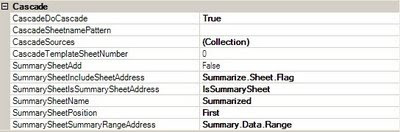
Cascade functionality is controlled by the administrator in Dodeca. Essentially, any Excel Essbase view may be cascaded with the administrator controlling which dimensions are to be cascaded. Further, the user typically gets to choose from members anywhere in the outline for the cascade and may, optionally, have a summary sheet generated that automatically generates subtotals for the selected members. Here is a screenshot of the Cascade category properties in the Dodeca View Metadata Editor, which is used by an administrator to turn on cascade functionality:
The other thing that always bugged me in the Excel add-in cascade functionality is the annoying numbering of the worksheet (or workbook) names. When I spec'ed the cascade functionality in Dodeca, I made sure that annoyance was fixed.
Oh, and about that other annoyance. The one with the multiple Excel instances being open and causing the Excel add-in to just not work... Dodeca doesn't have that problem either.
The post also reminded me of a time back in the the mid-90's when I was at Lex Software. Arbor Software hired us to to write an obscure utility to automate the generation of cascades. If I remember correctly, the utility wasn't carried forward into 32-bit Windows. Due to a change in how printing worked, it basically would have caused a significant rewrite. Note that I wasn't the primary developer on that utility as I was busy working on Essbase consulting gigs for our friends at Arbor.
Of course, I was pretty sure we could create cascades with charts in Dodeca so I went to the Dodeca admin screens, exported the Excel template for our sample cascaded Income Statement view, added a chart, saved the file, re-imported the file and committed/saved it to my Dodeca server. As expected, it worked fine:

When we generate a cascade view, we literally make a copy of the base worksheet including all of the formulas, formatting, range names and objects including charts, so despite the fact that I had not tried a cascade with a chart in Dodeca previously, I was confident it would work.
Cascade functionality is controlled by the administrator in Dodeca. Essentially, any Excel Essbase view may be cascaded with the administrator controlling which dimensions are to be cascaded. Further, the user typically gets to choose from members anywhere in the outline for the cascade and may, optionally, have a summary sheet generated that automatically generates subtotals for the selected members. Here is a screenshot of the Cascade category properties in the Dodeca View Metadata Editor, which is used by an administrator to turn on cascade functionality:

The other thing that always bugged me in the Excel add-in cascade functionality is the annoying numbering of the worksheet (or workbook) names. When I spec'ed the cascade functionality in Dodeca, I made sure that annoyance was fixed.
Oh, and about that other annoyance. The one with the multiple Excel instances being open and causing the Excel add-in to just not work... Dodeca doesn't have that problem either.
Subscribe to:
Posts (Atom)