Showing posts with label Computer Power Supply. Show all posts

How to Replace a Computer Processor


You've decided to take the plunge and upgrade your computer's processor. This article will explain how to replace a computer processor.

Collecting Information

1. Before you open your computer, you need to do some preliminary work. Are you planning to upgrade to the next generation of processor? Are you moving from a Pentium III to a Pentium IV or from a Pentium IV to a Core Duo? If so, just buying a processor won't be enough. You will need a new motherboard and RAM memory in addition to the new CPU. You will need to make sure all these parts work together..
If you are upgrading within the same processor family--a faster version of the Pentium III or the Pentium IV or the Core Duo--to replace the one you're using now, you may be able to keep your existing motherboard and RAM memory. But again, you will have to do a little preliminary work.

2. Determine the make, model, and revision number of your motherboard. You will need this information to know what processor speeds it supports. If you bought your computer from Hewlett Packard or Dell or a retailer like Best Buy, call their technical support. Tell them which model you have--whether it's the HP Pavilion a6710 or the Dell Inspiron 530, for example. They should be able to locate this info for you. You could also open the case and look for identifying text on the actual component.


3. Determine the speed and type of your RAM memory. Is it DDR 333MHz? DDR 400 MHZ? It matters, because the speed of your new processor needs to be some multiple of your memory for them to work well together. Example: A 2.33 GHz processor is well matched with 333MHz or 667MHz memory, but not well matched with 400MHz or 800MHz memory. A 2.4 GHz processor is well matched with 400MHz or 800MHz memory but not 333MHz or 667MHz memory.
Note: In most cases, the new processor will still work with your memory. It will just run the memory at a lower but more compatible speed to eliminate these timing issues. You could decide to accept the penalty of course, but it partially defeats the purpose of moving to a faster processor if your memory runs slower.

Changing The Chip

1. You have chosen a CPU your motherboard supports and is an even multiple of your memory. It's time to install it. Disconnect the power and all cables from the back of your computer.


2. Remove the case. Note that older cases like this one use screws. Newer ones have done away with them in favor of an access panel with quick release levers.


3. Remove your graphics and other peripheral cards. Handle them by their edges. Do not touch the contacts on the bottom of the card.


4. Disconnect data and power cables from the motherboard.


5. Remove the screws holding the motherboard in place.


6. Remove your motherboard. Place it on an anti-static surface. In this case, the motherboard is sitting on an anti-static bag that previously contained a different motherboard.


7. Unlatch and remove the heat sink and fan. Note that the hardware holding a heat sink/fan combination in place always seems to change from one generation of processor to the next. The arrangement pictured here is for a Pentium 4 motherboard. So unless you are also upgrading a Pentium 4, you are likely to see a different latching mechanism.
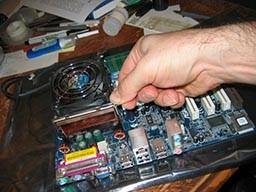


8. Release the Zero Insertion Force (ZIF) lever.


9. Remove your old chip. Be careful to touch it by the edges only.


10. Put in your new CPU and close the ZIF lever. Note that CPUs, whether from Intel or AMD, will have a marking like this arrow and/or a physical shape that assures it will only go in its socket one way.

11. Apply a small amount of heat paste. The purpose of this substance is to make sure there is good contact between the CPU and heat sink so that the latter will draw away heat.

12. Reinstall the heat sink and fan.
13. Return your motherboard to its case and refasten its screws. Plug in data and power cables. Plug in your expansion cards and close the case. You're ready to go again. Only a bit faster.


Warning!

Be careful when handling expansion cards, motherboards and CPUs. Do not touch exposed contacts. Not because it will hurt you, but because it will hurt your components. Your body produces enough static electricity to burn them out. You would be well advised to use a grounding strap. (A grounding strap can be nothing more than a long piece of wire with exposed conductor at each end. Wrap one end around your wrist and the other around some metal object. This will "ground" you, or drain away static electricity.)


Computer Power Supply

Computer Power Supply

If there is any one component that is absolutely important to the operation of a computer, it is the power supply. Without power supply, a computer is just an inert box full of plastic and metal. The power supply converts the alternating current (AC) line from your home to the direct current (DC) needed by the personal computer. In this article, we'll learn how PC power supplies work and what the wattage ratings mean.

In a personal computer (PC), the power supply is the metal box usually found in a corner of the case. The power supply is visible from the back of many systems (Also known as SMPS) because it contains the power-cord receptacle and the cooling fan.

Power supplies, often referred to as "switching power supplies", use switcher technology to convert the AC input to lower DC voltages. The typical voltages supplied are:
• 3.3 volts
• 5 volts
• 12 volts

The 3.3- and 5-volts are typically used by digital circuits, while the 12-volt is used to run motors in disk drives and fans. The main specification of a power supply is in watts. A watt is the product of the voltage in volts and the current in amperes or amps. If you have been around PCs for many years, you probably remember that the original PCs had large red toggle switches that had a good bit of heft to them. When you turned the PC on or off, you knew you were doing it. These switches actually controlled the flow of 120 volt power to the power supply.

Today you turn on the power with a little push button, and you turn off the machine with a menu option. These capabilities were added to standard power supplies several years ago. The operating system can send a signal to the power supply to tell it to turn off. The push button sends a 5-volt signal to the power supply to tell it when to turn on. The power supply also has a circuit that supplies 5 volts, called VSB for "standby voltage" even when it is officially "off", so that the button will work. See the next page to learn more about switcher technology.

Power Supply


Power Supply is indeed one of the most critical parts of your PC and it must be working without a hitch all the time - otherwise your PC will stop dead in its tracks.


Here are 5 Essential Things You Need to Know When Buying A Computer 

Power Supply Compatibility & Connectors

What's the most important feature of a computer power supply? Well, its got to be its compatibility. Older motherboards will need a 20-pin ATX connector. Newer, more advanced motherboards will need the 24-pin ATX connector in a power supply.

Molex Connectors

If you look at a modern power supply in a PC, you will see it has many of those octopus-like connectors. Those are really 12V Molex connectors and they hook up to peripherals like hard drives, CD and DVD-ROM drives and PC case fans. You need to make sure the number of Molex connectors in your power supply is enough to meet the number of components in the PC.

SLI and Crossfire Technology

What does SLI do? It allows you to combine the processing power and memory of two Nvidia video cards. There is an equivalent term called 'CrossFire' if you're using ATI video cards.

Think about that for a moment - we're talking about insane performance. If you intend to go the SLI path, then your power should be SLI Certified (if you are using Nvidia video cards) or ATI CrossFire Ready (if you are running ATI video).

Overrated Peak Wattage Numbers

One thing you should always know about purchasing power supplies is that the peak wattage is usually overstated. If you building a system, going for anything less than 400W is not a good idea.

Size of the Power Supply

Another factor to consider is the size of the power supply unit. Most of the power supplies out there conform to the ATX specification. Make sure that your case is also in the ATX form factor if you are buying such a power supply.

Upgrade Power Supplies in Computers


Power supplies are needed because your computer needs different voltages than what comes straight from the outlet. Disconnecting and replacing a power supply is simple because it's just piece of hardware.

1). Shut down your computer and unplug the cable from the wall and the back of your computer. Open the computer case. This may involve unscrewing the access door from the back of the computer, pushing a lever or just sliding the door off.

2). Unplug the power connectors from all of the drives and the motherboard. The connectors can be removed by either pulling them straight out or by pushing a release button first and then pulling the connector out. Some motherboards have two sockets where the power supply is plugged in.
3). Unscrew the power supply from the back of the case. The power supply is usually held in place by four Phillips screws. Pull the power supply out from inside the case. There is often a small shelf the power supply sits on. Hold on to the power supply as you unscrew it to make sure it doesn't fall.

4). Slide the new power supply into place. Screw it into the case from the back of the computer.

5). Connect all of the drives back to the power supply with the appropriate connectors. Connect the correct connectors to your motherboard as well. Make sure you plug the connectors back in the same direction they were plugged in as there is only one way in which they fit properly.

6). Close the computer case and plug the computer power cable into the power supply and the wall outlet.