Showing posts with label Mouse. Show all posts

How to reboot Windows using the keyboard

I was writing a post on how to reinstall the mouse using the keyboard when I realised that rebooting the PC using the keyboard would be a required step in the process. So I decided to dedicate a whole post to that topic. I will give a few examples of how this can be done.

Using the Start Menu

Press a Windows key (the ones with the Windows symbol on as shown right), this will open up the Start Menu.
Use the cursor keys (the ones with arrows on) to highlight 'Turn off Computer' and press Enter to select it
A dialog box will open. Use the cursor keys to to highlight 'Shutdown computer', 'Turn off' or whatever your version of Windows says, and press Enter again.

Using the 'three finger salute'

Hold down Ctrl and Alt, and press Delete.

Windows 2000 and XP Home Edition users will be presented with a dialog box with buttons on:
Use the cursor keys to select the 'Shut Down' button and use Enter to select it.
Select 'Shut down' from the list using the cursor keys and press Enter one more time.

In other versions of Windows the Task Manager will open:
Hold down Alt and press U to open the 'Shut Down' menu.
Use the cursor keys to highlight 'Turn Off' and press Enter.

Hit Alt F4 'till you can't any more

The final method of shutting down that I will explain here is to hold down the Alt key and press F4 repeatedly. This will close every application that is open on Windows and eventually will close Windows itself. You may be asked if you want to save files by some programs, if so use the cursor keys and Enter to get past these dialog boxes.

Mouse stopped working: how to reinstall

The first thing to do when your mouse stops working is to check the cable connection. There is no point reinstalling the mouse if it isn't plugged in.

The next thing to try is to reboot the PC. I have written instructions on how to reboot a PC using the keyboard.

If after checking the cables and restarting the PC, the mouse still does not work you should try reinstalling the mouse. To do this you need to open the Device Manager, which can be accessed from the System Properties dialog box.

To open the System Properties dialog box hold down a Windows key (the ones with the Windows logo on) and press the Pause/Break key (on most keyboards this will be in a set of three keys to the right of the function keys).

Alternatively you can minimise all windows by holding down the Windows key and pressing D, then use the cursor key to highlight 'My Computer' and press the Application key to open up a menu, from this menu select 'Properties' using the cursor keys and press Enter.

The System Properties dialog will look something like this:
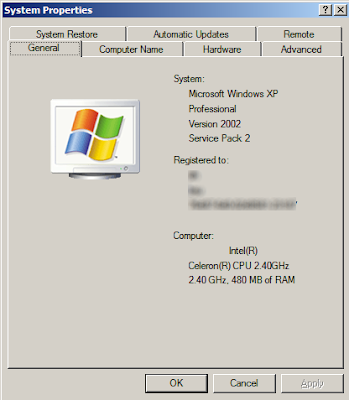

Use the right cursor key to move to the 'Hardware' page. Use the Tab key to move the focus to the 'Device Manager' button and press Enter. If you make a mistake at any time you can press the Escape key to close the System Properties dialog and start again.
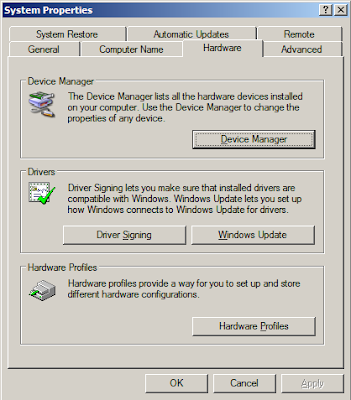

This will open up the Device Manager program. To reinstall the mouse do the following:

Press the Tab key to highlight the computer icon at the top of the list.
Press the down cursor key repeatedly until 'Mice and other pointing devices' is highlighted (if you go too far use the up cursor to go back).
Press the right cursor key to open the sub-list.
Press the down cursor key to select the mouse.
Press the Application key to open up a context menu
Use the down cursor key to move to highlight 'Uninstall' and press Enter.
You will be asked to confirm this, press Enter.
Wait for a while and then hold down Alt and press A.
Continue waiting until the 'Action' menu opens.
Use the down cursor to select 'Scan for hardware changes' and press Enter.
Wait for a while, after which Windows should detect the mouse and reinstall it.

I have included a video of this process in action, so that you know what you should be seeing as you follow the instructions.

If your mouse still isn't working after this, plug in different mouse to see if that works on your PC. If it does, plug the problem mouse into another PC, if it doesn't work you know there is a hardware problem with your mouse. If a different mouse doesn't work on your PC, something fundamental is wrong with it and you should seek expert technical advice.

How to fix it Computer mouse problems

The computer mouse is the most extensively used user interface device and usually has to be replaced or repaired first. A mouse with a trackball lasts for less than a year, if you use your computer for 8 to 10 hours a day. An optical mouse may work for a longer duration. Even products from large manufacturers like HP/Compaq Presario may not last for a long time. For one computer I purchased, they replaced the mouse 4 times in a period of 6 months! I was told by the service engineer, that this was a common problem for all computers of the particular model (a manufacturing defect). So if your computer is under warranty, and there is a problem with your mouse, it is advisable to ask the manufacturer to replace it.
How to fix problems in a computer mouse:
1. Many computer mouse problems are due to dirt, dust or some other obstruction. Clean the mouse, especially the lower surface where more dirt accumulates. Also clean the mouse pad.
2. Check if the mouse connectors are fitted properly especially the PS2 and USB connectors (for a laptop mouse).
3. The mouse drivers may be corrupted. Uninstall the mouse and restart the computer. The computer will automatically reinstall the mouse drivers. Also try to get the updated version of the mouse drivers from the manufacturer’s website.
4. Go to control panel and click on mouse icon. Check the settings, the double click and pointer settings should not be too fast or too slow. If there is a problem with the mouse buttons, you can interchange the primary and secondary buttons.
5. A new trackball mouse can be cleaned by opening it up and removing the lint. However, they do not last very long and are cheap (usually cost about $2), so it is better to replace them.
6. Get yourself an optical mouse replacement.
7. Change the USB port or unplug the mouse and then plug it back until it responds.