Showing posts with label AutoHotkey. Show all posts

QuickArchive: More About Gmail-like Archive in Outlook


Expanding upon this earlier post, I started using AutoHotkey so that Shift Right-Clicking a message in Outlook archives it and Ctrl Right-Clicking deletes it. To do so, I changed the toolbar name for the ArchiveSelected macro to "&QuickArchive" (without quotes). An ampersand in a toolbar item name underlines the following character so that the button may be "clicked" via a keyboard shortcut: in this case Alt-Q. Why "Q"? Well, every other letter I tried was already taken by a menu or another toolbar item.

Then, I added the following to my main AHK script:
#IfWinActive ahk_class rctrl_renwnd32
+RButton::
Send {Click}
Send !q
return
^RButton::
Send {Click}
Send ^d
return
#IfWinActive

Make iTunes on Windows Seem a Bit Faster

Browsing the iTunes Store within iTunes 8 on Windows is frustrating, because Apple forced slow and clunky software components only to make it look kind of like Safari and Mac OS X. In my opinion, a Mac program is confusing on Windows and it clashes aesthetically. Also, the performance stinks.

At any rate, you can improve the slow scrolling using a scroll wheel mouse and the following AutoHotkey code:
#IfWinActive ahk_class iTunes
WheelDown::Send {pgdn}
WheelUp::Send {pgup}
#IfWinActive


Also, there is an alternative and unofficial web interface for the iTunes Store: http://app-store.appspot.com/

Tabless Web Browsing


Having tabs in web browsers can be very convenient, but they can be annoying also. That point totally mystifies some people.

There are 2 reasons why I wanted to get a tabless web browser. First is that I have a widescreen notebook computer. The vertical space is more precious to me than the horizontal space. Unless you're using an extension like Tab Kit in Firefox, you are stuck with tabs between the top of your screen and the start of web page content.

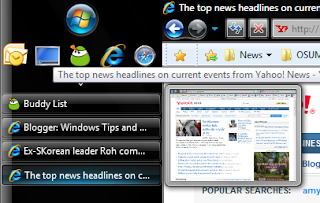
Second, I sometimes use the web while referring to windows of other programs (incredible, yes?). I can have a lot of windows, browser or otherwise, open at once. Accordingly, I have a vertically oriented taskbar on the left side of the screen. I can stretch out the taskbar quite wide, and all buttons for open windows stack nicely on top of each other. If I open many windows, I get a second column of buttons that is still quite readable. Also, I have Aero previews so I can see what's what very easily. With Taskbar Shuffle, I can rearrange and middle-click to close taskbar buttons.

For tabless web browsing, I could find only 2 3 options: Internet Explorer (not IE-based browsers like Maxthon, Avant, or TheWorld), Safari, and Firefox. (Actually, you can't disable tabs in Safari, but you can Ctrl-click to open in a new background window.) With Safari, I couldn't get downloads to save correctly, so I wanted to see if I could work with IE. With Internet Explorer, you can disable tabs, but it does not look like you can open new windows in the background by default; they insist on stealing focus. In Firefox, set appropriate options for opening in windows instead of tabs and set browser.tabs.opentabsfor.middleclick to false, but new windows insist on stealing focus. The following in my main AutoHotkey script helped with that [UPDATED 6/4/2009]:

GroupAdd, browser, ahk_class IEFrame
GroupAdd, browser, ahk_class MozillaUIWindowClass


#IfWinActive, ahk_group browser

#MaxThreadsPerHotkey 8
; ^LButton:: SetWinDelay, 333 ; Uncomment if there are windowing problems in IE.

WinGet, parent, ID, A
Send {Click M}
WinWaitNotActive, ahk_id %parent%, , 10
If Errorlevel Return
WinGet, child, ID, A
WinActivate, ahk_id %parent%
WinWaitActive, ahk_id %parent%
WinGet, mx, MinMax, ahk_id %child%
If mx = 0 WinMaximize, ahk_id %child%
Return
#MaxThreadsPerHotkey 1
#IfWinActive


I think this way of using web browsers is pretty efficient, but having to use AHK to make it possible is sad. I mentioned some IE-based browsers, and they do have many features, but disabling tabs appears to just not be an option. Please, if you make a web browser, make it possible to easily open links in new background windows.

New Beta of Brightness Display

Download Beta

Hopefully this will improve reliability. Let me know in comments.

Some Favorite Time Savers with AutoHotkey

AutoHotkey is awesome.

NB: I use KeyTweak to remap the [Right Alt key to Right Ctrl] and [Right Ctrl to another Left Ctrl]. Although AHK can use RAlt as a command key (when written ">!"), Windows has a hard time with it.

AutoExecute Section:
#NoEnv
#SingleInstance force
#UseHook On
#WinActivateForce
SetBatchLines -1
SendMode Input
SetKeyDelay, 1, 1
Process, priority, , High
GroupAdd, AllWindows, , , , ahk_class Shell_TrayWnd


Right Alt + Right Ctrl for Back/Fwd buttons
>^LCtrl::Send {Browser_Forward}
<^RCtrl::Send {Browser_Back}
Tilde ` key to close active window
>^`::Send {asc 096} ; ` since ` is remapped to WinClose
`::
PostMessage, 0x112, 0xF060,,, A
Sleep 50
IfWinActive, ahk_class Shell_TrayWnd
GroupActivate, AllWindows
return
Capslock key minimizes active window
Capslock::
WinMinimize, A
Sleep 50
IfWinActive, ahk_class Shell_TrayWnd
GroupActivate, AllWindows
return
Left Shift + Right Shift for Capslock
<+RShift:: SetStoreCapslockMode, Off Sendevent {capslock} return
Shift-Capslock toggle restore/maximize active window
+Capslock::
WinGet MX, MinMax, A
If MX
WinRestore A
Else WinMaximize A
return
Ctrl-Click becomes a Middle Click for the taskbar and Firefox tab bar (recommend Taskbar Shuffle for closing windows from Taskbar with middle click)
^LButton:: ; Make ctrl-click a middle click in certain circumstances
MouseGetPos, , , , currentcontrol
If currentcontrol in ToolbarWindow324,MozillaWindowClass6
Click M
else
Send ^{click}
return


Various Clipboard extensions
>^end::Send {Shift Down}{End}{Shift Up}{Backspace} ; Delete to end of line

>^v:: ; paste without extra spaces, line breaks
gosub getplain
gosub pasteplain
return

+>^v:: ; additionally remove formatting
gosub getplain
clipboard := %clipboard%
gosub pasteplain
return
getplain:
ClipSaved := ClipboardAll
StringReplace, clipboard, clipboard, `r`n, %A_Space%, All
clipboard := RegExReplace(clipboard, "` {2,}", "` ")
StringLeft, 1st, clipboard, 1
IfInString, 1st, %A_Space%
StringTrimLeft, clipboard, clipboard, 1
StringRIght, last, clipboard, 1
IfInString, last, %A_Space%
StringTrimRight, clipboard, clipboard, 1
return

pasteplain: ; pastes and then clears clipboard and restores clipboard from clipsaved
Send ^v
gosub restoreclip
return

backupclip: ; backups clipboardall to ClipSaved and then copies (follow with restoreclip)
ClipSaved := ClipboardAll ; Save the entire clipboard to a variable of your choice.
clipboard := ; empty clipboard
Send ^c
ClipWait, 2, 1
IfEqual, ErrorLevel, 0
return
else
{
gosub restoreclip
exit
}

restoreclip: ; restores clipboard to clipsaved
Clipboard := ClipSaved ; Restore the original clipboard. Note the use of Clipboard (not ClipboardAll).
ClipSaved = ; Free the memory in case the clipboard was very large.
return
Edit AHK script
>^h::Edit
Reload AHK script upon save (I use HiEditor)
#IfWinActive, HiEditor - D:\Documents\AutoHotkey.ahk
~^s::
Sleep 500
reload
return
#IfWinActive


To prevent accidental firing using Capslock or tilde, see this solution.

Keep Outlook from Stealing Focus

Outlook steals focus and brings itself to the front multiple times when starting up. It's highly annoying, but it can be stopped. The villain is the /recycle switch that is added to the default shortcut for Microsoft Office Outlook in the Quick Launch toolbar. Removing the switch will make Outlook more behaved when it's starting.


However, you can get multiple Outlook windows if you use the shortcut to activate Outlook when it is already running. Replacing that shortcut to Outlook with the following AutoHotkey script will prevent a multiple window side-effect:
#NoEnv ; Recommended for performance and compatibility with future AutoHotkey releases.
SendMode Input ; Recommended for new scripts due to its superior speed and reliability.
SetWorkingDir %A_ScriptDir% ; Ensures a consistent starting directory.
IfWinExist, ahk_class rctrl_renwnd32
WinActivate
Else Run, C:\Program Files\Microsoft Office\Office12\OUTLOOK.EXE

Easily Open the Containing Folder of Any File in a New Window

Another SendTo enhancement. Download and extract the .exe file your SendTo folder. The source .ahk file and icon are included, in case you want to edit the script and recompile it.


Download

Open Registry Locations from the Clipboard

On several Windows tips sites (like this modest blog), there are Registry keys listed. A fast way to navigate to them is by using RegJump from Sysinternals or Nirsoft RegScanner (the latter is available in both 32-bit and 64-bit versions). Combined with a little AutoHotkey scripting, it's an easy way to open registry locations from web pages:

; AutoHotkey script fragment follows


+^g:: ; press Shift-Ctrl g to activate
 clipback := ClipboardAll
 clipboard =
 Send ^c
 ClipWait
 StringReplace, clipboard, clipboard, `r, , All ; removes carriage returns from copied text
 StringReplace, clipboard, clipboard, `n, , All ; removes line breaks from copied text
 StringReplace, clipboard, clipboard, %A_Space%, , All ; removes spaces from copied text
 Run, "path_to_regscanner\RegScanner.exe" /clipregedit
 clipboard := clipback
 clipback =
 Return

Display Brightness Level in Taskbar


I wanted a little notification for the current display brightness level. I couldn't find one, but the creator of the Display Brightness Vista Gadget made a console version of his app. I'm not much of a programmer, but I was able to use AutoHotkey to make the current display brightness level appear in the notification area of the taskbar. I'm providing it for download here free. You can't change the brightness level with this utility as you can the gadget... maybe that will be in a revision someday; it only displays the current level in the icon and as a tooltip. Just unzip to any location and run Brightness.exe. The icon in the notification area will change with the current display brightness. It should work on Windows Vista or Windows 7, 32/64-bit. If you have any issue, let me know in the comments. Thanks.

Download

Create a Sendto Item to Securely Delete Files

This handy little application is a complied AutoHotkey script that uses SDelete from SysInternals. The cute icon is by RainDropMemory.

Select file(s) and/or folder(s), right-click, and select Send To → Secure Delete

To install: Simply decompress the zip archive's contents to any folder and drop a shortcut to Secure Delete.exe in your SendTo folder (go to Start Menu → Run... → shell:sendto). Right-click the shortcut, click Advanced, and check Run as Administrator. Source ahk file is included.

Download

Ctrl-RightClick to Delete Messages in Outlook

An amendment to previous posts:
#IfWinActive ahk_class rctrl_renwnd32
^RButton::
MouseGetPos, , , , pane
If pane = SUPERGRID1
Send {Click}^d
else
Click right
return
RButton::
MouseGetPos, , , , pane
If pane = SUPERGRID1
Send {Click}!q
else
Click right
return
#IfWinActive

Quickly Insert Unicode (Greek, Symbols, etc.) into Any Application

Perhaps someday I'll write one killer article all about AutoHotkey and how it can accelerate your productivity, but for now I'll just discuss one problem it can (help) solve: inputting special characters such as α or → with ease. I put "help" in quotation marks, because AHK does not have an easy, built-in way of inputting Unicode characters (yet), but it can do effective text auto-replace (a.k.a. hotstrings). There are several clever solutions on the AHK forums for the Unicode deficit (SendU, etc.), and here's mine:

Add the following string entry to the Registry for the Alt-Plus method of entering characters:
Key: HKCU\Control Panel\Input Method
String name: EnableHexNumpad
Value: 1
After a restart, you can enter Unicode characters by their hexadecimal value. [That's the alphanumeric number U+03c3 in the left part of the status bar in Character Map.] Hold down Alt and press the + key on the numeric pad and then the hex code for the character you want, without the leading zeroes if you like and then release the Alt key. Convoluted, huh? Here's a script that show's how to make light work of it with AHK: specialchar.ahk

With this kind of script running, "/alpha" immediately becomes "α"

Bonus tip: you can use a "raw" hotstring for faster entries:
#IfWinActive HiEditor ; or whatever editor you use for editing AHK scripts
#Hotstring R
::<<::{alt down}{numpadadd}
::>>::{alt up}
#Hotstring R0
#IfWinActive

BTW, I should mention that AHK has a {ASC nnnnn} function for the alt-numpad method of entering special characters, but it has 2 main problems: it can enter only the decimal and not the hexadecimal code for a character (which is fine for ASCII and ANSI but less convenient for Unicode), and only certain applications using the RichText framework can interpret Unicode characters entered this way (decimal).

Right-Click to QuickArchive in Outlook

The following AutoHotkey code makes right-clicking a shortcut for QuickArchiving in Outlook, but (helpfully) only if a message is being right-clicked. Otherwise, there is normal right-clicking behavior.


#IfWinActive ahk_class rctrl_renwnd32
RButton::
MouseGetPos, , , , pane
If pane = SUPERGRID1
Send {Click}!q
else
Click right
return
#IfWinActive

Command Line: Enable/Disable Require Password on Wake from Sleep or Hibernate

I couldn't find this anywhere online:

powercfg -setdcvalueindex SCHEME_CURRENT SUB_NONE CONSOLELOCK 1
powercfg -setacvalueindex SCHEME_CURRENT SUB_NONE CONSOLELOCK 1

The last digit enables or disables the setting: 0 = password not required; 1= password required

Editor for AHK Scripts

Because I love AutoHotkey, I want to tell everybody about this great, free editor: SciTE4AutoHotkey

Quick tip: to reload what you're working on upon save, add this to your script:

#IfWinActive, D:\Documents\AutoHotkey.ahk
~^s::
Sleep 500
reload
return
#IfWinActive