After I log into Windows 7, I select and right click to copy a file and try to paste the file, the paste options are not working. Similarly Ctrl-C and Ctrl-V also doesn't work.
To solve the problem, just turning off the shared clipboard feature.
Showing posts with label windows 7 how-to. Show all posts
Showing posts with label windows 7 how-to. Show all posts
Format Sticky Notes Text By Keyboard Commands
Sticky Notes in Windows 7 is very useful.ALso you can format the text to make Sticky Notes more pretty.
After Sticky Notes is running,you can use following keyboard commands to format text you wish:
Bold: CTRL+B
Bullet list: CTRL+SHIFT+L (once)
Decrease size of text: CTRL+SHIFT+<
Strikethrough: CTRL+T
Increase size of text: CTRL+SHIFT+>
Italics: CTRL+I
Numbered list: CTRL+SHIFT+L (twice)
Underline: CTRL+U
Roman numeral list (i,ii, etc.): CTRL+SHIFT+L (five times)
Lettered list(a,b, etc.): CTRL+SHIFT+L (three times)


Disable and Remove "Send Feedback" link
You might noticed the small "Send Feedback" link present in titlebar of all windows and dialog.
Without patch,delete or modify files,remove "Send Feedback" perfectly.It's how to.
First,Create a Disable-Feedback.reg file and copy the following red content into the reg file.
Windows Registry Editor Version 5.00
[HKEY_CURRENT_USER\Control Panel\Desktop]
"FeedbackToolEnabled"=dword:00000000
Save the file.Then Double Click it to run.Click the "Yes" Button to Import Registry Editor.
Log out.Enjoy yourself!!!
Without patch,delete or modify files,remove "Send Feedback" perfectly.It's how to.
First,Create a Disable-Feedback.reg file and copy the following red content into the reg file.
Windows Registry Editor Version 5.00
[HKEY_CURRENT_USER\Control Panel\Desktop]
"FeedbackToolEnabled"=dword:00000000
Save the file.Then Double Click it to run.Click the "Yes" Button to Import Registry Editor.
Log out.Enjoy yourself!!!
Display Text on Windows 7 Taskbar Button
When you use windows 7 first,have you find Taskbar Buttons in Windows 7 isdifferent from windows Vista/Xp.There is any text labeling on taskbar.Only icon based button is displayed on it.
If you dosen't know how to display text like Windows Vista or XP,try it as below easily.
1.On the empty section of Taskbar,right click and select " Properties ".
2.On the Taskbar tab,go to Taskbar buttons dropdown box to change.Its default setting is "Always combine, hide labels",please choose either "Never combine" or "Combine when taskbar is full" option.
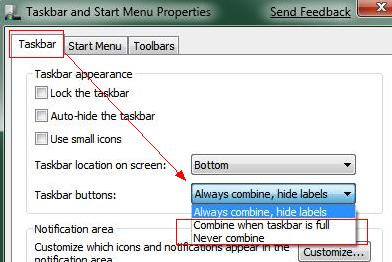 3. Click OK button to save the setting.
Now buttons with text labeled show in the taskbar.
 If you want to use small icons like Windows Vista or XP in win7,on the step 2,you can check the“Use small icons” and save.

If you dosen't know how to display text like Windows Vista or XP,try it as below easily.
1.On the empty section of Taskbar,right click and select " Properties ".
2.On the Taskbar tab,go to Taskbar buttons dropdown box to change.Its default setting is "Always combine, hide labels",please choose either "Never combine" or "Combine when taskbar is full" option.
 3. Click OK button to save the setting.
Now buttons with text labeled show in the taskbar.
 If you want to use small icons like Windows Vista or XP in win7,on the step 2,you can check the“Use small icons” and save.
Turn On windows 7 firewall
Windows 7 Firewall is very useful.It help prevent hackers from gaining access to our computer through the Internet network.
If you don't know where to turn on Windows Firewall in Windows 7.Here is how-to.
1.Click start buttom and Open the Control Panel.
2.Double Click on the Windows Firewall icon.
3.Choose the "Turn Windows Firewall on or off" in the left pane.

4.Select " Turn on Windows Firewall".Also Check the Windows Firewall notifications settings you want below the "Public newwork location settings".
Such as:
* Block all incoming connections,including those in the list of allowed programs
* Notify me when windows firewall blocks a new program
 5. Click on OK buttom.And close the Windows Firewall window when done.
Now your Windows 7 Firewall start to work.
If you installed Kaspersky Internet Security or other firewall software in windows 7,you'd bettle turn off Windows Firewall.
If you don't know where to turn on Windows Firewall in Windows 7.Here is how-to.
1.Click start buttom and Open the Control Panel.
2.Double Click on the Windows Firewall icon.
3.Choose the "Turn Windows Firewall on or off" in the left pane.

4.Select " Turn on Windows Firewall".Also Check the Windows Firewall notifications settings you want below the "Public newwork location settings".
Such as:
* Block all incoming connections,including those in the list of allowed programs
* Notify me when windows firewall blocks a new program
 5. Click on OK buttom.And close the Windows Firewall window when done.
Now your Windows 7 Firewall start to work.
If you installed Kaspersky Internet Security or other firewall software in windows 7,you'd bettle turn off Windows Firewall.
Enable Remote Desktop in Windows 7
I want to remote desktop to the Windows 7 computer in my workshop,so I can play with it.When I get the challenge for login but then "authentication error".Do you know the resolution?Thanks
I faced similar problem too.First you should turn on and use Remote Desktop in Windows 7.
Here is how to do.
1.Click the start and right click on " Computer" to choose the "Properties".
2. Now you click the " Remote settings" in the panel.It will pop uo a new window.
3.Check on the "Allow Remote Assistance to this Computer" option on Remote tab.Also,turn on any one of the options mentioned as you want.Such as "Allow connects from computers running any version of Remote Desktop(less secure) or Allow connections only from computers running Remote Desktop with Network Level Authentication(more secure).
4.Click OK buttom.You can remote desktop to the Windows 7 easily.
I faced similar problem too.First you should turn on and use Remote Desktop in Windows 7.
Here is how to do.
1.Click the start and right click on " Computer" to choose the "Properties".
2. Now you click the " Remote settings" in the panel.It will pop uo a new window.
3.Check on the "Allow Remote Assistance to this Computer" option on Remote tab.Also,turn on any one of the options mentioned as you want.Such as "Allow connects from computers running any version of Remote Desktop(less secure) or Allow connections only from computers running Remote Desktop with Network Level Authentication(more secure).
4.Click OK buttom.You can remote desktop to the Windows 7 easily.
Hiding the vmware_user account
After I install windows 7 successfully,I install VMware Server Workstation.When reboot the computer,I find the vmware user account appearing on the logon screen.As I known that system will create vmware user account after installing VMware.But it don't show on the logon screen.Now i has the question.How to hide this account in windows 7?
It’s a simple method to hide this account.Note you must be the "administrator"
1.Click"start"->"run"->type "regedit" and press "Enter" to Open Registry Editor
2. navigate to
HKLM\SOFTWARE\Microsoft\Windows NT\CurrentVersion\Winlogon
3.If it does not already exist, create a key named SpecialAccounts
4.Below the SpecialAccounts key create another key named UserList
Create a new DWORD value (DWORD32 on x64) inside UserList named vmware_user account and ensure the 0 value
5.Close Registry Editor.Without reboot or logoff.
Command line for hide the vmware_user account in windows 7:
REG ADD "HKLM\SOFTWARE\Microsoft\Windows NT\CurrentVersion\Winlogon\SpecialAccounts\UserList" /v __vmware_user__ /d 0 /t REG_DWORD /f
It’s a simple method to hide this account.Note you must be the "administrator"
1.Click"start"->"run"->type "regedit" and press "Enter" to Open Registry Editor
2. navigate to
HKLM\SOFTWARE\Microsoft\Windows NT\CurrentVersion\Winlogon
3.If it does not already exist, create a key named SpecialAccounts
4.Below the SpecialAccounts key create another key named UserList
Create a new DWORD value (DWORD32 on x64) inside UserList named vmware_user account and ensure the 0 value
5.Close Registry Editor.Without reboot or logoff.
Command line for hide the vmware_user account in windows 7:
REG ADD "HKLM\SOFTWARE\Microsoft\Windows NT\CurrentVersion\Winlogon\SpecialAccounts\UserList" /v __vmware_user__ /d 0 /t REG_DWORD /f
Subscribe to:
Posts (Atom)