Showing posts sorted by relevance for query facebook. Sort by date Show all posts

Facebook Places & Your Privacy

The last couple of days there has been a post making the rounds on Facebook that reads ....

NOTICE!!! Facebook Launched Facebook Places yesterday. Anyone can find out where you are when you are logged in. It gives the actual address and map location of where you are as you use Facebook. Make sure your kids know. TO UNDO:go to"Account", "Account Settings."Notifications" then scroll ...down ......to "Places..." and uncheck the 2 boxes. Make sure to SAVE changes and re-post this for others info.

There seems to be some confusion about what Facebook Places are, and the steps given to change your "Places" settings in the message above are not accurate. So I thought I'd try and help explain it a bit better here.

To better explain Facebook Places, think about some of your friend's posts you may have seen on Facebook for a minute. I have a friend who uses Facebook Places and another similar application called, Loopt.  Whenever this friend (we'll call him, John) goes anywhere, he uses his cell phone to post a message on Facebook telling his friends where he is.  The post does show a map and address of the business name he is at.

This is what Facebook Places does.  The idea is that if you're out at the mall, or movies, etc., you can share that information with your friends on Facebook ... so that if any of them just happen to be at the same place you are, then you guys can meet up.  The original concept behind Facebook Places is harmless. 

Below is a typical post that shows up on Facebook. John uses Facebook Places to share that he's at Starbucks getting coffee.


However, like anything else on Facebook, there are potential drawbacks and dangers folks should be aware of. Keep in mind that NOTHING on facebook is really private.  And depending on your privacy settings, you may be sharing information about your whereabouts with more people than you think. 

Some of my friends, for example, accept strangers as friends for game purposes.  The more friends you have on Facebook playing certain games, the better the game experience.  If your privacy settings are set for "friends only", keep in mind that even these strangers are seeing your whereabouts on Facebook Places.  And if you think back to grade-school and "stranger, danger" for a moment ... you might want to keep in mind that strangers are unknown variables.  In other words, if they're strangers, we don't really know if any of them are predators or sexual molesters, etc.

While adults may be willing to take the risk having their whereabouts tracked, I'd urge caution for your kids.  It's not a good idea to let your kids broadcast their whereabouts on Facebook just in case that information is inadvertently falling into the wrong hands.

Now that you understand what Facebook Places are, and what dangers to watch for ... let's change the settings.


Notification Settings  for Facebook Places

First, Facebook Places is an application, which means you don't have to use it.  If you don't use it, Facebook won't post where you are (with the exception of tagging).

Secondly, the instructions in the warning message above are wrong.  "Notifications" are emails sent by Facebook to you.  Facebook lets you specify which emails you would like to receive from them.  By default, you get an email for everything on Facebook (you may have noticed that your inbox is constantly flooded by emails from Facebook).  Changing your "notification" settings will stop Facebook from emailing you for every little thing.

The Facebook Places Notifications, have two settings that you can change. The first setting mentions "tagging".  If one of your friends is at Starbucks (for example), and you happen to be with them ... your friend might use Facebook Places to tell their friends that YOU are there with them (this is tagging).  Although you and your friend might not have arrived together at Startbucks, but ran into each other there by accident ...and your friend tells facebook you're there using Facebook Places ... you've been tagged.

So it's not bad enough that your whereabouts can be inadvertently advertised to the world,  but as you can see, your friends can also advertise your whereabouts without your knowledge through a process called, tagging).

The second notification just means that Facebook will email or text you if somebody comments on a Facebook Places post that you've been tagged in.

So in other words, if you see a checkmark under the email icon or phone icon, Facebook will email or text you anytime somebody tags you in a Facebook Places post or comments on that post. Unchecking these boxes means that you will not receive these emails or text messages .... which in turn means that you might never know if you've been tagged on Facebook Places (not good).  It's better to leave these boxes checked so that at least you will know sooner than later if somebody is tagging you in Facebook Places.


Privacy Settings for Facebook Places

There are a couple of other settings you can change to better protect your privacy with regards to Facebook Places. If you click ACCOUNT and then PRIVACY SETTINGS, you'll see Facebook Places in the list of settings.


If you click the "Customize Links" (bottom circle on image above), you'll be able to change the privacy settings for Facebook Places. This setting allows you to basically decide who will know when you check in using Facebook Places (or your friends do it for you).  I've changed my setting so that only I will know.


This basically means that nobody but me will ever see that I've checked somewhere using Facebook Places. Notice, I've also unchecked the box below the "Places I check into" setting.  While I'm not a 100% sure, I also think this means that even if I'm tagged in Facebook Places, nobody else will see that either.

For more information about Facebook Places, click here.

For more information about Facebook Privacy, click here

Cool Facebook Status, Chat Tricks and Tips

Most of us use Facebook to interact with some of our long separated friends but that does not mean we cannot have fun on Facebook. Here is a collection of tricks, tips and easter eggs you can use to enjoy your experience on Facebook.

Facebook Easter Eggs: Pirate Language ,Turn Facebook Upside Down

Facebook is not as famous for its easter eggs as Microsoft but that does not mean that Facebook's easter eggs are not entertaining. The one which I especially find interesting is the Pirate Language trick. To enable Pirate Language in Facebook, login to Facebook, click on Account Tab, click on Account Settings, click on Language, and in the Primary Language dropdown menu, somewhere near the bottom, you would find English(Pirate). Select it and be the captain of your Pirate Ship.

Facebook tricks
Blabber t' yer mates

Similarly, you can also turn Facebook upside down by selecting English(Upside Down) from the Languages dropdown. This will flip the entire Facebook interface but your status updates would still be "normal".

Facebook Tips
See. Mark Zuckerberg does know how to headstand.


Chat on Facebook in your Firefox sidebar while browsing other Websites

To do this, you need to bookmark http://facebook.com/login.php. Then click on Show all Bookmarks (Manage Bookmarks in older versions) in the Bookmarks menu, then locate the newly created bookmark, single click on it, then click on more in the footer, then check Load this bookmark in Sidebar. Now, you can open that bookmark in Firefox's sidebar and keep on browsing other websites too.

Facebook chat

Show Facebook Status Updates only to Specific People or Hide them from someone

Facebook gives you the option to show your status updates to everyone or only your friends. You can further optimize Facebook so that your status updates are shown only to people you wish. Go to Customise Settings from My Account> Privacy Settings>Custom. Then, customize the Posts by Me section by choosing Make this Visible to Specific People and adding their names. You can hide your statuses from specific people by adding their name in the Hide from These section.

Hide Facebook Status

Tag people in Status Updates, Wall Posts, Comments or Text

To tag someone in text in a manner that a link is created to the person's profile, use the @ symbol. eg. If you wish to tag John Jamison in your comment write @ John Jamison without any spelling mistake. If the person is in your friend list, a link in blue will be automatically created to the person's profile and he would be "tagged".
Tag Statuses Text Comments
Facebook text tagging in action


Write Upside Down, In Bubbles or Inverted Mirror-like text on Facebook

You might have seen many people update their Facebook status saying that "this was the last time they bought a keyboard on eBay" or "they have finally learnt how to update Facebook statuses while doing a headstand" written upside down. Here is how you too can flip text like that and add much more cool effects. Just go to Upside Down Text, uncheck Backwards effect, enter your text and copy the inverted one from the inverted text column and paste it in your status update or chats. You can also write inverted mirror like text by un-checking the upside down effect. To write in bubbles, click on the Bubble Ball text in the top Navigation bar.

e.g. Mirror Effect:- !rorrim a ni deppart ma I !oN hO

e.g. Upside Down Effect:- pɐɯu ʞǝʎqoɐɹp¡

e.g Both Mirror and Upside Down Effect:- ¡poפ ǝɯ dlǝH ˙ʎzɐɹɔ ƃuıʇʇǝƃ sı uıɐɹq ʎW

e.g. Text in Bubbles:- Ⓞⓗ Ⓝⓞ! Ⓜⓞⓡⓔ ⓑⓤⓑⓑⓛⓔⓢ


Related: Change Facebook Theme, Appearance

Top Free Facebook Desktop Clients

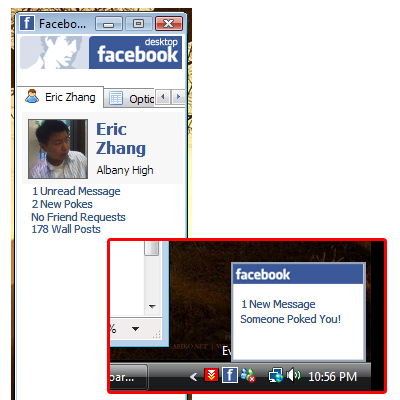
Facebook Desktop

Facebook Desktop is a Windows program that, with a small memory footprint, provides updates to the users Facebook profile, such as messages, pokes, wall posts, and friend requests. You don’t need to refresh your profile a hundred times to keep track of your Facebook! And just cause you’re not on the website doesn’t mean you’re not on Facebook.
Facebook Desktop
Download Facebook Desktop

FBQuick

FBQuick is a quick and easy way to get all your Facebook notifications right on your desktop without having to open the website.
FBQuick
Download FBQuick

Bloom

Bloom is a multi-platform desktop app that let you upload your photos and videos easily and efficiently to Facebook, download albums and view your friends’ photos. You can upload photos to a new or an existing album, you can tag them and you can view your friends photos.
Bloom
Download Bloom

FaceDesk

FaceDesk is an Adobe AIR application to use Facebook as a standalone application, instead of having to open it in a web browser. This app acts like a browser and only lets you browse Facebook on it. You won’t be able to view any other sites on it.
FaceDesk
Download FaceDesk

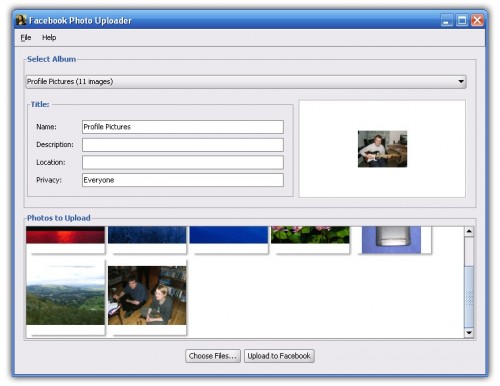
FB Photo Uploader

Upload photos to Facebook using a Java-based desktop application, including tagging photos before you upload. It looks more like a stripped down version of Bloom.
FB Photo Uploader
Download FB Photo Uploader

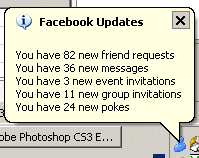
FB Tray Notify

FbTrayNotify is a small Windows application that sits in your taskbar, providing balloon style alerts when you receive new messages, friend requests, event invites, group invites, pokes and shares.
FB Tray Notify
Download FbTrayNotify

VisualSage

Visual Sage for Facebook is an innovative Facebook chat and desktop application implemented by VisualSage, an innovative software technology company. This app is built upon Microsoft’s new technology WPF which shows all our friends at Facebook in a network.
VisualSage
Download Visual Sage for Facebook

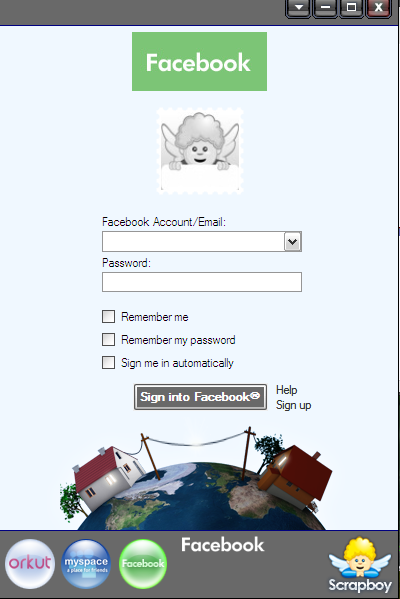
ScrapBoy

Scrapboy is a free desktop client for some of the popular social networks like Facebook, Orkut, and MySpace. It is a very useful app that brings all the features of social networks right on your desktop.
ScrapBoy
Download ScrapBoy

Gabtastik

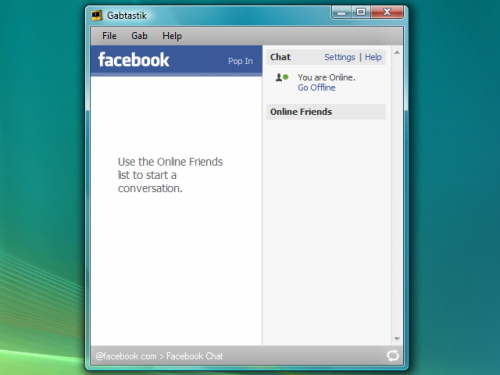
Gabtastik is a WebKit based app that lets you chat with your Facebook buddies from your desktop. You won’t have to open the entire Facebook page in your browser, just to chat with those friends, thus, saving system resources.
Gabtastik
Download Gabtastik

Zebr

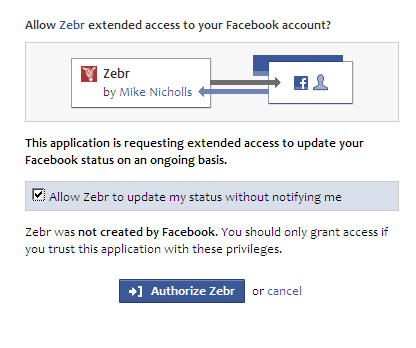
Zebr lets you keep tabs on your Facebook friends from your desktop and see what they are doing. It is an AIR-based app.
Zebr
Download Zebr

Facebook App For Microsoft Outlook

FBLook

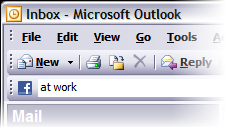
If you are an Outlook user, you probably have it open all the time. Now you can update your Facebook status, see your friend statuses and see notifications of new requests without having to open the browser or any other applications. FBLook seamlessly integrates Facebook into Outlook.
FBLook
Download FBLook

How hackers hack Facebook Account & How to stop them?

Facebook is, undoubtedly, the most popular social networking website with more than 500 million active users. Due to its popularity, many hackers (or should I say crackers?) are actively involved in hacking Facebook accounts of unsuspecting users. This articles outlines the many strategies that such hackers use to gain access to Facebook accounts of hundreds of users each day and how you can stop them from hacking your account.

Facebook is one of the prime target of hackers!

Email Address Hack

I have always been puzzled by Facebook's leniency in this matter. All a hacker needs to do is know your email address and he will be displayed  a confirmation showing your name even if he enters the wrong password. How easy life can then get for the hacker if he 'guesses' your password (if you use weak passwords) or answers your Security Question! This is something I hope Facebook improves on quickly. Until Facebook does so, here are some tricks you can use to protect yourself from this vulnerability.

How to safeguard your Email Address?
Just follow the steps:-

  1. Hide your Email Address from everyone by going to Account>Privacy Settings>Custom>Customise Settings>Clicking on the Lock icon besides your email address> Custom> Make this visible to Only Me.
  2. Change your primary email address to a one that is only known to you by Account>Account Settings>Email>Changing your contact email to the new one and removing your previous email address.
  3. For additional security, when in Account Settings, check Secure browsing and Send me an email when a new computer or mobile device logs into this account and click Save.
Also: Why Facebook is blue?

hack facebook
A hacker at work!

Phishing

Phishing is one of the easiest ways to trick users into giving out their login credentials. All the hacker does is setup a webpage similar in design to that of the Facebook homepage, attach a server sided script to track the username and password entered and store it in a log. Sending people emails stating that someone tagged a photo of them on Facebook in the same format as Facebook and giving a link below to the phishing website further reduces the chances of it being detected as a fake. Sometimes, spam Facebook apps, like the one's promising to tell who viewed your Facebook profile, automatically post links to phishing websites. A new trend amongst phishers is creating Facbook look-a-like widgets for stealing user's login credentials.

How to prevent yourself from being phished?
At all costs, avoid clicking on suspicious links. Moreover, always check the URL in the address bar before signing in. Avoid logging in through various "Facebook widgets" offered by websites and blogs. Instead, use Facebook's homepage to sign in. Always try to use Safe Search while searching. If you do manage to get phished, report the website so that others may get a warning before visiting it.

Tip: Change Facebook 's theme

hack facebook password

Keylogging through Keyloggers

Keylogger is a type of computer virus that tracks key strokes. Keyloggers can be installed remotely on a computer system by a cracker to record all the activity that is going on the victim's computer. Keylogging gets more easy if the hacker has physical access to the victim's computer.

How to stop keyloggers?
Install a good antivirus and update it frequently. Do not click on suspicious links and avoid downloading illegal software. Also, avoid installing free toolbars and other such spam software. Always scan third-person's flash and pen drives before using them on your computer.

Detailed Guide:- PC Security tips to make computer secure

Social Engineering

Social engineering involves using any trick to fool the user into making himself vulnerable to exploits. This could involve anything from sending spoof emails, pretending to be from Facebook, telling you to change your password to 12345678 or a hacker maliciously getting out the answer to your Security Question in a friendly chat or discussion.

How to prevent yourself from being socially engineered?
Stay aware during chats and discussions. Use a tough security question, preferably one whose answer you would never disclose to anyone. Moreover, Facebook, or any other company for that matter, will never ask you to change your password to 12345678 or something as silly as asking you to send out your login details to prove that you are a active user. Always think before taking actions and your e-life on Facebook will be safe.

Also: Cool Facebook Status, Chat Tricks and Tips

What is Facebook?

Facebook is a social networking website.  It's a place for folks to gather and chat with each other, play games, and stay informed on news and other stories.  Facebook is a competitor of MySpace (one of the first social networking sites created).

Signing up for an account is fast, easy and free.  Anybody can join, although it's generally recommended that kids under 13 don't.  But having said that, there are plenty of kids under 13 that are on Facebook.  If you'd like to sign up for a Facebook account go to www.Facebook.com.

Once you have an account setup, the next step is to find family and friends and add them to your "friends list".  This step is necessary if you want to communicate or see what your friends are up to on Facebook.  The idea behind this step is to offer some basic privacy.  This way only people you list as "friends" can see you stuff on Facebook.

To find friends on Facebook, type their name in the search box.  Finding friends on Facebook can be a bit tricky because often times there's several people with the same name.  So figuring out which person is the one you really want takes some extra steps sometimes.  It's helpful if that person uploaded a photo of themselves (called a "profile photo").  This is the first step to identifying people on Facebook.  If there isn't a photo, or there's still some doubt to the person identity, then you can click the "View Friends" link next to the person your interested in.  The advantage of this is to see if you know the same people they do, and if you do, chances are this is the person you're looking for.

Adding friends on Facebook is a two-step process. First you have to "add them as your friend" (which in turn sends a message to that person that you want to be friends) ... and they then have to "accept you" as their friend.   If they don't accept you (or chose to ignore your request), you won't be ablee to see their Facebook stuff (posts, photos, etc.).

Once you've added friends to facebook (and they've accepted you as their friend), you can view their "friends list" - which can help you find more friends.  Some of your friends may suggest more friends for you which you'll see on your home page of Facebook. It doesn't take long to add a bunch of friends on Facebook.

The next step is the social networking part.  Anytime your friends write or post something on their wall (i.e., their home page), you will see it.  This works in reverse too.  Anytime you write or post something on your own wall (or homepage), your friends will see it.  So far so good - just you and your friends are seeing each other stuff.  However, this is where the privacy thing first starts to get out of control.  If you comment on a friends post, not only will they see it, but so will their friends (who many not be on your friends list).  Even though people you don't know will see your comments, they still won't have access to your Facebook stuff if they are not on your friends list. 

But the basic rule on Facebook is this ... don't write, comment or share anything that you don't want the rest of the world seeing!  Although there is some basic privacy on Facebook, you have to conduct yourself as if there is none.

We'll talk more about privacy and danger issues related to Facebook later, but for now, I hope you have a better understanding of what Facebook is and how to get started using it.

Understanding Facebook

When Facebook first launched, I signed up for an account under the advice I was getting from a business mentor at the time.  Social networking sites (like Facebook) are good business tools for various reasons.  But after signing up for the account, I hardly ever touched it.  Social networking was not my thing (and in many ways, still isn't).
 
Then one day, a friend told me about a game on Facebook and I decided to check it out because it was different ... and next thing I know, I'm really liking this game.  And while I was quickly becoming addicted to this game, I noticed that a lot more of my old friends I hadn't seen in a while were on Facebook and we started reconnecting.  Next thing I know, I'm hooked on Facebook and found myself visiting it everyday.

Yesterday I helped a 90-year old grandpa get started on Facebook so that he could surprise his grandkids.  How cool is that?  This gentleman had heard that his grandkids were on Facebook (often abbreviated, FB) ... he wanted to surprise them by showing up there himself.  And what a surprise it was.  Within minutes of setting up the account, he had made friends with his grandkids and was the talk of the town (so to speak).  His grandkids spent the rest of the day bragging how proud they were of their grandpa being on Facebook and finding them!

I get a lot of questions from clients about Facebook, MySpace, Twitter, etc. 
These are all social networking sites (and there are many more), where folks can congregate on the internet to chat, play games, read news and other interesting stories, etc.  Many of the questions I get deal with the dangers of using such sites and the folks asking are concerned about their kids and grandkids.  Naturally they want to protect them from internet dangers and so want to know more about how these sites work and what kind of dangers exist with them.

While the games and friends played a role in my getting more involved in Facebook, one of the primary reasons was so I could better answer these questions.   Those who really know me, know that I'm not comfortable disclosing information about myself and prefer to stay under the radar.  With Facebook, this is nearly impossible.  But in an effort to better serve my clients, I decided to put myself out on that limb in order to better understand the flow of information on Facebook.

So I will be posting several different articles on this blog about Facebook.  I hope that these articles will help answer all of your questions from "getting started" to "knowing the dangers".   Anytime you want to know something about Facebook, you can type "Facebook" in the search box above the posts and click the "Search this blog" button.  Every post I've written about Facebook will show up on the page.

So let's begin by talking about what Facebook is.  Click here to learn more.

Download Facebook Account 's Information and Pictures

OK. So you are an active Facebook User. Imagine, just imagine, some grieved enemy of your reports your posts, and Facebook ends up deleting your account. How would you feel?
Ruined?

Well not now. Facebook, the most popular social networking site, has improved upon its features. It now allows you to download all your account information at the click of a button.

While this has been requested by users for years now, finally Facebook has introduced the feature of downloading your Facebook account. The download will be in the form of a zip file containing all your profile pictures, wall posts and videos. Your messages, friend list, photos, events, likes ( and almost everything you have ever uploaded on Facebook )also will be included in the downloaded zip file. Upon unzipping the downloaded zip file, you will find a simple HTML file of your profile with offline links to the above stated things.

Downloading your account will not mean that Facebook will delete your profile. It will only serve as a backup and a leisure activity to give time to on Sundays.

Download Facebook Account

You can simply download your account by following the steps given below:-
  1. Login to Facebook.
  2. Click on Account.
  3. Navigate to Account Settings.
  4. Click on Download Your Information Link above the Deactivate your account link.

This link will only be available after you have entered your security question and confirmed your password. This additional security has been wisely added by Facebook so that no one else downloads your personal information.

Although this will be a good feature, Facebook will offer no way to re-import this information from your hard drive to your account or to a new account, if you wish to take a little break from Facebook.

Note: This feature is still not available on Facebook and will be available shortly as soon as Facebook completes testing it. I will update this post when this feature is publicly available.

Update: You can download your Facebook Account now as this feature is publicly available.

    Why Facebook uses Blue Color?

    When you open Facebook, the first thing that you notice is the blue color it uses. Ever wondered why is Facebook so blue in Color and not upgrading its theme.

    Ever since they started as 'thefacebook', Facebook has sticked with the blue color. Although major changes have been made in the Facebook theme since then, the major unchanged thing has been the blue color.

    facebook blue color
    Facebook from its early days when it was known as  thefacebook

    An exciting fact: In its earlier days, thefacebook.com required you to have an  .edu email id to join.

    Everywhere from its login page to Facebook groups, you find only blue.

    facebook is blue
    Facebook Login Page. All Blue!

    The reason for this is that  Mark Zuckerberg, the young founder of Facebook is red-green color-blind and blue is the richest colour for him which he confirmed in an interview with Leo Laporte few years back.

    Another important commercial factor for using blue color is the fact that most colors tend to distract the viewers. Blue on the other hand acts as a transparent background to the main content as visible to the human brain due to which most popular websites tend to use the blue color. It can easily be called a webmaster's favorite color. Blue Color is also sometimes referred to as 'Nirvana' for the brain.

    All these factors make blue a prominent color on Facebook.

    If you are bored with Facebook's blue theme and want a stylish theme, visit Change Facebook Theme.

    Change Facebook Theme Color, Appearance, Skin, Style or Template

    Facebook is a social networking site which enable people to connect with friends and people around. But it has one flaw, the default blue theme in Facebook is really boring.

    It is a fact that almost everyone is on Facebook but it is also a fact that not everyone is happy with the default blue theme on Facebook. Some even consider it a turnoff while visiting Facebook.

    It is relatively easy to change the Facebook theme to a stylish one using a Firefox addon and a custom theme which are available free of cost on the internet.

    The final outcome would be something like in the image.

    Change Facebook Theme


    Requirement: The basic requirement for this to work is to have Mozilla Firefox 3.5 or higher.

    Steps: The following steps should be carried out to successfully change Facebook theme.

    1. Open Mozilla Firefox and install 'Stylish' addon using this link.
    2. Follow the basic steps and install the addon.
    3. Restart Firefox after successfully installing the stylish addon.
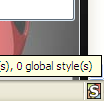
    4. Login to your Facebook Account and click on the small 'S' button in your Firefox status bar.
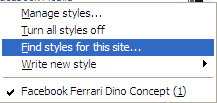
    5. Click on "Find Styles for this Site" to open a new tab with free themes to use for Facebook.
    6. Click on any theme and a preview will be shown.
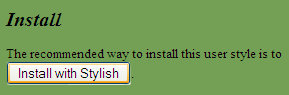
    7. If everything is fine in the previewed theme, click on "Install with Stylish" button at the top right corner of the page.
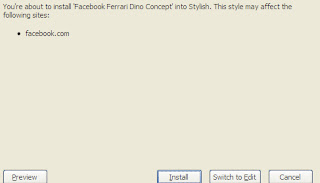
    8. A dialog box will open.
    9. Click on Install in the dialog box.

    Stylish Button


    facebook theme change

    Install with stylish

    Installing Ferrari theme for Stylish Firefox


    Now whenever you open Facebook, it will show the theme that you have installed with Stylish instead of the boring old blue theme.

    Use Caution When Posting on Facebook

    You probably noticed that a few of your Facebook "friends" will post just about anything that pops into their head.  Often times the posts are full of profanity and other vulgarities.  This seems to be especially true with younger people.

    Very few people consider the potential consequences when posting on Facebook.  The first thing to keep in mind is that everything you post gets stored in a database FOREVER!   You can delete old posts and photos from your facebook account .... but they will still remain in Facebook's database.  Here's a great article on just how long things remain in Facebook's database.

    Another thing to keep in mind is that others are searching Facebook for more information about you. It's becoming commonplace for future employers, colleges and others to search Facebook accounts to determine if you're the right sort of person they'd like to admit into their organization.  And of course, lawyers and law enforcement will also search Facebook in the event a crime is committed.

    If you have kids, nephews, nieces, etc. .... it's a good idea to teach them to keep things in mind when posting. For more information about the potential dangers of Facebook posting, click here.

    For more information about your Facebook privacy, click here.

    To learn how to stop Facebook from sharing your information on Google, click here.

    How To Unblock The Facebook

    Many people who have Facebook accounts would like to connect from work or place of study (college, university, etc..), But usually in these places, are responsible for managing public computers, block access to leisure and entertainment sites. There are several ways to violate these blockages so you can check your Facebook without problems. 

    This is a list of some tricks to connect to Facebook from work or place of study when it has been blocked: 

    1. Connect through https 

    HTTP is the protocol that allows a browser to read a web address or URL and display to the user. But there is also the protocol HTTPS , which is the secure version of the above. Usually system administrators block the addresses as http://www.facebook.com/ , but not secure protocol: https: / / www.facebook.com/ , so you can try in a place where you blocked site lets you enter through the secure protocol. So you also get more security in your account as being an encryption protocol, you can not access data such as passwords, because they are sent encrypted. 

    Link: https: / / www.facebook.com/ 

    2. Enter through the Google translator 

    One technique widely used to access web sites blocked by the companies is through the online translation system from Google. The translator can translate whole web pages by simply entering the address in the box provided. You can enter the link Facebook and the translator will display the page within a frame in your browser, although there are locks on it. 

    Go to: http://translate.google.com/ 

    3. Login via proxy 

    There are many proxy sites on the Internet, providing access to remote sites using a computer that acts as a link, avoiding the use of the server where the pages have been blocked. Although best known as Anonymouse.org, should already be locked into the system of your work, school or university. One that works efficiently is Vtunnel.com. Vtunnel can connect with your Facebook account from a PC blocked, as well as being proxy, you can also enable the cookie system that allows you to enter your username and password to the site. 

    To use, simply enter www.facebook.com Vtunnel.com address and you can access your account. If for some reason you receive the following message: "Cookies are not enabled on your browser. Please go to your security preferences and adjust the settings before proceeding, just enter your password again and enter the home of Facebook. 

    Remember that some of these tricks might not work, try them all until one allows you to access Facebook in the best way and without problems.

    Get Popular on the Internet

    We all wish to be popular. But unfortunately, getting popular is not so easy in the real world. However, in the cyber world of which we all are part of, it is not so tough if you follow some tips given below. Now what are you waiting for? Bring your Pen and Paper start taking notes on how to become famous.


    1.  Start a Website: You might have heard the cliche, "everyone popular has a website." But fortunately, you don't have to be famous to have a website. You can have your website made from a specialist or can make it yourself. Just choose a topic you like, get your pen...err... keyboard ready and start creating killer content for which people would come back again and again.


    2.  Start a Blog: Some bloggers are ridiculously famous. No matter what they write, people like it and start praising them. Although such wizardry would have no reason in the real world, the cyber world has a reason for everything. To become one such popular blogger, the basic thing required is killer content. The second most important thing is being regular in posting articles, and probably the most important thing required is humility. You can have your self hosted blog or choose any of the free blog hosting platforms. The two leading ones are Blogger and WordPress.

    Related: What is a Blog?

    3.  Join Facebook: Facebook is the second most visited website on the internet after Google. Almost everyone is on Facebook. Having so much traffic each day make Facebook a potential advertising source. Just Join Facebook, add everyone you know as a friend and also add the friends of your friends to your friends list.
    Create a Facebook Fan page and add a link to your website and blog on it. Observe what people like on Facebook and start a postathon of posting such articles. 'Like' other people's posts and give genuine comments on them. There is a good chance that they might get to your fan page and start following you.

    Also:Why Facebook Use Blue Color?

    get popular online


    4.  Join Twitter: Twitter is the latest buzz on the internet. Everyone well-known is on Twitter. Be it Tom Cruise or Sachin Tendulkar, twitter has left no one untouched. So why shouldn't you be on Twitter too? Join Twitter and start following people. It is more than likely that they will follow you in return. Be controversial but only to a limit. Moreover, tweet on any latest buzz you might see on the internet. e.g. Octopus Paul was the latest buzz on the internet in World Cup 2010. A lot more than many people tweeted about it. Most of them are popular on the internet.


    5.  Join Social Networking Sites: Aside from Twitter and Facebook, join all the social networking sites you can think of. Try to be an active member of the community and take part in discussions. People will eventually start liking you and will be pulled to click on your Profile. Have an amazing profile and do not forget to add a link to your website, blog, Facebook fan page and Twitter account.


    6.  Join Forums: Be helpful in forums. Welcome new members and don't discourage newbies. Always encourage them and remember that there are people on the other side of your Computer reading what you are typing. If you do all this, people will feel that they are under a charm and will click on your Profile. Again don't forget to add a link to your website, blog, twitter account and facebook fan page in your profile.


    7.  Your Profile:  Having a well written profile for uploading in social networking sites, your blog and website will help make you notorious much sooner. Remember to have a descriptive profile, with a slight comic touch. People will praise your profile and will be attracted to you like bees to honey.


    8.  Start Commenting: Give intelligent comments on other blogs/websites with a link to your website/blog. But remember not to give spammy comments followed by a link. Use the Name/URL field to give a link. Try to correct other blogs and suggest improvements in the posted articles. But remember not to become too much of a corrector. People don't like such commentators.


    I am pretty sure that if you follow all of the suggestions given above, you will also become popular on the internet in no time and would also join the elite group of famous people.

      Facebook launched E-mail in San Francisco

      facebook

      London- Social networking sites facebook are likely to launch its email service. Unlike usually up this new service will reportedly be launched at Web 2.0 summit in San Francisco, United States rather than at the places facebook in Palo Alto.

      According to social media news blog Mashable, launch email service is not independent of the difficulty of managing and setting up system message at this time. The account owner have difficulty sending a message to those who had not joined in the facebook, the system is also very simple that she could not forward mail (forwarding) or attach files (attachments).

      "When up this beat Google, then they should change the system into an e-mail message. Possible Monday we'll see it," writes Mashable.

      Faceebook email this project reportedly began in February. Michael Arrington of TechCrunch is calling it the first time. Internally, the project was called Project Titan or "Gmail killer".

      Previously, according to techcrunch.com sites, e-mail service at up to be launched today, Monday (15/11). The owners will get a facebook account email address personal@facebook.com. "And the email service will be launched on Monday, there are a lot of potential in the services," said author techcrucnh, Jason Kincaid.

      Email up this will integrate with the page the user. They will instantly connect with friends just like the Facebook site. If it will be launched tomorrow, then the email will direct meyalip facebook giants email service owner. Among others who have 361 million Hotmail users, Yahoomail which has 273 million users and Gmail have 193 million users.

      Facebook, which was founded by Mark Zuckerberg. He built up from room kostnya when he was a student at Harvard University. Currently, more than 500 million people is on Facebook.
      Source : http://id.berita.yahoo.com/
      Up has not commented officially about this email service.

      How to Delete Your Facebook Account

      Many people choose to remove themselves from Facebook for various reasons.  When you get ready to do this, there are two options available.   You can choose to Deactivate your account or Delete it all together.
      The difference is that "deactivating" your account allows you to change your mind later, while "deleting" it doesn't.

      Deactivating Facebook Account

      Deactivating your account changes your settings so that nobody can see your profile or contact you.  You're sort of invisible as far as others are concerned, but you are still there. Deactivating your account is easy.  Just log into your account and ....
      1. Click ACCOUNT and ACCOUNT SETTINGS.  
      2. Scroll down to the bottom of the page and click "Deactivate".
      Note that one of the potential problems with "deactivation" is that Facebook is notorious for making concealed changes and it's possible that a future change may upset the balance with your deactivation settings and inadvertently make your profile public again.


      Deleting Facebook Account

      Deleting your Facebook account removes EVERYTHING - your profile, pictures, videos ... everything.  You will cease to exist on facebook.  If you decide go back, you'll have to create the account from scratch again.  Facebook really hates to lose people, so they tend to hide the information telling you how to delete your account.  But if you click the button below, you'll be directed to a page that will let you delete your Facebook Account.  Click the "Submit" button to delete the account.

      Click here to Delete Your Facebook Account

      For more information about deleting your facebook account, click here

      How to change your Facebook url

      In my last post i had written about "How to stop following a blog on Facebook" Today lets see how to change your personal Facebook URL.previously our Facebook URL consisted of some long string with a words and some numbers  in it,which was impossible to remember.Now Facebook has started a service which enables you to get your own username for your page url.its actually cool as its easy to remember.Changing this is very easy.

      Steps to change the url:
      how to change facebook username


      popular incoming searches:
      1)how to change Facebook url
      2)create a custom facebook url

      Changing Your Privacy Settings in Facebook

      One of the biggest annoyances of Facebook is that they are constantly making changes - many of which affect your privacy.  Sadly, too often, you have learn about these changes from somebody else (not facebook).

      Today, one of my friends mentioned that Facebook is now making our phone numbers public (by default) unless we go in and change them.   So I did some checking.

      Facebook generally has 3 different options for privacy.  You can either share all of your information (including profile, photos, videos, etc.) with .....
      • Everyone
      • Friends only
      • Friends of Friends

      Unless you're a celebrity or business person, you typically don't want everybody to see your information.  So selecting the "Friends only" option is good for most Facebook information.  When sharing photos, I usually select "friends of friends" so that if my friend wants to share my photos with their friends, they'll be able to see them. 

      However, there is definitely some information you want to keep just to yourself.  And you will have to manually set these options.

      Changing your privacy settings in Facebook is tricky (especially since the steps keep changing).  But as of today, here's the steps.
      1. Log into Facebook on select ACCOUNT and then PRIVACY SETTINGS (blue bar at the top of the page)
      2. By default, you'll see a mixture of privacy settings.  For now, click FRIENDS ONLY on the left menu of options.

      1. Now select click the link that reads, Custom Settings
      2. If you've selected "Friends Only" previously, then you may only have to change the settings under "Contact Information" - but be sure to check every setting yourself to make sure you are only sharing information you want to with the people you want to.
      3. To change your settings, click the gray button next to each setting and select the option you want.  If you want to set it so only you (and not your friends) see something, click CUSTOM and then use the pull-down arrow to select JUST YOU. Then click the SAVE SETTINGS button.
      4. Repeat the process for each privacy setting.

      Because Facebook has a habit of making frequent changes to their system, it would be a good idea to re-check these settings periodically to make sure they're configured correctly.

      For more information about Facebook Privacy, click here.

        Sharing Articles, Videos and More on Facebook

        Facebook is more than just a social site for keeping in touch with friends.  It's also a great tool for sharing articles, videos and music with others.  One of the problems with today's media is that they often suppress stories that really should be shared.  Thanks to facebook, you can now share in the dissemination of information so as to make more people aware of various issues.

        You've probably noticed that many news sites, YouTube, and other sites now have a "share on facebook" link on their content.  This is one way to share information easily.  But while these becoming more popular, there are still many sites that haven't incorporated them yet.

        Facebook offers a great little "share bookmarklet" button which can be added to your browser's toolbar.  With this button, you can now share anything you come across on the internet with others.  This is a great tool for sharing articles, music and videos on facebook.

        If you use Firefox to browse the internet, adding the share bookmarklet button is really easy. All you do, is drag the button from the web page below to your bookmark toolbar in Firefox and let go.

        http://www.facebook.com/share_options.php

        If you're using Internet Explorer or another browser, you might have to experiment a bit.  To date, I haven't been successful adding the bookmarklet to my bookmark toolbar in Internet Explorer.  And since I primarily use Firefox, I haven't spent a lot of time trying to figure it out. So if anybody else has been successful adding the tool to Internet Explorer (or any other browser), I hope they'll post the steps here.

        Once the "share bookmarklet" button is on your bookmarks toolbar, all you need to do to share something is click the button.  If you're not logged into Facebook at the time, you'll be asked to login, and then the info will be shared.  If you like, you can even add a personal message to the post.

        The cool thing is that even though you have to login to facebook to post, you really don't have to be on the site at the time.  In other words, you can be logged into a site (like Facebook) without actually being on the site. 

        Enjoy!

        Facebook's New Privacy for Users


        From long time, Facebook has had a pretty consistent modus operandi that It breaks stuff, catches flack for it, and then-eventually-backpedals or otherwise responds to the criticism. The tradition continues with CEO of Facebook Mark Zuckerberg's new blog post. After a few weeks of intense unhappiness over the company's recent new features and related changes to privacy policies, it's redoing its privacy settings in a major way.

        Zuckerberg says that the new features will take a few weeks to reach every Facebook user. I don't see them yet. But here's a recap of what he says is new:
        • Rather than having to wade through gazillions of granular settings, it'll be easy to tell Facebook you want anything you post to be visible to friends only, friends of friends, or everybody. These rules will apply to future Facebook functionality that doesn't exist yet.
        • You'll be able to make your Friends and Pages lists completely private.
        • It'll be easier to block apps on Facebook from getting at your information.
        • It'll be easier to block external sites such as Pandora which use Facebook's new "Instant Personalization" from getting at your information. (Currently there's no single place to go to do this, nor any way to block all sites with one click).
        • If users find these changes satisfactory, Facebook intends to avoid major changes to privacy policies "for a long time”.

        10 Privacy Settings for Facebook You Should Know

        I know I've posted information about privacy settings on Facebook before, but they can't be emphasized enough.  While it's best to approach facebook from the standpoint that EVERYTHING is public, you do some control over what information is shared.

        I stumbled across an article today titled, "10 Privacy Settings Every Facebook User Should Know".  There are some excellent tips in this article and it's well worth your time to read.

        For more information about Facebook Privacy, check out the links below. Of course, keep in mind that if you're a business owner on Facebook, you may not want to implement some of these privacy changes since they would reduce your visibility.

        Facebook Places & Your Privacy

        Changing Your Privacy Settings in Facebook

        How to Stop Facebook From Sharing Info on Google

        McAfee & Facebook Announce Collaboration

        In a very significant announcement top social networking site, Facebook and Internet Security and Antivirus solutions provider, McAfee have announced a collaboration to work together. Facebook has a user base of 350 million users. Under the terms of the deal, Mcafee will provide free subscription of its Internet Security Suite software to the Facebook users for six months.
        Facebook and McAfee are also working towards creating a custom scanning and repair tool which will be made available as free download or might be sold at discounted prices to Facebook users.
        The interesting facet of the partnership is that Facebook will be using the financial accruals from this partnership to bring more benefits to its users. They will not be taking any share of revenues from McAfee. McAfee users can buy the products after expiry of the six month trial period. McAfee will be buying advertising from Facebook.
        Social networking sites have always been targeted by hackers. Presently the scanning tool using English language is available in eight countries to Facebook users. Other languages are under development.