Showing posts with label fix computer errors. Show all posts

How to Troubleshoot Firewall & WiFi Adapter in a Laptop

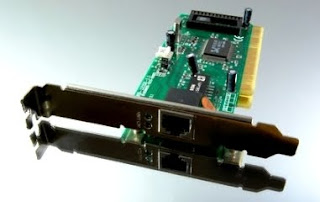
Windows Firewall, also known as Internet connection firewall, is designed to block unauthorized access to any program or software installed on your laptop. Firewalls are often used to block hackers or spammers that may cause damage through freeware or spyware or peer-to-peer file-sharing programs. The Wi-Fi adapter or wireless network adapter connects your laptop to the Internet wirelessly. Wi-Fi adapters can be built in or can be external ones that plug into your USB port.
Troubleshoot Windows Firewall

  • Click on the Start menu and select "Control Panel."
  • Double click on "Windows Firewall." (For Windows XP, double click on "Security Center.")
  • Click on "Enable" to make sure your laptop is protected by a firewall. If you use Windows XP, click "On (recommended)."
  • Click on the "Exceptions" tab if you wish to troubleshoot firewall issues for a specific program in Windows XP. Click on the link "Allow a Program through Windows Firewall" for Vista and Windows 7.
  • Click on "Add program..." button at the bottom. Click on "Browse" to navigate your hard drive and locate the program that you wish to troubleshoot. Select the program and hit "OK."

Troubleshoot WiFi adapter

  • Click on Start and select "Run..." Type "devmgmt.msc" (without the quotes) and press "Enter." This will launch "Device Manager."
  • Scroll down the list of devices until you find "Network Adapters." Click on the plus sign to expand. Right click on your Wifi adapter and select "Update Driver Software..." Follow the prompts to finish installing the update.
  • Right click on the WiFi adapter once again and select "Disable." Wait for a few seconds, right click and select "Enable."
  • Unplug your WiFi adapter from the USB port if you are using a USB network device. (If you are using a built-in [internal] wireless adapter, ignore this step.) Wait for a few seconds and plug it back in. Sometimes, a simple restart of the USB WiFi adapter can fix problems.

How to fix computer

How to fix computer
In case you face any issue related to your computer system then you fix the issue yourself or you can get it fixed by a computer professional. You can face problems with your computer hardware or software and even both.

Some of the most common problem which your computer hardware can encounter includes hard disk failure, motherboard failure, audio and video device failure, power supply failure, CPU failure, USB device failure, and other related computer hardware problems. The problems which might occur with computer software can be - application taking more time to load, or even refuses to install, operating system failed to load, drivers not working and other similar issues. There are several other problems that can also occur in a computer system.

Where and how to find the solution?

Microsoft offers a built-in “Help and Support” center in its Windows series of operating system, which is a database of some of the most common problems along with their solution steps. It facilitates the Windows users to fix their computer by themselves. Let us highlight a system failure problem along with the most acceptable steps to solve the problem.

Problem: System failure.

Solution: Carry out below mentioned troubleshooting steps to solve this problem:

  • Check the power connection of your PC, if the PC is already plugged into a power source and is working properly then follow the next step.
  • Reboot your computer to see whether the same problem still persists.
  • Restore your PC to its previous state.
  • Scan for any memory problem.
  • Check the hard drive for any errors.
  • Check for any issues related to device drivers.

If you are still unable to solve the problem then you can take help from a technical support company who can solve all your computer’s problem and fix it instantly through remote computer repair.

Are You Aware of the Most Common Computer Errors

If you are a computer enthusiast, you don’t need to be told about the most common computer problems. However, a majority of people who own a computer don’t understand that there are common errors that you will begin to experience as your system ages with time. It does not necessarily mean that you should abandon your old PC and look out for buying a new one. On the other hand, it would be best if you gain knowledge about these problems and then find out how to troubleshoot them.

Computer Hangs-Up: You must have seen your computer hanging up. At times, it would have been impossible for you to even get the cursor moved. You should leave the computer for a while and give it some time to do its thing on its own and then you can get back online to finish what you need to do. If it does not come to a normal working condition in few minutes, try rebooting your system. It is not recommended that you do this all the time; however sometimes this is the only way to bring it back to life.

Maintenance problem: Unfortunately, over 75% of computer users don’t realize the need to take proper acre of their systems. Poor PC maintenance can lead to nasty technical errors which will keep coming up every now and then, thereby disturbing you in the middle of the work.

Blue Screen Error: This is one of the most complicated computer problems. It would make your system just freeze up or even worse the screen would turn totally blue. It could mean that your machine has a short circuit or it could have acquired a computer virus.

No matter what types of computer problems you are facing, you can get them troubleshoot by computer experts. You can nowadays find a lot of such professionals on the Internet. Such services are known as online computer support. The techs will also offer you valuable information on how to properly maintain your PC.

These resources are available for 24x7 and make sure that your problem gets resolved quickly and you get quality services at the most reasonable rates.