Showing posts with label jaunty. Show all posts

Ubuntu Jaunty Hits Beta

As always the ubuntu developers have worked tirelessly to bring us another Beta release which should be stable enough to test for most people here are some of the features you can look at while downloading the iso or doing a release upgrade:

To upgrade from Ubuntu 8.10 on a desktop system, press Alt+F2 and type in "update-manager -d" (without the quotes) into the command box. Update Manager should open up and tell you: New distribution release '9.04' is available. Click Upgrade and follow the on-screen instructions.

To upgrade from Ubuntu 8.10 on a server system: install the update-manager-core package if it is not already installed; edit /etc/update-manager/release-upgrades and set Prompt=normal; launch the upgrade tool with the command sudo do-release-upgrade; and follow the on-screen instructions.

If you choose to download the iso be sure to backup your home directory to another partition and checkout ext4 filesystem for improved performance.

Here are the new features since intrepid:


  • GNOME 2.26 - For a Good review of the gnome changes look here
  • Improved handling of multiple monitors with an updated gnome-display-properties by Federico Mena Quintero.
  • X.Org server 1.6
  • New style for notifications and notification preferences - for an example check out the flash video here
  • Boot performance - A number of improvements to the Ubuntu start-up process bring significantly improved boot performance to Ubuntu 9.04 Beta. Please open bugs if you experience any degradation, and tag them with boot-performance.
  • Ext4 filesystem support - One of my favorite additions, it improves boot performance and overall filesystem performance
  • There is a ton of other bug fixes and misc features added, Its been stable for me since alpha 3.

Get it while it's hot. ISOs and torrents are available at:

5 Things To Do After Installing Jaunty

Powered by Ubuntu Linux (Sticker)

Enjoying the latest and greatest that Linux has to offer? Here are 5 things you should do to get even more from your Ubuntu 9.04

1) Configure Firewall

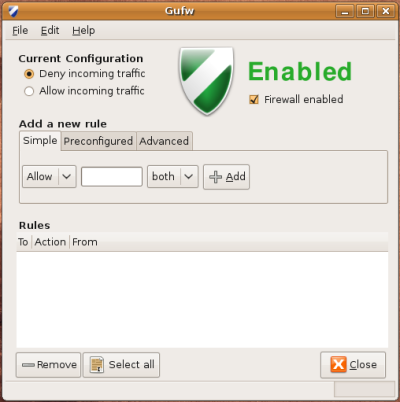
If you are concern about your security, then it is pertinent that you activate the firewall and prevent any unauthorized access to your computer.

UFW is installed by default, but if you need a graphical interface, install GUFW.
sudo apt-get install gufw

2) Enable the repositories

Every time I do a fresh install of Ubuntu, the first thing that I do is to enable the universe, multiverse, backport and Canonical’s ‘partner’ repositories. These repositories open up new application choices and allow you to install popular third party software easily and quickly.

Go to System -> Administration -> Synaptic Package Manager.

Click on Settings -> Repositories.

Check all the boxes.

Go to the Third-Party Software tab. Check all the boxes.

Click on Close button and press the Reload button at the top left corner to update the repositories.

3) Wine

Wine is a must-have application for those who can’t live without their Windows applications, It allows you to install your Windows application in your Ubuntu machine and run them like native Windows apps.
sudo apt-get install wine

Once you have installed Wine, remember to run the configuration (Applications -> Wine -> Configure Wine) before attempting to install your favorite Windows app.

4) Ubuntu-Restricted-extras

YouTube, LLCCan’t listen to MP3? Can’t watch Youtube video? Can’t run Java? Don’t worry, all you need to do is to install the ubuntu-restricted-extras package and it will install all the necessary files/codecs for you. Some common applications in the package include MP3 codec, Adobe Flash player, Java runtime and Microsoft core fonts.
sudo apt-get install ubuntu-restricted-extras

5) Download Ubuntu Tweak and VLC

Download Ubuntu Tweak here and install it by double clicking the .deb file

Download VLC by this command

sudo apt-get install vlc

Install Java in Ubuntu 9.04 'Jaunty Jackalope'

Java (programming language)

To install Java Runtime Environment in Ubuntu do this.

Open the terminal and run the following command:

 sudo apt-get install sun-java6-jre sun-java6-plugin sun-java6-fonts

Soon you will come across Sun Operating System Distributor License for Java screen, hit Enter.

Next you will come across the DLJ licence terms, select 'yes' and hit Enter.

Ubuntu will now install JRE.

Install Google Gadgets In Ubuntu 9.04

Google Gadgets for Linux provides a platform for running cool and useful desktop gadgets under Linux, catering to the unique needs of Linux users.


Install Google Gadgets in ubuntu 9.04

If you want to install google gadgets use the following command

sudo apt-get install google-gadgets-gtk 
Using Google Gadgets

You can open Google gadgets go to Applications—>Internet—>Google Gadgets (GTK)


Start Google Gadgets Automatically
To start Google Gadgets when you log in, open
System->Preferences->Sessions. Click Add and create a new item for Google Gadgets with the command ggl-gtk.

Compiz Widget Layer integration
Just like with Screenlets, you can use Compiz’s Widget Layer plugin to get an effect similar to Mac OS’ dashboard. You will need to have the Advanced Desktop Effects Settings tool (CCSM) installed, and be using the custom desktop effects level.

Launch
System->Preferences->Advanced Desktop Effects Settings. Enable the Widget Layer plugin, and enter its preferences screen. Select the Behavior tab, and type the following into the Widget Windows text box:
class=Ggl-gtk

Your gadgets should now be hidden. Press F9 to toggle the widget layer to show and hide them.