Showing posts with label wine. Show all posts

Install Microsoft Office 2007 in Ubuntu Without Any Hacking

Few weeks ago I wrote about how Codeweavers lets you install vital applications like Microsort Office, Excel, Adobe Photoshop etc..
Well now I want to tell you of an even easier method of Installing Microsoft Office for FREE!
Yup, now you don't have to waste $40 on CrossOver Linux or pirate it.
Google and others have been pumping in money to make Wine more usable. Finally Wine has come to such a stage that no hacking is required to install Microsoft Office 2007.
To install Office in Linux do this:
Install latest version of Wine, anything above version 1.1.03 would do..
Here is a detailed explanation of how to install the latest version of Wine for Ubuntu.
Now go to the folder where the setup file for Microsoft Office exists.
Double click on the .exe file.
The Office installer will pop up, provide the usual password and let the installation begin.
[Image]
Thats it, you have installed Office 2007 on Ubuntu.
But there is one problem, on starting Word, you will find ugly crossbars like these:
[Image]
To get rid of them do this:
Go to the Office button -> Word Options -> Advanced -> Show document content -> uncheck "Show crop marks".
Here is a working screenshot:
[Image]
If you found this useful please Digg It..

Make Wine Beautiful In Ubuntu!

Wine is UGLY! Here is how you can make it beautiful.
For those of you who don't know what is Wine, here is a short introduction:
Think of Wine as a compatibility layer for running Windows programs. Wine does not require Microsoft Windows, as it is a completely free alternative implementation of the Windows API consisting of 100% non-Microsoft code, however Wine can optionally use native Windows DLLs if they are available.  
In short use Wine to run Windows software on Linux.
Wine is amazing. Many top notch softwares like Microsoft Office, Adobe Photoshop and various Windows games run on Linux thanks to Wine. That too with out any slow downs associated with emulators. However there is one big drawback  of using Wine. The windows applications look as ugly as Maggie Gyllenhaal. (Wish Katie Holmes had been there in Dark Knight!)
Thankfully the Wine developers have kept a wonderful feature by which you can use Windows themes to decorate Wine! So without any hacking you can get beautiful Windows applications on your beautiful Ubuntu desktop.
Here is Foxit running under Ubuntu thanks to Wine. Looks as ugly as Windows 95!
Now install SegoeUI on Ubuntu, in my opinion SegoeUI is 'the' best font out there currently. You can install SegoeUI by following these tips: Install Vista Fonts in Ubuntu
 Download the Royal Theme from Softpedia it comes with 3 inbuilt themes: Royal, Royal Noir and Royale Zune.
Install RAR support  in Ubuntu and extract the file. Install the extracted Royal Remixed.msi file as you'd install any other Windows application.
Now go to Applications >Wine >Configure Wine
In there  select the Desktop Integeration tab. Select the theme 'Royale Remixed' from the drop down box.
Now look for another drop down box called 'Item'. In there search for these items and change the font to SegoeUI.
Active Title Text
Menu Text
Message Box Text
ToolTip Text
Here is Foxit after making all these changes.

15 Apps I Install On My Newly Installed Ubuntu

I decided to reinstall Ubuntu after using Kubuntu for some time. Here are some apps which I installed, I hope you will find it useful:
1. Opera: My current favorite browser. It isn't opensource, but works well.
Download Opera 
2. Hardware Drivers: to enjoy the coolest desktop effects, download these.
3. Codecs: Try to play any media file (MP3) and Ubuntu will install them automatically for you.
4. Compiz Setting Manager: You can enable many cool effects by using this simple settings manager, one example is the sexy desktop cube.
Open a terminal windows and type: 
 sudo aptitude install compizconfig-settings-manager
 

5. Exaile: The best music player for Gnome (modelled after Amarok). It is currently in alpha stage.
Download Exaile 
6. Skype: Make free calls from Ubuntu.
Download Skype 
7. Adobe AIR: You can use cool Adobe AIR apps by installing this.
Install Adobe AIR 
8. Flash: The most singularly important browser plugin. I use the Adobe version, the other two (Gnash and Swfdec just don't make the cut).
Download Flash Player 
9. Java: To run Java apps.
Install Java 
10. TweetDeck: The best twitter client out there, the real reason why I liked twitter for the first time.
Download Tweet Deck 
11. VLC: Newly Installed UbuntuThe best video player (though it still doesn't have audio for 3GP files)
Use Synaptic to install 
12. Beagle seach: A desktop search engine, far better than Tracker (which comes by default with Ubuntu).
Use Synaptic to install 
13. Themes & Wallpapers: The default theme is getting better with every new release of Ubuntu, but I'd still use something else.
14. Ubuntu Tweak: One stop solution to modify and tweak Ubuntu.
Download Ubuntu Tweak 
15. Wine: The only way to run Windows programs like MS Office in Ubuntu 

Use Synaptic to install

Enable Font Smoothing in Wine

By default Wine is very ugly and reminds me of Windows 98. But you can try to make it look good by enabling Font Smoothing.
Download this shell script using the following command
---------------------------------------------------------------------
wget http://files.polosatus.ru/winefontssmoothing_en.sh
---------------------------------------------------------------------


Run this script using the following command
------------------------------------
sh winefontssmoothing_en.sh
------------------------------------


Select the option 3:


5 Things To Do After Installing Jaunty

Powered by Ubuntu Linux (Sticker)

Enjoying the latest and greatest that Linux has to offer? Here are 5 things you should do to get even more from your Ubuntu 9.04

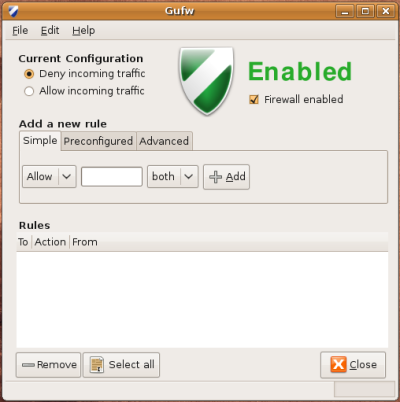
1) Configure Firewall

If you are concern about your security, then it is pertinent that you activate the firewall and prevent any unauthorized access to your computer.

UFW is installed by default, but if you need a graphical interface, install GUFW.
sudo apt-get install gufw

2) Enable the repositories

Every time I do a fresh install of Ubuntu, the first thing that I do is to enable the universe, multiverse, backport and Canonical’s ‘partner’ repositories. These repositories open up new application choices and allow you to install popular third party software easily and quickly.

Go to System -> Administration -> Synaptic Package Manager.

Click on Settings -> Repositories.

Check all the boxes.

Go to the Third-Party Software tab. Check all the boxes.

Click on Close button and press the Reload button at the top left corner to update the repositories.

3) Wine

Wine is a must-have application for those who can’t live without their Windows applications, It allows you to install your Windows application in your Ubuntu machine and run them like native Windows apps.
sudo apt-get install wine

Once you have installed Wine, remember to run the configuration (Applications -> Wine -> Configure Wine) before attempting to install your favorite Windows app.

4) Ubuntu-Restricted-extras

YouTube, LLCCan’t listen to MP3? Can’t watch Youtube video? Can’t run Java? Don’t worry, all you need to do is to install the ubuntu-restricted-extras package and it will install all the necessary files/codecs for you. Some common applications in the package include MP3 codec, Adobe Flash player, Java runtime and Microsoft core fonts.
sudo apt-get install ubuntu-restricted-extras

5) Download Ubuntu Tweak and VLC

Download Ubuntu Tweak here and install it by double clicking the .deb file

Download VLC by this command

sudo apt-get install vlc