Showing posts with label Cool. Show all posts

Have a Personalized Logon Wallpaper in Windows XP

Have you always wanted to have your image displayed as a log on banner whenever you start your PC? This article explains the exact procedure required to have your own photo or your pet's photo being displayed as one such banner. With this trick, you can have a personalized wallpaper which would appear before your log in screen each time you start your computer.

To use this trick, you need to have a bmp file. If your image is of any other format, you can save it in bmp format using MS Paint or Irfan View(To download Irfan View, visit 5 Essential Freewares for your PC).

Now that you have the bmp file, follow the steps given below.

  1. Click on Start.
  2. Click on Run.
  3. Type "regedit" in the dialog box without quotes.
  4. Navigate to HKEY_USERS\.DEFAULT\Control Panel\Desktop.
  5. In the right hand pane, double click on the value Wallpaper.
  6. In the Value Data option, enter the full path to your bmp file you created to be your wallpaper. Example: For a file named image.bmp placed in Windows folder, type "C:\WINDOWS\image.bmp" without the quotes.
  7. Double click on Wallpaper Style, and change its value to 2 to get a stretched image.

A personalized Logon Wallpaper Registry Editor
    Close the Registry Editor and Restart the PC to apply the changes.

    Once the changes are applied, each time you start your PC , you will see the log on wallpaper. To undo the trick, simply delete the address to your image in Step 5.

    P.S: I have my photo as the log on wallpaper.  What is yours?

    Epic Browser: The safest, intuitive way to browse the web

    "Meet Epic. Your New Best Friend." says the opening lines of the webpage at EpicBrowser.com and I do not totally disagree. Epic Browser is the first browser with the made in India tag and which proudly says that it is made for Indians. Epic has left the top browsers like Google Chrome and the original Mozilla Firefox tasting the dust in terms of security.

    Moreover Epic Browser is totally free. Although its focus is on Indian Consumers, users from other countries will also find it useful. Epic Browser is the first product of the Bangalore based software company HiddenReflex.


    About HiddenReflex: From the browser's about us Page, " Hidden Reflex is a software product startup founded by Alok Bhardwaj in 2007 and based in Bangalore. Alok, who was raised in the U.S., was inspired by the success of open source software and web 2.0 innovations."

    Epic Browser

     Features
    1. Based on rock solid foundation of Mozilla Firefox 3.6.6. What else do you need? A totally customizable version of Firefox and definitely more safe than it. All the features of Mozilla and more.
    2. Tweaked for improved speeds. I have personally found the Epic Browser performing better in rendering pages than original Mozilla Firefox 3.6.6. Both browsing and downloading were found to be faster on the same internet connection than Mozilla Firefox.
    3. Built In Anti-virus: Epic Browser is the world's first anti-virus browser with integrated Eset Nod32 anti-virus( considered to be among the safest security products) which you can use to scan your whole system after downloading virus definitions of about 25 Mb. Unlike trial versions of anti-viruses, you can use epic anti-virus to kill the viruses it finds.
    4. Malicious Website Warnings: Epic warns you whenever you are going to visit a malicious website.
    5. Anti Phishing Protection: Epic shows a big bolded domain name so you can never confuse google.com to a scammy googlescam.com.
    6. You get latest film songs, live cricket scores, news from leading sources like rediff.com, regional and hindi news, live tv, stock quotes, events, videos and a daily joke in the Epic Sidebar.
    7. Epic offers one click private data deletion, one click private browsing, flash cookie deletion and even no browsing records for those worried about Privacy( Mozilla and Opera store what you search on search engines.).
    8. Sidebar: The epic sidebar is a gem in its own. It contains links to Facebook, Twitter, Orkut, Gmail, Yahoo with live updates to your feeds directly in the browser. So, you can always stay updated to your friends.You can use the sidebar to find jobs, play games, make a to do list, backup your hard drive, start a timer and even download a customized app.
    9. What's more? Epic has integrated World Of Trust Search and rating with which you can sort your results and remove less trusted sites.
    10. Epic automatically display an option to view cached versions of not found pages from 3 sources. Google, Wayback and Coral.
    11. If you don't like the included skin, you can always download a skin anytime. Note: When you start Epic for the first time, it downloads the default skin. So the lag in speed should in no way associated to the browser.
    12. You can use Epic to type easily in Indian languages using Epic Indic Text.
    13. Epic has an integrated Word Processor with which you can easily create documents. So forget other WordProcessors.


    Download Epic Browser: You can download Epic browser from EpicBrowser.com.

    Safest undoubtedly it is, epic is not totally bug-less and the most common problem is that it re-downloads its theme every few days. Overall , epic is a feature rich browser with loads of potential. If HiddenReflex works on it well, epic can easily become the best web browser in the market. 

    For more such great freewares, visit our Freewares Section.

      Cool Keyboard Tricks (Windows) : Make a Disco

      Keyboards usually have small LED's which indicate whether different types of locks are activated or not. Here is a trick to use the lights of your keyboard in a more creative manner in Windows.

      This trick uses a simple Visual basic script which when activated makes your scroll lock, caps lock and num locks LED's flash in a cool rhythmic way which gives the perception of a live disco on your keyboard.

      Keyboard tricks

      To make your own live disco, follow the steps given below:-

      1. Open Notepad.
      2. Copy paste the exact code given below:-

      Set wshShell =wscript.CreateObject("WScript.Shell")
      do
      wscript.sleep 100
      wshshell.sendkeys "{CAPSLOCK}"
      wshshell.sendkeys "{NUMLOCK}"
      wshshell.sendkeys "{SCROLLLOCK}"
      loop
      3. Save the file as Disco.vbs or "*.vbs".


      Double click on the Saved file to see the LED lights on your keyboard go crazy and make your own cool disco.

      This trick has been tested on Windows XP, Windows Vista and Windows 7 and found to be working perfectly.

      You can disable the keyboard disco by starting Task Manager and ending the wscript.exe process.

      Change Processor Name Permanently

      A while ago on Technology Inspired, I published an article on changing your processor name. But recently, Technology Inspired reader Anil Kumar pointed out that the trick only changed the name temporarily.

      After a user restarts his computer, the name reverted back to original which is obvious as each time Windows boots, it checks the connected hardware and updates the registry value automatically. So, changing the processor name using the earlier article did not had permanent effect on the processor name.

      Thus, the alien processor name you had earlier again reverted back to the boring old one.

      Change Processor Name Permanently

      Problem: To, make the name change permanent, it was required that the user updates the Processor Name String registry key each time when Windows starts.

      Solution: It is very easy to change your processor name permanently by creating a registry key and placing a shortcut to it in the windows start up folder. To do so, just follow the steps given below:-


      Steps :-
      1.  Open Notepad.
      2.  Copy and paste the exact code given below:-

      Windows Registry Editor Version 5.00

      [HKEY_LOCAL_MACHINE\HARDWARE\DESCRIPTION\System\CentralProcessor\0]
      "ProcessorNameString"="My Processor name 50000MHz"
      To change the processor name, edit the part of the code given in blue. Also understand that \0 in the above code should only be present if Windows store your processor name at that location. Please open Registry Editor and navigate to the above mentioned keys to check whether or not to include the \0.

      3.  Click on File Menu, click on Save As and select "All Types" in Save as Type option. Save the file as ProcessorNameChange.reg or *.reg.
      4.  Create a new shortcut on your desktop. Enter regedit / S "Location of the .reg file" as the location of the item. For example, enter regedit /S "C:\Processor Name.reg" if your registry file is located in the root of C:\ drive.

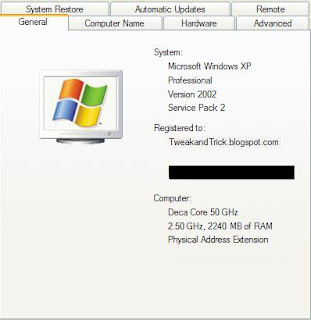
      Processor Name

      5.   Copy the created Shortcut file.
      6.  Navigate to C:\Documents and Settings\All Users\Start Menu\Programs\Startup (in Windows XP) or to C:\Users\ User-Name\AppData\Roaming\Microsoft\Windows\Start Menu\Programs\Startup (in Windows 7 and Windows Vista . Also remember that AppData is a hidden folder.)  if C: is your System drive.
      7.  Paste the copied file.


      This registry file would now execute each time when windows starts and the Processor Name String would be modified each time. So, even upon restarting your computer, you will see that the changed processor name is permanent.

      Password Protect/ Lock folders in Windows without any Software

      Most of us have private data. Not all of us have a private computer to keep that data. So, we just end up with other people viewing that data. Although password protecting software do work, it is almost useless to hide private data with these software(because we are always questioned as to what it is that we are hiding with the help of these software).

      Hidden folders do not work as they can be easily searched with Windows Search. So, we need an alternative way to create hidden password protected folders which only we can access. And that is exactly what we will learn in this post.

      With this trick, you can create a secure password protected folder in Windows which no one except you can access. To use this trick, follow the instructions given below:-
      1.  Open Notepad.
      2.  Copy and paste the exact code given below:-

      cls
      @ECHO OFF
      title computer-help-tips.blogspot.com
      if EXIST "Control Panel.{21EC2020-3AEA-1069-A2DD-08002B30309D}" goto UNLOCK
      if NOT EXIST MyFolder goto MDMyFolder
      :CONFIRM
      echo Are you sure to lock this folder? (Y/N)
      set/p "cho=>"
      if %cho%==Y goto LOCK
      if %cho%==y goto LOCK
      if %cho%==n goto END
      if %cho%==N goto END
      echo Invalid choice.
      goto CONFIRM
      :LOCK
      ren MyFolder "Control Panel.{21EC2020-3AEA-1069-A2DD-08002B30309D}"
      attrib +h +s "Control Panel.{21EC2020-3AEA-1069-A2DD-08002B30309D}"
      echo Folder locked
      goto End
      :UNLOCK
      echo Enter password to Unlock Your Secure Folder
      set/p "pass=>"
      if NOT %pass%== computer-help-tips.blogspot.com goto FAIL
      attrib -h -s "Control Panel.{21EC2020-3AEA-1069-A2DD-08002B30309D}"
      ren "Control Panel.{21EC2020-3AEA-1069-A2DD-08002B30309D}" MyFolder
      echo Folder Unlocked successfully
      goto End
      :FAIL
      echo Invalid password
      goto end
      :MDMyFolder
      md MyFolder
      echo MyFolder created successfully
      goto End
      :End


      Hide Folders without any Software


      3.  Click on the File Menu. Click on Save As.
      4.  Select All Types in the Save As Type dropdown menu. Save the file as *.bat or Locker.bat.


      After creating the file, double click on the Saved file. A new folder will be created. Enter your data in the folder. Again, double click on the batch file. Type Y and press Enter. The folder will be hidden from view.

      To re-view your folder, double click on the saved batch file. Enter password as "computer-help-tips.blogspot.com" without quotes and press Enter key. This is also the default password. Your folder will be visible again.

      To change the default password, edit the part of the code given in blue and enter your own password.

      The overall usability of this trick can be improved by deleting the batch file after hiding your folder and re-creating it when you wish to access your folder again.

      If you face any problem using this trick, you can write a comment and I will do my best to help you.

      Note: This works on Windows 7, Windows XP and Vista. First try this on useless data to be sure and then only hide your personal data.

      Why Facebook uses Blue Color?

      When you open Facebook, the first thing that you notice is the blue color it uses. Ever wondered why is Facebook so blue in Color and not upgrading its theme.

      Ever since they started as 'thefacebook', Facebook has sticked with the blue color. Although major changes have been made in the Facebook theme since then, the major unchanged thing has been the blue color.

      facebook blue color
      Facebook from its early days when it was known as  thefacebook

      An exciting fact: In its earlier days, thefacebook.com required you to have an  .edu email id to join.

      Everywhere from its login page to Facebook groups, you find only blue.

      facebook is blue
      Facebook Login Page. All Blue!

      The reason for this is that  Mark Zuckerberg, the young founder of Facebook is red-green color-blind and blue is the richest colour for him which he confirmed in an interview with Leo Laporte few years back.

      Another important commercial factor for using blue color is the fact that most colors tend to distract the viewers. Blue on the other hand acts as a transparent background to the main content as visible to the human brain due to which most popular websites tend to use the blue color. It can easily be called a webmaster's favorite color. Blue Color is also sometimes referred to as 'Nirvana' for the brain.

      All these factors make blue a prominent color on Facebook.

      If you are bored with Facebook's blue theme and want a stylish theme, visit Change Facebook Theme.

      Make your Computer Welcome You

      Do you watch movies? Have you always loved the way how Computers in movies welcome their users by calling out their names? I bet that you too would want to know how you can achieve similar results on your PC and have a computer said welcome.

      Also: Make your Computer Talk

      Then you are at the right place, this article describes exactly how you can make your computer welcome you like this.

      With this trick, you can make your Computer welcome you in its computerized voice instead of having a human said Welcome. You can make your Windows based computer say "Welcome to your PC, Username."

      Make Windows Greet you with a Custom Voice Message at Startup

      To use this trick, follow the instructions given below:-

      1. Click on Start. Navigate to All Programs, Accessories and Notepad.
      2. Copy and paste the exact code given below.
      Dim speaks, speech
      speaks="Welcome to your PC, Username"
      Set speech=CreateObject("sapi.spvoice")
      speech.Speak speaks
           3.  Replace Username with your own name.
           4.  Click on File Menu, Save As, select All Types in Save as Type option, and save the file as Welcome.vbs or "*.vbs".
           5.  Copy the saved file.
           6.  Navigate to C:\Documents and Settings\All Users\Start Menu\Programs\Startup (in Windows XP) or to C:\Users\ User-Name\AppData\Roaming\Microsoft\Windows\Start Menu\Programs\Startup (in Windows 7 and Windows Vista) if C: is your System drive.
           7.  Paste the file.

       Make your Computer Welcome you at startup


      Now when the next time you start your computer, Windows will welcome you in its own computerized voice.

      Note: For best results, it is recommended to change sound scheme to No Sounds.
      You can change the sound scheme to No Sounds by following the steps given below:-
      1. Go to Control Panel.
      2. Then click on Switch to Classic View.
      3. Then Click on Sounds and Audio Devices.
      4. Then Click on the Sounds Tab.
      5. Select No Sounds from the Sound Scheme option.
      6. If you wish to save your Previous Sound Scheme, you can save it by clicking Yes in the popup menu.
      7. Click on OK.
      Change Sound Scheme to No Sounds

      Try it yourself to see how it works. In my personal opinion, this is an excellent trick. Whenever I start my PC in front of anybody and the PC welcomes me, the fellow is left wondering how brilliant a computer do I have.

      Cool Javascript Tricks: Edit Websites in Browser (Live)

      Imagine a world where you are a God and have ultimate control on what happens and more importantly, how it happens. Seems too good a dream. Now it has come true, at least for the online world.

      javascript tricks
      Using this trick, you will be able to edit any webpage live in your browser as if it was a Wiki and change the details according to your wish. Yes, you read that right. You can even edit Google or even Facebook for that matter right in your browser and that too without requiring any technical know-how or getting deep into hacking and cracking.

      Here is an example picture demonstrating the Google Homepage edited by me to say that I own Google.
      Edit Websites Browser

      This is just an example. You can use it for anything like showing wrong traffic stats or for fooling people by showing that someone said something about them on Facebook or Twitter. It depends only on your creativity. But I would advise you to stay ethical and use it for entertainment purposes only.

      To use this trick, all you need to do is just copy the code given below and paste it in your address bar after you have opened the website you wish to edit. And start editing.

      javascript:document.body.contentEditable%20=%20'true';%20document.designMode='on';%20void%200
      You can capture a screenshot by pressing the Print Screen key or by using the Snipping Tool if you use Windows 7 or Windows Vista. If you wish to again make the website non-editable to give a more authentic look, copy and paste the code given below in the address bar after you are done editing.

      javascript:document.body.contentEditable%20=%20'false';%20document.designMode='off';%20void%200

      Or, alternatively you can use the following bookmarklets by dragging them to your Bookmarks bar.

      1.  Edit this Website

      2.  Done Editing

      The editing that you do will however be temporary as it is not server-sided. You can also save the modified website through Firefox by File>Save. This works on all common web browsers including Chrome, Firefox , Opera and Internet Explorer.

      Also Read
      1. Cool Notepad tricks for Windows
      2. Cool Keyboard Tricks (Windows) : Make a Disco

      A fast way to open PDF files

      If you are like most of the computer users who consider that Adobe Reader takes ages to open PDF files, then this article is for you. But before that, let's know a bit about PDF format. Portable Document Format (PDF) is a file format created by Adobe Systems in 1993 for document exchange.

      Adobe offer their own reader, Adobe Reader to access PDF files.

      But, it is sad to see that Adobe's own offering Adobe Reader is cluttered with all sorts of plugins which an average user does not even use once. These plugins are the main cause that Adobe Reader has slow loading times and hangs frequently.


      A fast way to open pdf files

      So, most users need a quick an easy way to open PDF files and Foxit Reader does the job appropriately. According to the company's website, "Foxit PDF Reader 4.0 is a small, fast, and feature rich PDF viewer for Microsoft Windows, which allows you to open, view, and print any PDF file." In my personal opinion, Foxit PDF Reader is the best free alternative available for Windows which offers a hassle free way to open PDF files.


      Download Foxit PDF Reader: You can download the latest version of Foxit PDF Reader from here.

      Official Website: http://www.foxitsoftware.com/pdf/reader/

      To download some more great freewares, visit  5 Essential Free Software for Windows PC.

      Make your Computer Talk

      Have you ever wondered how can you make your computer speak whatever you input to it like in the movies. Would it not be fun? If only it was possible! Rejoice, because now it is possible. Well, if you wish to know how to do this, then you have come to the right place. With this trick, you can create a script in Windows which will make your computer speak whatever you input to it.


      Also Recommended Reading : Make your Computer Welcome You!


      To create one such talk script, follow the steps given below:-

      Make your Computer Talk

      Steps
      1. Open Notepad.
      2. Copy and paste the exact code given below.
                Dim Message, Speak
                Message=InputBox("Enter text","Speak")
                Set Speak=CreateObject("sapi.spvoice")
                Speak.Speak Message
            3. Click on File Menu, Save As, select All Types in Save as Type option, and save the file as Speak.vbs or "*.vbs".
            4.  Double click on the saved file, a window will open like the one in the image. Enter some text in enter text column and click OK.

        Now your Computer will speak / talk what you typed in Step 4. Try it yourself.

        Windows Compatibility: This VBS file can be executed on all versions of Windows including Windows XP, Windows Vista and Windows 7.

        Personal Experience: I personally showed this trick to many of my friends and they were literally left awestruck. You too can impress your friends by making your PC talk and be the Computer Wiz.

        Change your Processor's Name

        Are you bored with your old processor? Do you want a new processor with a breath-stopping name but are not going to upgrade any time soon? No need to worry. You can still have that new processor's name in your computer. Well not only that, you can also have a better one than the one you are supposing to buy. Just follow this trick.

        With this trick, you can change the name of your processor to a personalized one like My Processor or something alien like Decacore Processor 50 GHz .  These are just a few examples. It is up to your creativity to change the name of your Processor to anything you like.
        To have one such cool processor, just follow this step by step tutorial.
        1. Click on Start.
        2. Click on Run.
        3. Type "regedit" without quotes.
        4. Navigate to HKEY_LOCAL_MACHINE/HARDWARE/
        5. From HARDWARE, navigate to DESCRIPTION/System/CentralProcessor/.
        6. In the work area, double click on ProcessorNameString, and change its value according to your choice.
        7. Click OK


        Changed Processor Name


        Right Click on Computer icon and select properties.The final outcome would be something like one in the image.


        Try it on your PC and show it to your friends to see the fun.

        P.S.: Personally, I have recently changed the name of my processor to "iLife Processor 7, Alien Technologies".  Tell me what you changed yours to.

        Note: This article changes the processor name temporarily. To permanently change processor name, visit Change Processor Name Permanently.

        Use Keyboard as Mouse [How To]

        How to use keyboard as Mouse? Use Laptop Keyboard as Mouse using the Numpad keys of your keyboard to control the mouse pointer if your mouse or touchpad in laptops stops working. Get out of such uneasy situations using a simple trick.


        Keyboard Mouse

        If your mouse is not working and you don't wish to wait till you get a new mouse, you would definitely like to know how you can use your keyboard as your mouse. It is easy to use your mouse as keyboard in Windows using the On Screen Keyboard utility, but it is also possible to do the reverse.

        All you need to do is:

        Windows XP Users:-
        1. Go to Control Panel.
        2. Then click on Switch to Classic View.
        3. Then Click on Accessibility Options.
        4. Then Click on the Mouse Tab.
        5. Select Use MouseKeys.
        6. Click on OK.
        7. Then activate NumberLock (by pressing the NumLk key).
        8. You should hear a beep sound.
        9. Now you can control the mouse pointer using the arrow keys on the numeric keypad.
        use keyboard as mouse


        Windows 7 and Vista Users:

        1. Open Ease of Access Center by clicking the Start button , clicking Control Panel, clicking Ease of Access, and then clicking Ease of Access Center.
        2. Click Make the mouse easier to use.
        3. Under Control the mouse with the keyboard, select the Turn on Mouse Keys check box.


        You can also increase the acceleration and speed of your mouse movements according to your needs.

        You can alternately press the Alt+Shift+Num Lock combination to instantly activate the mouse keys.


        Laptop Keyboard Mouse

        For laptops, this will only work if your laptop keyboard has a numeric keypad or alternative keys which you can use with the Number Lock Key or the Function key.

        On my laptop, number 6 key of the numeric keypad moves the mouse pointer left, number 4 key moves the mouse pointer right while number 2 key moves it down. Number 8 key moves the mouse pointer up. Number 5 or + keys serve as right click while the number 0 key works as left click.

        Notepad Tricks : Cool Notepad tricks for Windows

        Notepad, the text editor that comes bundled in Windows is an excellent tool for text editing. But that is not the only thing for which notepad is famous. It is also famous for its tricks and hacks. Here is a roundup of some of the best and coolest tricks that you can try using Notepad.

        Matrix Falling Code Effect - Notepad CMD (.BAT) Tricks

        Inspired by the movie Matrix, this falling code trick is extremely popular on social networking websites. Copy and paste the code given below in Notepad and save the file as "Matrix.bat" or *.bat.

        @echo off
        color 02
        :tricks
        echo %random%%random%%random%%random%%random%%random%%random%%random%
        echo %random%%random%%random%%random%%random%%random%%random%%random%
        echo %random%%random%%random%%random%%random%%random%%random%%random%
        goto tricks

        Notepad tricks
        Matrix Falling Code Effect - Notepad Trick

        Upon running the bat file, you will see the "Matrix falling code" effect.

        Make Your Keyboard Type (Any) Message Continuously-VBS Trick

        This VBS trick can make any of your friend's keyboard type any message continuously. Open Notepad, copy the code given below and save the file as Tricks.vbs or *.vbs.

        Set wshShell = wscript.CreateObject("WScript.Shell")
        do
        wscript.sleep 100
        wshshell.sendkeys "This is a Virus. You have been infected."
        loop
        Send this file to your friends as an email attachment to see the fun.


        Notepad Virus

        Create a Harmless Funny Virus with Notepad-Continuously eject CD/DVD drives

        This VBS trick will create a code which will continuously eject all your connected Optical drives. If you put them back in, it will pop them out again. Copy this code and paste it in Notepad as Virus.vbs or *.vbs.

        Set oWMP = CreateObject("WMPlayer.OCX.7")
        Set colCDROMs = oWMP.cdromCollection
        do
        if colCDROMs.Count >= 1 then
        For i = 0 to colCDROMs.Count - 1
        colCDROMs.Item(i).Eject
        Next
        For i = 0 to colCDROMs.Count - 1
        colCDROMs.Item(i).Eject
        Next
        End If
        wscript.sleep 5000
        loop

        Double click to open this file and you will be impressed by this awesome trick.

        Make a Personal Diary(Log) with Notepad (Easter Eggs)

        Notepad Diary
        Notepad Diary
        You can use this trick to create a personal log with Notepad which will automatically include the current date and time before your note. To do so, open Notepad and type .LOG in capital letters and press Enter. Save the file. Now, every time you open this file, notepad will automatically insert the current time and date before the note. Just enter your note and save the file each time after making an entry.

        All these Notepad tricks are totally harmless and would not harm your PC in any way.  To close any of the VBS trick given, open task manager and close the wscript.exe process. These tricks work on Windows 7, Windows Vista and Windows XP.


        More Cool Notepad Tricks

        Watch Hidden Star Wars in Windows XP, Vista and 7

        Everyone of us has watched Star Wars either on television, computers or in theaters. It is the same movie with aliens fighting each other for galaxies and such stuff. There is nothing new in it. But wait, have you watched an ASCII( American Standard Code for Information Interchange) version of Star Wars and that too in Windows using telnet. A word mostly linked with computer wizards. Well if you have not, then you must do it now!

        There is a complete copy of Star Wars done entirely in ASCII characters in the Windows operating system. The only thing required to watch it is an internet connection; speed does not matter.


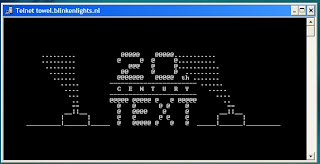
        A Picture showing Star Wars in command prompt

        To watch it on Windows XP,
        1. Go to Start, Run.
        2. Now type "telnet towel.blinkenlights.nl" without the quotes and press Enter.

        On Windows 7 and Windows Vista
        1. Go to Start, Run.
        2. Now type cmd.
        3. Now in Command Prompt, type telnet and press Enter.
        4. When telnet is enabled, type " o" without quotes and press enter.
        5. Now type "towel.blinkenlights.nl" without the quotes and press Enter.


        A command prompt window like one in the image will open with the movie being played in it. See the movie yourself. Did you enjoy watching this new version of Star Wars. Well, I did and know it for sure that you would have too.

        Have a functional Website as your wallpaper

        Wallpapers are probably the first thing which we get bore of in our computers.Most of us have an image or Windows Dreamscene as wallpaper, but instead of having them, why not stand ahead of the crowd and have a functional website as your cool wallpaper in Windows?


        A desktop showing a functional website as a wallpaper


        All you need to do is:-
        1. Right Click on Desktop.
        2. Go to Properties.
        3. Click on Desktop tab. Select Customize Desktop.
        4. Under the Web tab, click New.
        5. Type the complete URL in the URL tab including 'http://'.
        6. Click OK, OK and OK again to apply the changes.

         Maximize the small window that opens on desktop and your desktop will look like one in the image.

        Try it on your PC and show it to your friends to impress them. They will be surprised to see this new type of wallpaper in your computer. I did this on my friend's PC and he was too overwhelmed with this that he could not even speak a word.

          Notepad Tricks and Tips

          With these tricks, you will be able to find out the tricking ability of Microsoft Notepad. But before that, do you know:-
          1. The number of the flight that attacked World Trade Centre? 
          2. How much control the President of United States has over Microsoft?
          3. How worried Microsoft is about their reputation?
          Well if you don't, you will know the answers to all these questions after trying these tricks.

          Trick/Answer 1

          The number of flight that attacked the World Trade Centre was Q33N. You might ask what is the trick in that. We could have searched it on the net in an instant. But this is not the trick. The trick starts now:-
          1. Open Notepad.
          2. Type in Q33N.
          3. Change the font size to 72 by clicking on Format and selecting Font in the Menu Bar.
          4. Also select Wingdings as your Font.
          5. Click on OK to see the trick.
           Note: Change back to your default font.

          notepad tricks


          Trick/Answer 2

          Well the President of United States is undoubtedly one of the most powerful man. No one dares to test it. But now that Bush is no longer the President, .........we would. To test his authority over Microsoft, follow the steps given below:-
          1. Open Notepad.
          2. Type in "bush hid the facts" without quotes.
          3. Save the notepad file as test.txt or *.txt.
          4. Reopen the file to know the results.
          Trick/Answer 3

          Well, most people think reputation is everything and the top brains at Microsoft are no different. To test their reputation building scheme, try the steps given below:-
          1. Open Notepad.
          2. Type in "this app can break" without quotes.
          3. Save the notepad file as test.txt or *.txt.
          4. Reopen the saved file to know the results.

          Try these notepad tricks yourself to know the results.

          On a serious note, none of the flight that attacked World Trade Center had the flight number Q33N. It is just a rumor which became popular due to its peculiar nature. Moreover, did you notice some similarity in trick 2 and 3? Yes, you figured it out correctly, both of the statements have the word length pattern of 4,3,3,5 which seems to cause the bug. It is not that Microsoft is that much 'worried' about their reputation or the U.S. President have absolute control over Microsoft.

          Note: The last two tricks work on all versions of Windows but these tricks are computer specific and might or might not work on some systems running later versions of Windows after XP. 

          A day in the Life of India, Watch the Real India

          A day in the life of India, a campaign started by Times of India daily has been more or less a satirical approach to all the suffering and problems in India in a humorous way. This video shows the real state of things in India and silently passes the message that we must be the change we desire.


          life of india
          For those of you with slow internet connections, this video contains a description of how Indians are used to breaking rules because we don't like following them. It also contains the A, B, C and D of India.
          A: Adjust
          B: Bargain
          C: Cricket etc.

          Video Credits:- Saad Shaikh.

          Here is the original issue of the "A day in India" cartoon, which appeared on TOI's  front page marking the opening of this interesting contest based on user generated content.

          life india
          Click on the image to view its full size.