Yesterday, many of clients reported that their MSN email accounts weren't working. Turns out, there was a change at MSN that caused the problem.
You may have seen an email a couple of weeks ago that stated you needed to download software if you used Outlook Express in order to continue receiving email. And if you're like most people, you weren't sure you could trust the email given today's internet scams. Making matters worse, when you tried to search the MSN website for more information (in order to determine if the email was legit), you were unable to find anything ... resulting in you being in more hesitant to follow the email instructions. And now you can't receive or send email from MSN.
Don't feel bad. You were right to be cautious and hesitant about downloading software based on an email. However, this email does appear to be legit and if you asked me MSN / Qwest could have done a lot better job of spreading the word about the upcoming changes on their site in order to ease people's fears.
Okay, so here's the scoop. Over the past year or so Microsoft has been in the process of re-branding themselves from "MSN" to "Widows Live". So everything is being renamed ... Windows Live Mail (instead of Outlook Express), Windows Live Messenger (instead of MSN Messenger), etc.
Also in the past, MSN did not support POP3 or SMTP (normal email systems) and so you had to use HTTP to receive email through Outlook Epxress (which was designed for POP3 and SMTP). This created a lot of headaches for people, especially since MSN refused to support the use of their email through Outlook Express.
So now, MSN has decided to help their users out a bit. Users now have two options in which to receive their MSN email.
The first option is to download Windows Live Mail (which is the new Outlook Express). If you own a computer running Windows Vista, then you already have Windows Live Mail and don't need to do this. But if your computer is running Windows XP or an earlier version of Windows, Microsoft is now letting you download and install Windows Live Mail so you can use it instead of Outlook Express. Personally, I don't like this option.
The other option now available is to configure a POP3 and SMTP account. The advantage of this option is that you don't have to download or install any software. You simply create a new MSN account that uses POP3 and SMTP, change the ports, and then delete the old account. It's simple and only takes about 5 minutes to complete.
For more information about how to configure your email accounts for MSN, click here.
If you need more help with MSN email, click here. Notice there is a chat link at the top of the page too in case you wish to speak with an MSN agent.
Showing posts with label MSN. Show all posts
Showing posts with label MSN. Show all posts
Recover Your Lost IM Passwords
I am writing this post for those people who have lost their passwords and want to recover them. You can recover your password with a nifty tool MessenPass It is a password recovery tool that reveals the passwords of the following instant messenger applications:
- MSN Messenger
- Windows Messenger (In Windows XP)
- Windows Live Messenger (In Windows XP And Vista)
- Yahoo Messenger (Versions 5.x and 6.x)
- Google Talk
- ICQ Lite 4.x/5.x/2003
- AOL Instant Messenger v4.6 or below, AIM 6.x, and AIM Pro.
- Trillian
- Trillian Astra
- Miranda
- GAIM/Pidgin
- MySpace IM
- PaltalkScene
- Digsby
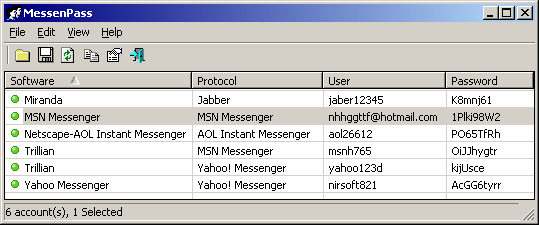
MessenPass can only be used to recover the passwords for the current logged-on user on your local computer, and it only works if you chose the remember your password in one of the above programs. You cannot use this utility for grabbing the passwords of other users. So all those GEEKS who were thinking that it is a Cracking tool I am sorry for broking your heart, but Hey! you can use it as don't you?
You can also use MessenPass
in Command Line mode without displaying any user interface.
Hope it would help you out, if you have any problem leave a comment.
Disclaimer: This information is provided by the author as it is from the application source. The author will not be liable for any special, incidental, consequential or indirect damages due to loss of data or any other reason.

Saving Pictures from Windows Live Mail to Your Computer
It's not uncommon to get pictures or other attachments in email these days that we'd like to save. One of the questions I frequently hear is, "how do I save pictures in email?". Unfortunately, the answer is different for everybody asking because the answer mostly depends on which program use for email. Although there could be a couple of factors that affect the answer to this question too.
Generally speaking, to save pictures from email to your computer, you have to "Save the Attachment". Some programs will tell you to "download the attachment". These two terms basically mean that you're saving the picture (or other attachment to your computer).
It's too difficult to try and answer this question for all the different email programs in this one post. So the instructions below only show you how to save pictures from Windows Live Mail to your computer. If you are using MSN or Hotmail for your email, these instructions should work for you (assuming you're using the MSN, Hotmail, or Winodws Live Mail website to check your email).
If you're using a computer that is running Windows Vista or Windows 7, then the image was most likely saved to your "Download" folder. To get to that folder, just click your START button (lower left corner of taskbar) and then click your Username (which is usually your name). After you do this, you should see a list of folders, one of which is named, "Download". Open it, and the images you downloaded should be there.
If you don't have the download folder, then your image will most likely be saved in one of other places listed below. Check them all.
Generally speaking, to save pictures from email to your computer, you have to "Save the Attachment". Some programs will tell you to "download the attachment". These two terms basically mean that you're saving the picture (or other attachment to your computer).
It's too difficult to try and answer this question for all the different email programs in this one post. So the instructions below only show you how to save pictures from Windows Live Mail to your computer. If you are using MSN or Hotmail for your email, these instructions should work for you (assuming you're using the MSN, Hotmail, or Winodws Live Mail website to check your email).
- Log into your Email account and find the message with the pictures (or attachment) you want to save. Note that messages with attachments usually have a paperclip next to them.
- Open the email message with the attachment (or pictures).
- If you see a yellow box with a message telling you the image or attachment has been blocked for your safety, you can click the link to "show content" in that box (assuming you trust the person who sent you that email). Once you click that link, you should see the attached picture.
- Click the image and a small gray window should pop up. Make sure the box to "Save the image" is checked and then click OK.
If you're using a computer that is running Windows Vista or Windows 7, then the image was most likely saved to your "Download" folder. To get to that folder, just click your START button (lower left corner of taskbar) and then click your Username (which is usually your name). After you do this, you should see a list of folders, one of which is named, "Download". Open it, and the images you downloaded should be there.
If you don't have the download folder, then your image will most likely be saved in one of other places listed below. Check them all.
- The Desktop (the main screen on your computer)
- The MY PICTURE (or PICTURE) folder
- The MY DOCUMENTS (or DOCUMENTS) folder
- You may also have a "DOWNLOAD" folder inside the MY DOCUMENTS folder.
Finding the bling in ‘Bing.com’ Microsoft’s decision engine
Microsoft said the new service at http://www.Bing.com will begin rolling out over the next day and will be available globally on 3 June.
According to Microsoft, Bing is specifically designed to build on the benefits of today’s search engines, but begins to move beyond this experience with a new approach to user experience and intuitive tools to help customers make better decisions, focusing initially on four key vertical areas: making a purchase decision, planning a trip, researching a health condition or finding a local business.
The result of this new approach, the company said, is an important beginning for a new and more powerful kind of search service, which Microsoft is calling a Decision Engine, designed to empower people to gain insight and knowledge from the web, moving more quickly to important decisions.
It seems what Microsoft is unveiling here could be midway between Google and the newly launched Wolfram Alpha, which endeavours to provide searchers with answers to their queries.
Microsoft CEO Steve Ballmer said that the explosive growth of online content has continued unabated, and Bing was developed as a tool to help people more easily navigate through the information overload that has come to characterise many of today’s search experiences.
Results from a custom comScore Inc study across core search engines showed that as many as 30pc of searches are abandoned without a satisfactory result. The data also showed that approximately two-thirds of the remaining searches required a refinement or re-query on the search results page.
“Today, search engines do a decent job of helping people navigate the web and find information, but they don’t do a very good job of enabling people to use the information they find,” said Steve Ballmer, Microsoft CEO.
“When we set out to build Bing, we grounded ourselves in a deep understanding of how people really want to use the web. Bing is an important first step forward in our long-term effort to deliver innovations in search that enable people to find information quickly and use the information they’ve found to accomplish tasks and make smart decisions.”
According to Microsoft, Bing is specifically designed to build on the benefits of today’s search engines, but begins to move beyond this experience with a new approach to user experience and intuitive tools to help customers make better decisions, focusing initially on four key vertical areas: making a purchase decision, planning a trip, researching a health condition or finding a local business.
The result of this new approach, the company said, is an important beginning for a new and more powerful kind of search service, which Microsoft is calling a Decision Engine, designed to empower people to gain insight and knowledge from the web, moving more quickly to important decisions.
It seems what Microsoft is unveiling here could be midway between Google and the newly launched Wolfram Alpha, which endeavours to provide searchers with answers to their queries.
Microsoft CEO Steve Ballmer said that the explosive growth of online content has continued unabated, and Bing was developed as a tool to help people more easily navigate through the information overload that has come to characterise many of today’s search experiences.
Results from a custom comScore Inc study across core search engines showed that as many as 30pc of searches are abandoned without a satisfactory result. The data also showed that approximately two-thirds of the remaining searches required a refinement or re-query on the search results page.
“Today, search engines do a decent job of helping people navigate the web and find information, but they don’t do a very good job of enabling people to use the information they find,” said Steve Ballmer, Microsoft CEO.
“When we set out to build Bing, we grounded ourselves in a deep understanding of how people really want to use the web. Bing is an important first step forward in our long-term effort to deliver innovations in search that enable people to find information quickly and use the information they’ve found to accomplish tasks and make smart decisions.”
Subscribe to:
Posts (Atom)