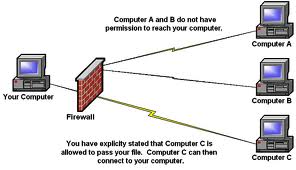
 A personal computer connected to the Internet without a firewall can be hijacked and added to an Internet outlaw's botnet in just a few minutes. The Internet is a hostile network like the wild west without a sheriff!
A firewall can block malware that could otherwise scan your computer for vulnerabilities and then try to break in at a weak point. The only way to make a home computer 100% secure is to turn it off or disconnect it from the Internet.
Home PC Firewall Choices
Microsoft Windows Firewall -- The Windows 7, Vista and XP Service Pack 2/3 operating systems have firewalls built in that are turned on by default to block threats from the Internet. You should leave this feature turned on until you replace it with third-party software and/or hardware.
Two-Way Third-Party Firewall Software -- These firewalls block both incoming and outgoing threats. A computer has outgoing threats when it becomes infected with a virus, Trojan horse or spyware. A challenge for this type of firewall is to distinguish between threats and legitimate software. Three common ways to address this are by vendors including a list of safe software for the firewall to check [white list], malware to block [black list] and/or by issuing a pop up alert to the user asking for advice on what to do [better for experts]. For links to vendors and reviews of over thirty products, see our Personal Firewall Reviews page.


