Showing posts with label better than Ubuntu. Show all posts

PCLinuxOS - An Ubuntu Killer?

Here is a great review of PCLinuxOS from the site distro-review . The original article can be found here.

Just take a look at the screenshots, isn’t it beautiful? Wish Ubuntu looked that nice! While Ubuntu may be the top distro, PCLinuxOS seems to be catching on. For the last 3 years Ubuntu topped the charts on http://distrowatch.com/ (Linux enthusiasts look up to this site for comparison among various distros), however PCLinuxOS had taken the top spot from Ubuntu for few months running. Currently OpenSUSE is currently leading and Ubuntu is on second spot.

PCLinuxOS Gnome 2.21.2

Submitted by seopher on Thu, 03/06/2008 - 10:31.

I have a lot of confidence in the PCLinuxOS guys (Texstar) because PCLinuxOS 2007 was (and still is) one of my favorite releases ever. I was worried for a while that nothing was going on in the PCLOS camp because there was no word of PCLOS2008. However what they were working on was PCLinuxOS Gnome 2.21.2 and I've finally got around to reviewing it.

PClinuxOS 2007 was possibly the best release of last year, so will this Gnome edition give Ubuntu some pressure?

Aesthetics and Live CD
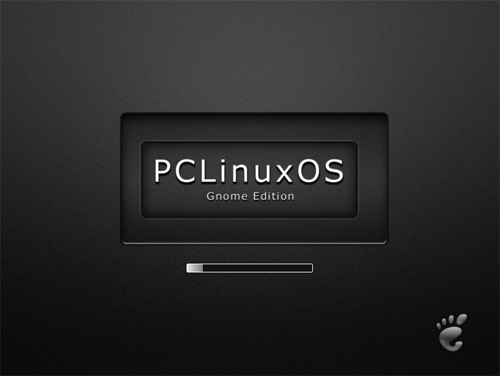
PCLinuxOS was one of the most visually pleasing releases I've toyed with so I was somewhat surprised when I saw the LiveCD loading. It wasn't that attractive (in my personal opinion) and couldn't hold a flame to PCLOS2007, so what was going on?
clip_image001

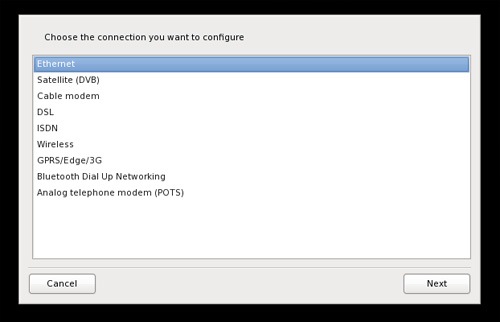
PCLOS then began to toy with me by asking me which device I wanted to configure with a stylish prompt; a gentle gradient on the selected item topped off a sexy looking menu... So maybe the first screen I saw was overlooked somehow? Here's the menu:
clip_image002

But then once I'd configured my network device (which was unbelievably easy I might add) I was then prompted with another rather ugly screen prompting me to login:

clip_image003

I don't get it, PCLinuxOS 2007 had consistently excellent designs throughout, maybe the designers had gone on strike? However once you login and you're in the Gnome environment everything looks sexy again; subtle gradients, strikingly excellent icon designs and a clean, uncluttered (typically Gnome) environment. I don't get the whole journey but I really like it once you're logged in - and ultimately that's what counts. Maybe it's personal preference but the loading screens don't do it for me, but once you're in the system it's sexy. Very sexy.

clip_image004

Installation
Much like the KDE PCLOS, this Gnome edition uses the Draklive installer that comes with Mandriva and while some users don't like it I personally love it. I think it's the most intuitive installer around at the moment and that's excellent for new users who don't understand partitioning (etc). As always the installation goes smoothly with Draklive handling all my partioning for me with minimal intervention required. Anyone could install PCLOS.

clip_image005

Environment and Applications
PCLOS Gnome edition was released on December 28th 2007 and as such ships with Kernel 2.6.22.15, Gnome 2.21.2 and a bundle of default installed apps (Firefox, Azureus, XMMS, you get the idea). Listing the applications is folly when Synaptic is installed; just go shopping and download whatever you want. As my girlfriend put it "what, so it's like shopping online where everything is free?" It's worth noting though that a lot is on offer directly post-install for those who want instant "plug and play" functionality.

Networking
PCLOS picked up my network without issue (although I can't comment on wireless drivers because I'm using a wired connection). Once connected it picked up my windows network effortlessly and allowed me to access all my files in the Samba shares. Now that I'm on my network it's time to drag some media files over and see what the codec support is like. However, sorry about dragging on about aesthetics but how sexy is the below screenshot of me simply copying a file...

clip_image006

Media Playback
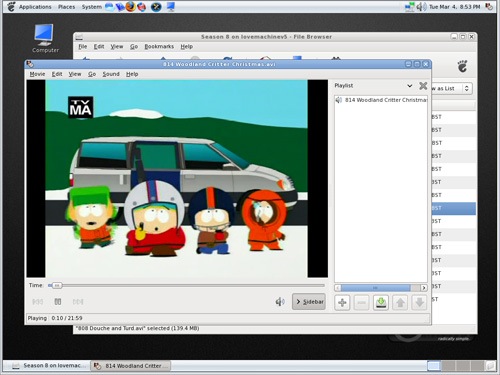
The selection of media files I tried playing all worked fine without requiring me to source some codecs so I can only assume PCLOS comes with popular ones preloaded. This is good because "normal" users want "plug-and-play" functionality, they don't want to have to faff around finding codecs and apt-getting packages. Media support in this release is excellent so that's good.
clip_image007

Configuration
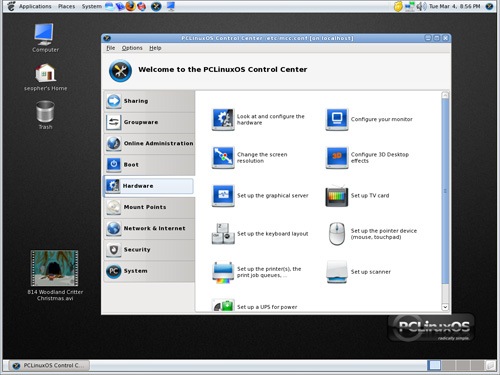
The PCLinuxOS control centre (that is used on both this Gnome version and the KDE 2007 one) is excellent. It's intuitive and powerful in equal measures. I like the wording used on the options "change the screen resolution" for example; these are terms that normal users will be comfortable with. "Display Settings" seems so cold and ambiguous so that's why I consider this configuration utility to be high on the usability scale.
clip_image008

Conclusion and Overall Thoughts
It's very polished, fast and thoroughly beautiful once you've gone past the confusingly ugly loading screens. It's very usable and while I (through personal preference) don't find Gnome environments as intuitive as KDE it still works together very well. Out of the box functionality is impressive and that's a desirable thing in modern linux distros. It's the overall feel that impresses me; the menus slide gently, the subtle gradients and excellent icon design give the feeling that a lot of thought went into the user experience.

Yet that just confuses me even more as to why the loading visuals (and even the default wallpaper) are a little less than sexy. Ho hum. Go try this release, it's worth a look as an Ubuntu alternative.

Other Links:

http://en.wikipedia.org/wiki/PCLinuxOS

http://www.linux.com/articles/62199

http://reallylinux.com/docs/pclinuxosintro.shtml

If there is any one distro apart from Ubuntu I would like to try it has to be PCLinuxOS.

10 - 3 Reasons Why Linux Mint is Better Than Ubuntu

images VS images

In my last post you read a review about Linux Mint, a distro which I referred to as Ubuntu ++. Well here are 7 reasons why Linux Mint is better than Ubuntu. Do tell me more if you have them.

1. Linux Mint = Ubuntu++: Linux Mint is basically Ubuntu with various goodies pre-installed. Linux Mint has a stellar “out of the box” experience.

2. Better media playback: Linux Mint comes with various codecs pre-installed, so no that you can play those mp3s right out of the box. DVDs too play out of the box.

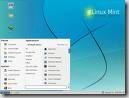
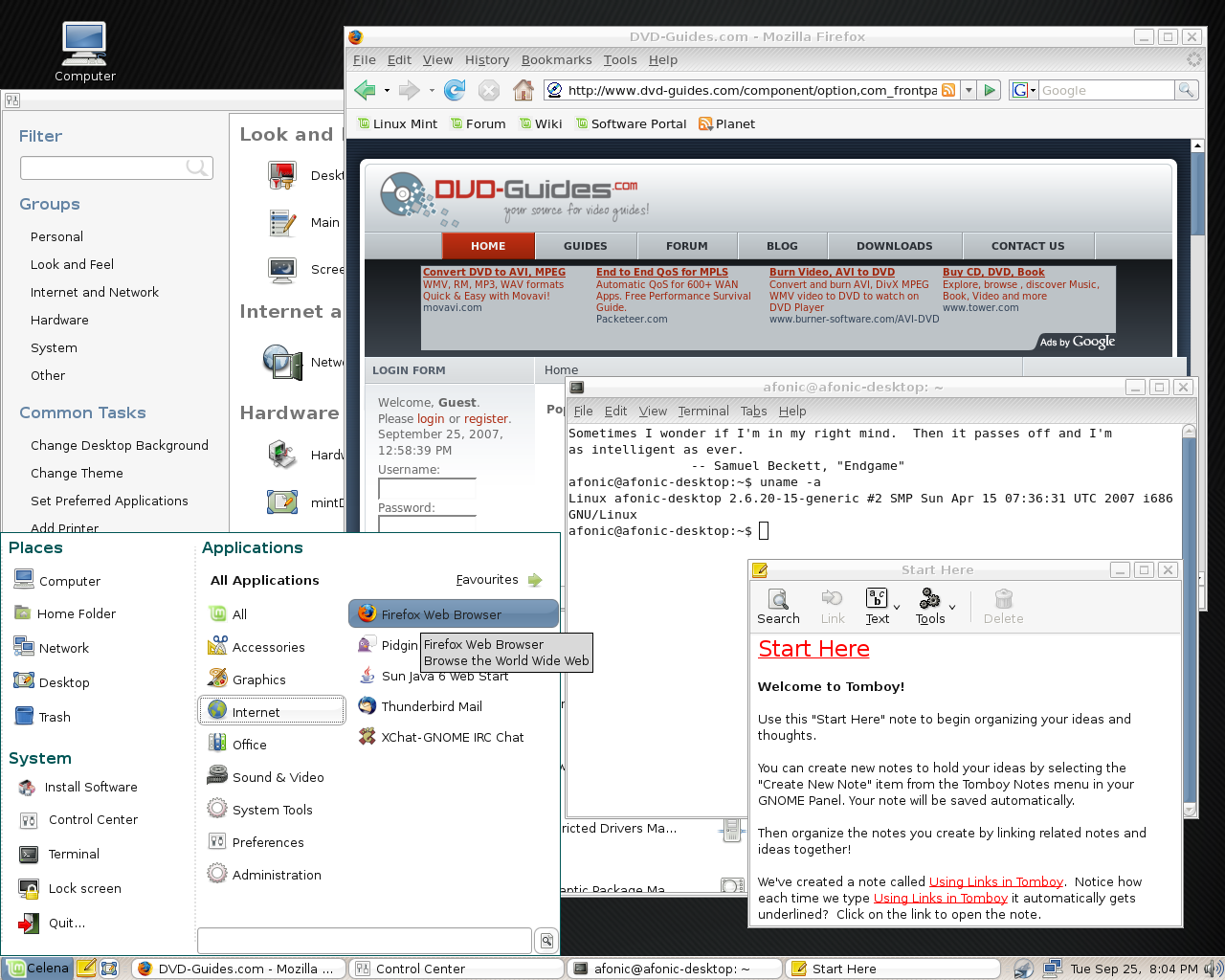
3. Looks Good: Linux Mint comes with a beautiful blue theme. Even die-hard Ubuntu fans hate the ugly brown theme, Linux Mint simply looks better. As a general overview Linux Mint's default look is very pleasant and professional looking showing the road to other desktop-oriented distros (listening Ubuntu?).

4. One Taskbar: Linux Mint does away with the dual panel approach by removing the top panel. The Linux Mint start menu, called mintMenu replicates the Windows start menu. People from Windows background will obviously prefer this.

Mint03

5. Inclusion of essential softwares: Linux Mint comes pre-installed with Adobe Flash, Java and also Envy. I know, all these softwares can be downloaded for Ubuntu too but there are few things which can go wrong with the Ubuntu approach. While installing Adobe flash for Firefox I selected Gnash. Although I support open source, Gnash sucks! Hope it improves.

6. MintUpload: An FTP client that uploads files to a server by right-clicking on the icons and selecting upload. The user will then be given a link he or she can give to other people for quick and easy sharing. An easier Rapidshare.

7. Linux Mint users can use Ubuntu forums too, since most hacks which are applicable to Ubuntu also apply to Mint.

Install Borland Turbo C++ in Ubuntu

Normally in India majority of schools and colleges have Turbo C/C++ as the default IDE. Most students are younger than the Turbo C/C++ compiler they use at colleges. I checked our college's Turbo C++ and it was made in 1993. Back then George Bush Sr. was the president of the USA and Windows 95 was still 2 yrs away.
I tried using Turbo C in Vista but I couldn't use it in maximized state. Then I  tried Wine but it didn't work, I wondered why, but then someone suggested this amazing piece of software called DOSBOX which helps run software made for your dad when he was young and had long hair.

[Image]
Go to the terminal:
sudo aptitude install dosbox
APT will now download and install DOSBOX.
You can also use Synaptic as usual.
Download Turbo C/C++ here
You have to register, but they don't nag and it is hasslefree.

Unpack the achieve

Keep the installation files inside a folder of your home directory named "setup".
Open up dosbox, its under Applications > Games
Type in :
Code:
mount c ~
c:
cd setup
install.exe
This will start the setup of Turbo C.

[Image]


After setup is finished , do this:
Code:
c:
cd TC\bin
tc.exe

[Image]

Now everytime you want to run Turbo C++ start DOSBOX and then type in the following:
Code:
mount C ~
c:
cd TC\bin
tc.exe

To maximise full screen hit 'Alt+Enter' and to go back to medium size again hit 'Alt+Enter'. DOSBOX has a habit of capturing the mouse pointer, once you click within DOSBOX you cannot move it away from the winow. To go back to Ubuntu hit 'Alt+Enter' twice.
'Alt+X' will close Turbo C.
Hope I have helped :)

Linux Mint = Ubuntu++

Ubuntu is currently the top Linux distro. Thanks to its stability and open source nature many Linux distros have sprouted in recent times which are based on Ubuntu. Freespire, Mythbuntu are some of the more popular ones. However it is Linux Mint which takes the top spot in the race of Ubuntu spin-offs. Linux Mint is basically Ubuntu with a beautiful theme and in built proprietary codecs for playing media files (mp3's and other such stuff) out of the box. It also comes with better hardware drivers (for Wi-Fi and other things) and oh, most (98%) of Ubuntu hacks are applicable for Mint too. Mint also comes with a single taskbar. A question comes to my mind, Why would anyone download Ubuntu when Linux Mint provides all the goodies ob Ubuntu with some added extras? The only thing which go against Mint are its short support policy.

Here is an excellent review about Linux Mint from the site http://www.linux.com. The original article can be found here.
Linux Mint freshens Ubuntu's palate

By Joe 'Zonker' Brockmeier on March 08, 2007 (8:00:00 AM)

Ubuntu is a strong desktop distro, but it falls short for some users in a few areas. Where are the multimedia codecs and DVD support, and what's with all the brown, for heaven's sake? If you'd like multimedia support with a minty fresh theme, try Linux Mint 2.2, an Ubuntu-based distro that throws in support for Flash 9, Windows Media Format, DVDs, MP3s, and troublesome wireless cards.

Linux Mint uses the Ubuntu Ubiquity installer. Just pop in the live CD, click the Install icon, and walk through a few simple questions, then wait for the installer to work its magic. After a short wait, Mint is installed and you can reboot into a fresh install.

I installed Linux Mint 2.2 ("Bianca") on a notebook with a Pentium 4, 1GB of RAM, an ATI Radeon R250 display adapter, Intel sound card, and an Intersil Prism wireless card. I'm also running an instance of Linux Mint 2.2 under VMware Server on my main desktop.

When I installed Linux Mint on the notebook, the live CD and initial install detected my wireless card just fine. After the install, I was prompted to upgrade packages. One of the updates I pulled down was a kernel update, from 2.6.17-10 to 2.6.17-11. After installing it and rebooting, Mint no longer detected the wireless card. I had to reboot into the old kernel to continue using the wireless network. It looks like this was a problem introduced upstream with the main kernel, as I've found some discussion of the problem on the Ubuntu forums.

Mint, like many distros, also had problems detecting the proper resolution for the laptop. The screen is supposed to run at 1400x1050, but Mint wanted to set the display to 1024x768. I had to hand-edit the xorg.conf file to set the resolution properly.

Other than those two glitches, Mint worked fine with the rest of the hardware.

I did a clean install; users who are running older versions of Linux Mint should check the wiki for instructions on moving from 2.0 to 2.2 -- it's not as straightforward as just running apt-get dist-upgrade.

Mint custom configuration tools

Mint's custom configuration tools - click to view

Note that, unlike Ubuntu, Linux Mint is only available for x86 systems. If you want to run Linux Mint on an AMD64 system, you'll have to settle for 32-bit, and if you're on PowerPC, then no Mint for you!

What does Linux Mint offer?

Under the hood, Linux Mint is about 98% Ubuntu, so why would you want to install it rather than Ubuntu? Well, that 2% will be fairly attractive to a lot of users.

The most obvious difference between Ubuntu and Linux Mint is the theme, which is a refreshing blue rather than Ubuntu's standard brown. Mint's look and feel overhaul goes beyond the color scheme, though. Mint has a single taskbar by default which is arranged not dissimilarly to the standard Windows taskbar.

Like Ubuntu, Linux Mint defaults to the GNOME desktop, though the forums have a few discussions about Xfce and KDE releases for Bianca as well -- but those seem to be a ways out, at best. There's no reason that you couldn't install the kubuntu-desktop or xfce-desktop packages, which would still give you some of Linux Mint's advantages, but the desktops are not customized in the same way as GNOME's. Note that the first release of Linux Mint, "Ada," was actually based on KDE, but GNOME became the default with the next release.

The Linux Mint desktop

The Linux Mint desktop - click to view

Mint's package selection is pretty close to Ubuntu's, but it does differ a little bit. For instance, Mint ships with Amarok rather than Rhythmbox, and no games are installed by default. As with Ubuntu, if the apps you want are not part of the default install, odds are that they are available with a quick apt-get install or by using Synaptic. Mint actually uses Ubuntu's repositories, so everything that's available via Ubuntu should be available, plus the handful of custom applications for Linux Mint.

The main attraction for Windows refugees is that Mint ships with support for all the annoying proprietary multimedia formats right out of the box -- no fussing with repositories, no digging through wikis to see what packages need to be installed to play back the video on YouTube your dear aunt Petunia sent you a link to.

I tried YouTube, Windows Media files, QuickTime, and CSS-encoded DVDs, and everything played just fine -- no problems at all, and no need to install any packages myself. Mint also comes with Sun Java installed by default, and set up so the Java plugin works by default in Firefox.

Mint also has a modified main menu a la SUSE, with the applications, places, and system menus integrated into one menu. A similar main menu is also available in Ubuntu Edgy as an additional package, but it's not quite as well refined as the default menu that's included with Mint.

The Applications, Places, and System menus, as well as Beagle search, are integrated into the single system, so users have one handy spot to open applications, search for files, open Nautilus to display the home directory, or get to one of the configuration applets.

What's conspicuously absent from the system menu is any of the help and documentation that you'll find under the System menu in Ubuntu. Linux Mint does have a few help docs that jump out at you, though. When you start Firefox the first time, you'll see a custom page with a few links to Linux Mint resources, including the forums and wiki, and a "Tips and Tricks" page stored locally.

One thing I found slightly odd about the "Make yourself at home!" document, which is linked to from the Tips and Tricks, is that it walks the user through setting up keyboard shortcuts to control Amarok so that it's easier to set volume, navigate tracks, etc. That's lovely, but why don't the developers just ship Amarok with the recommended keybindings in the first place?

The rest of the tips provided are fairly useful, though they're missing some obvious tips, such as installing proprietary Nvidia or ATI drivers, that users are likely to be interested in.

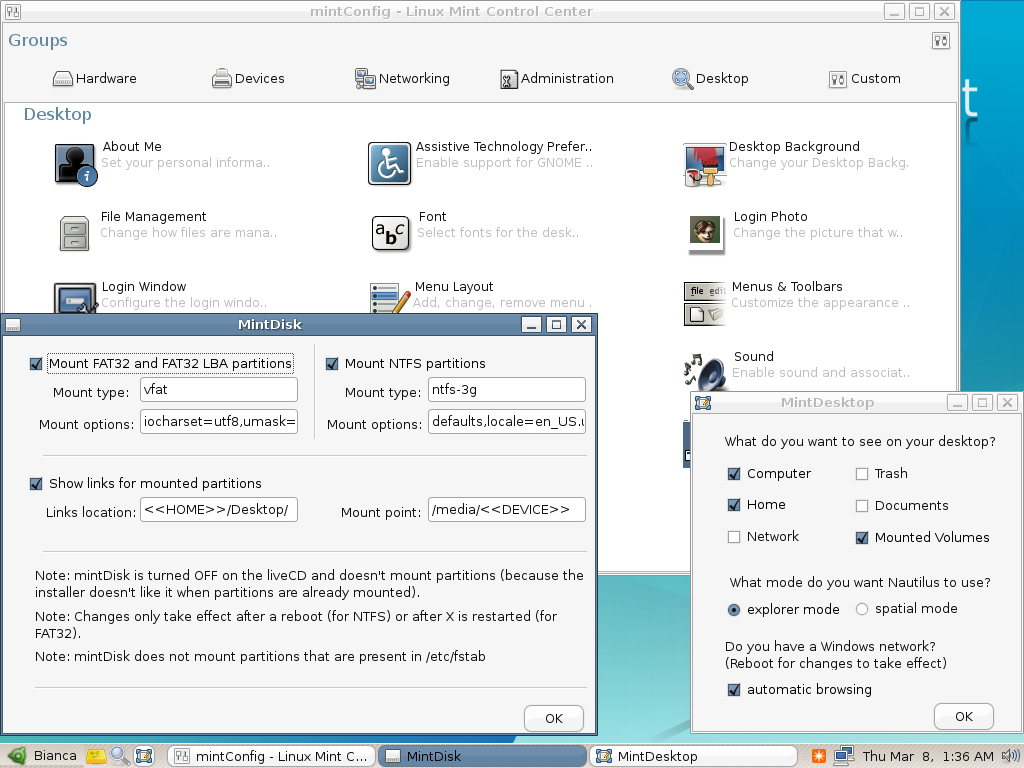
Linux Mint ships with all the administration and preference apps that appear in Ubuntu, plus a few custom tools that don't. The MintDisk app lets users set preferences for mounting FAT32 and NTFS partitions, and allows users to control where automounted disks are mounted in the filesystem if the /media directory is not desirable for some reason.

Users who have wireless cards that are not supported by open drivers may have better luck with mintWifi, a tool to set up wireless cards using the Windows driver and NdisWrapper.

The configuration apps are all gathered in the mintConfig application, which organizes the configuration tools into groups. When you launch the mintConfig tool, you see several groups: Hardware, Devices, Networking, Administration, and Desktop. This is a good idea -- it's a little more organized than dumping all the config utilities into the GNOME Control Center -- but the groups are a bit muddled. For instance, I think a keyboard qualifies as hardware, but it's found under the Devices tab in the mintConfig window.

Final thoughts

If multimedia is important to you, if you have a troublesome Wi-Fi card or chipset, or if you'd like a starter distro for someone trying to move away from Windows, Linux Mint is a good place to start. It has all the benefits of Ubuntu -- and lacks Ubuntu's bias toward shipping only the most necessary non-free drivers -- and offers a few added features to boot.

The real test for Linux Mint will be longevity. The Mint team is pushing out releases rapidly, about one every two months, and the support policy for older releases is not clearly delineated on the site. The introductory release was pushed out only last August, so the team doesn't have a year under its belt yet -- which makes me a bit hesitant to bet on the distro for the long haul, since so many distros stagnate and die within the first year or two of inception. If the Linux Mint team can sustain its energy through this August, I'll be eyeing Linux Mint as a serious desktop distro.

So what are you planning to download next time?

Run MS Paint in Linux

MS Paint is one of the first programs we ever used on PC. Finally I have managed to run the worlds best image editing program on my Ubuntu, this definitely beats the shit out of Adobe Photoshop and GIMP :p 
Well, it'd be fun to try it out just for the sake of it. MS Paint has virtually remained unchanged for the last 13 yrs since it was first released. Whenever people think of Microsoft they think about Ms Paint and all those ugly images they had drawn with it.
To run MS Paint do this:
1. Download paintnt.exe here
http://download.microsoft.com/downlo...us/paintnt.exe
2. Install Wine from Synaptic or from the terminal by typing
 sudo apt-get install wine
3. Create a new folder and place the paintnt.exe file in it.
4. Run it with Wine, now all the required files will be extracted and you can use it as any normal program.
 Here is a screenshot:


Here is an image drawn in MS Paint:
(It took him 500 hrs to draw it)


and the ultimate master at MS Paint:


Please Digg this if you liked it....

Enjoyed this post? Subscribe to Help For Linux RSS feed.