Showing posts with label gmail. Show all posts

Email Settings for popular email accounts

Taken from DS Solutions. Visit their site for full details.

Mail Server Settings

Hotmail:
Hotmail Incoming Mail Server (POP3) - pop3.live.com
(logon using Secure Password Authentification - SPA, mail server port: 995)
Hotmail Outgoing Mail Server (SMTP) - smtp.live.com (SSL enabled, port 25)

Yahoo! Mail:
POP3 protocol and use the following mail server settings:
Yahoo Incoming Mail Server (POP3) - pop.mail.yahoo.com (port 110)
Yahoo Outgoing Mail Server (SMTP) - smtp.mail.yahoo.com (port 25)
POP Yahoo! Mail Plus email server settings
Yahoo Plus Incoming Mail Server (POP3) - plus.pop.mail.yahoo.com (SSL enabled, port 995)
Yahoo Plus Outgoing Mail Server (SMTP) - plus.smtp.mail.yahoo.com (SSL enabled, port 465, use authentication)

Google GMail:
Google Gmail Incoming Mail Server (POP3) - pop.gmail.com (SSL enabled, port 995)
Outgoing Mail Server - use the SMTP mail server address provided by your local ISP or smtp.gmail.com (SSL enabled, port 465)

MSN Mail:

MSN Incoming Mail Server (POP3) - pop3.email.msn.com
(port 110, using Secure Password Authentication - SPA)
MSN Outgoing Mail Server - smtp.email.msn.com
(select "My outgoing server requires authentication")

Lycos Mail Settings:
Lycos Mail Plus service:
Lycos Mail Incoming Mail Server (POP3) - pop.mail.lycos.com (port 110)
Outgoing Mail Server - smtp.mail.lycos.com or use your local ISP SMTP mail server

AOL Mail Settings
AOL Incoming Mail Server (IMAP) - imap.aol.com (port 143)
AOL Outgoing Mail Server - smtp.aol.com or use your local ISP SMTP mail server

Mail.com:
The Mail.com email service allows you to use POP3 and SMTP servers for accessing your Mail.com mailbox.
Mail.com Mail Incoming Mail Server (POP3) - pop1.mail.com (port 110)
Outgoing Mail Server - use your local ISP SMTP mail server

Netscape Internet Service Mail Settings:
Netscape Internet Service Incoming Mail Server (POP3) - pop.3.isp.netscape.com (port 110)
Netscape Internet Service Outgoing Mail Server - smtp.isp.netscape.com (port 25, using a secure SSL connection)

Tiscali Mail:
Tiscali Incoming Mail Server (POP3) - pop.tiscali.com (port 110)
Outgoing Mail Server - use your local ISP SMTP mail server

Freeserve Mail;
Freeserve Incoming Mail Server (POP3) - pop.freeserve.com (port 110)
Outgoing Mail Server - use your local ISP SMTP mail server

Supanet Mail:
Supanet Incoming Mail Server (POP3) - pop.supanet.com (port 110)
Outgoing Mail Server - use your local ISP SMTP mail server

Lakeland Computer Repair, Lakeland Computer Networking
www.MyComputerGirl.com


Enable chat history so as to receive offline messages in Gmail

Gmail is getting better day by day. So is Google talk. Google talk has introduced a facility which was previously available with yahoo and some othere instant messengers. Its called offline messages.

Offline messages are like emails. Messages sent to the reciever when the receiver is offline. He can access them once he is online. But when done with a instant messenger program they are called offline messages and not the regular e-mail.

Google talk, still in beta now offers offline message functionality which means that you can chat with your ofline contacts. But the end receiver must enable chat history in their settings ( Settings > chat ). Many users have not done that. Do enable your chat history and let your friends talk to you even when you are ofline. These ofline messages can be either seen as email in your inbox or as a pop up when you next login to your Google talk.Either of this will happen only if your chat history is enabled.
b

Gmail Just Doubled its Upload File Size limit

Previously you could upload only files of 10 MB size in Gmail. Now Google doubled this limit. So that now you can upload even bigger files that can go up to 20 MB.

Remember that Gmail scans all the files that we upload for viruses.  So Gmail can be used as a virus scanner too fi you dont have an anti-virus installed on your PC. So now you can scan for even bigger files. Only thing that you need is high bandwidth.

Read About The increased size limit from Gmail | See the Gmail Features

b.

Archive Your mails in Gmail and make your Inbox look clean

Have you been ever troubled with a whole lot of mails in your inbox..? If you do not wish to delete those lovely mails but still wish to have a clean inbox Gmail has got solutions. Gmail offers archiving facility for its users.

Archives are collections of previous records into a less frequently used media. Like we create backups in CD's and DVD's of those data which we do not use often in our computer.

All you have to do is select all those mails that you wish to archive and click 'archive' button which is above all the mails in the inbox. Those mails will me moved to the archive and removed from your inbox.
You can later access these mails in the 'all mails' folder of Gmail. This way you can have a neat inbox without having to delete a single mail. Thanks to Gmail.

b

Sending an Executable File in Gmail

As a matter of security from malicious code or so, G-mail beta does not allow users to send Executable files in Gmail. This helps to keep Gmail virus free. But this can be irritating at-times, like when you are trying to send something which is definitely virus free. Like if you did like to send a program that you made for evaluation to your friend or so. Here are 2 ways to send such files. Thanks to my friend Sam.

Method 1 :
Add the executable file to a zip archive. Its not over yet. Add this zip archive to another zip archive. So that your executable file will be inside two zip archives simultaneously. Then attach it and then you can send it comfortably.
eg:. If your file name is asd.exe , first add it to a zip archive named abc.zip or so. Then add this abc.zip to another zip named xyz.zip or so. Then attach it.

Method 2 :
Rename your executable file to something which is not an executable. That is change the extension .exe to somthing like .jkl or so. then attach it and inform the reciver at the other end to rename it to .exe before he can use it. That's it.
You can rename the file using command prompt.
For eg: if you wish to rename asd.exe to asd.jkl take command prompt and then go to the directory where your file is. then type ' rename asd.exe asd.jkl' without the quotes.

Good Luck!

Use Gmail with Keyboard Shortcuts

Gmail has got shortcuts in it like we have in yahoo. This feature often goes unnoticed because it is not enabled by default. ( I found it only last week ! So is my father ).

To enable shortcuts go to settings. In the general settings ( the very first page ) turn keyboard shortcuts on. Now save the settings. Back in the inbox you will find a ' > ' waiting before the last mail you read. This is the indication of which mail you are pointing to.

Here are the basic shortcuts :
While in the inbox or while reading a mail these will work. Remember while you are entering text shortcuts will be counted as text inputs.

c   - Compose
Shift + c   - Compose in a new window
j   - Older mail ( the arrow > moves down while you are in the inbox )
k   - Newer mail
enter or o   - Open mail
/   - To place the curser in the search box
u   - Back ( Like Back to Inbox or Back To Contacts )
r   - Reply
f   - Forward

gi ( g followed by i pressed in sequence )
   - Go to inbox
gd   - Go to drafts
gs   - Go to sent mail
gc   - Go to contacts

For the complete list of shortcuts see the learn more button just near the ' turn keyboard shortcut on ' option in gmail settings.

b

how to use gmail with msn messanger

i think all of you know it but if someone dont than here it is
go to this page:

https://register.passport.net/default.srf?sl=1


enter you gmail account as the email address

fill all the other blanks and continue the registration

go to your gmail account and verify the registration and know sign in with msn


actually this works will all emails not only gmail

Use Gmail Account to Send Emails from Multiple Addresses

In this post I am going to show you how to use your Gmail account to send and receive emails from multiple addresses. Most of us own more than one email account say for example, one from Gmail, one from Yahoo and one from Hotmail. If you are tired of logging into multiple accounts to check your inbox or to send emails, I have a solution here.

Gmail has an option to integrate multiple email accounts (email addresses) into a single Gmail account. Once you integrate multiple email addresses into your Gmail account, you can use the same account to send emails from different addresses and receive emails for different addresses. Let’s take a simple example

Suppose you have three email addressess (email accounts)

1. 300allpctips@gmail.com

2. 300allpctips@yahoo.com

3. 300allpctips@hotmail.com

You can integrate the emails 300allpctips@yahoo.com and 300allpctips@hotmail.com to 300allpctips@gmail.com and operate all the three accounts from your single gmail account. Here is a step-by-step procedure to do this.

1. Login to your gmail account.

2. Click on Settings at the top right corner.

3. Under Settings, click on Accounts tab.

4. Now you’ll see the first option “Send mail as:

5. Under this option, click on Add another email address you own

6. Now a small new window will pop-up asking you to enter the details of your new email address.

7. Here you can enter any name and any email address. The email address need not belong to gmail only. You can enter your yahoo, hotmail or any other valid email address.

8. A Verification email will be sent to the address that you specify. Once you verify that you own the email address, it will be integrated to your Gmail account.

Now when you compose a new email, you’ll see an option to select from multiple address to send the mail. Also you’ll receive the incoming mails for multiple addresses to a single mailbox. I hope this will benefit you.

Before you leave, I should also tell you one good advantage of this. According to Gmail privacy policy, they will not send the user’s IP address in the outgoing emails. That means when you send an email from your Gmail account , the receiver will not be able to find out your IP address. But you don’t have this advantage in Yahoo or other email providers.

Msn Messenger & Gmail

For All Thost Gmail Account Holders That Whish To Use A Gmail Account With Msn Messenger & .Net Passport Service

An Introduction

In this tutorial you will learn how to step up your Gmail Accout with . net passport to allow u to login to msn messenger ang any .net passport supported website


What you will need

* A Gmail Account - as thease are only obtainable via invitation i will assume you alredy have one .

* Msn Messenger / Windows Messenger - used to verify your gmail account.


Once you have downloaded / obtained all of thease you are ready to continue.


1. log in to your gmail account via -


http://gmail.com


once you are loged in minimize this internet browser window ( convenient or later on )

2. load up msn messenger and cansel any automatic signe in atempt so that you have it redy to signed in with your gmail account later on .

2. you will need to visit the Microsoft .Net Passport website -


http://www.passport.net


3. now you will need to click on the register for your free .net passport today button that is in the top right hand corner of thepage ya cant mis it its huge

4. that will take you to a registration page fill in the from as you would if you where filling a hotmail account accept when asked for your email account you would enter myaccount@gmail.com

5. once the registration of you .net registerd gmail account has been made , signe in to Msn messenger using this newly registerd account , you will notice that when you signe in to messenger your messenger name will be youraccount@gmail.com (un verified ) and you wont be able to change it , this is solved below.

6. as soon as you have signed in , a message will appere in an information box ( the same as when a contact signes in ) , click on this and you will be taken thugh the process of Verifying your account the reason you have to go thogh this is because at current gmail is not affiliated with .net passport e.g .netpassport dosent regonise the @gmail.com as a valid email provider there for they cannot automatically verify your account ( hotmail and msn auto verify as there .net passport affiliated websites) ,

7.once u have been taken though the verification process you will be asked to log in to your email account and visit the url given in an email form the .net passport verifcation service , maximize the internet browser window that you signed in to gmail on erlier , you will have 2 emails form .net passport the first will be welcomeing you to .netpassport , the second will be the one we are after , the verification email , open this up find the url to finish verifying your email adress ( usually its either the first to thirs url in the email)

8. once you have compleeted thease actions and you have been told that your gmail account is verifed , signe out of msn messenger , then re signe back in ( you dont need to wait for any period of time just signe out then straight back in agane) , you will now notice the (not verifed) had been removed form your msn name , and now you are able to change ther name to , if this is so m, then congratulations you now have a fully functioning .net passport gmail account ( you cannot access your gmail email account via msn messenger you will still have to visit the gmail login page for this )


http://gmail.com


9. if for any reasons this didnot work , and you agane reciece the message asking you to verify , or you havent recieved your verification email from .netpassport , then re-try steps 2 - 7 , un till you get it working correctly .


i hope this helps some of you gmail account users out there that have been wracking your brains over how to get gmail in to msn messenger

peer2mail tutorial

Introduction


Peer2Mail is the first software that let you store and share files on any web-mail account. If you have a web mail account with large storage space, you can use P2M to store files on it. Web-mail providers such as Gmail (Google Mail), Walla!, Yahoo and more, provide storage space that ranges from 100MB to 2GB.
P2M splits the file you want to share/store zips and encrypts it. P2M then sends the file segments one by one to your account. Once P2M uploaded all file segments, you can download them and use P2M to merge the segments back to the original file.


u can get the software from here


http://www.peer2mail.com/P2MSetup.exe


and for any info u can log to there website

http://www.peer2mail.com


How to upload a file to ur e-mail account ?


In order to send a file to an email account, Peer2Mail needs to split it into segments. Web-mail providers limit the size of an email attachment usually to a nominal 10Megs

There are 3 ways u can send ur files to the e-mail:

* Direct Send - P2M has a built in SMTP component that sends the segments directly to the web-mail providers. You don't need to enter your ISP details in order to use P2M. If you are using this feature please make sure you enter a value in the 'From Email Address' because some web-mail providers reject email messages where there is no 'From' address. You can even enter a fake mail address.
* Send Via MAPI - P2M can send the segments using MAPI (Usually your outlook client). When you use this option P2M will split the files and move the sending responsibility to Outlook. Note that it will use your ISP SMTP server and details to send the files. You may enter as many recipients as you wish when using this option.
* Send Via SMTP Server - Send the segments using your ISP SMTP Server. If you are using this feature please make sure you enter a value in the 'From Email Address' because some web-mail providers reject email messages where there is no 'From' address. You can even enter a fake mail address. You may enter as many recipients as you wish when using this option.


Ill explain the direct send wich i find it very easy to use.

normally when u open ur peer2mail program u receive an image like this u click the split/send tab as shown in the image


http://img.photobucket.com/albums/v178/joannaj/p2m1.jpg


after that u click the folder icon wich is choose a file to send as shown in the picture


http://img.photobucket.com/albums/v178/joannaj/p2m2.jpg


u will see an image like this u click browse and choose the file u want to upload in this case ill choose the movie white chicks wich is 700+ mb after that in mail to i type the e-mail account i want to upload the file to either is gmail yahoo walla or any other email account. in the optional encrypted password leave it blank.

also u will find the segment size wich will be how u want ur file to be divided into files of 10 mb that means if u have a movie of 700 mb it will be splitted into 70 files that means u will be receiving in ur inbox 70 e-mails.

after u choose the size wich normally is set to 10 mb u will see the send method here u leave it as direct send wich means u wont need an e-mail to send it this program automatically send it. then there is From Email Address - This is the source address of the mail. This address doesn't have to be valid.

Once you are done, click on the Ok button. here is an image of what ive been talking now:


http://img.photobucket.com/albums/v178/joannaj/p2m3.jpg


when u click ok u will find ur file u wanna upload splitted as u can see it doesnt really use ure harddrive.. You can now choose if you want P2M to send all the segments or only specific few by checking/un-checking the checkboxes. Once you are ready, click on the Send button. It may take a few hours to complete the operation depending on the file size and your internet connection. the send button is showed in uthe image below wich is the second icon:


http://img.photobucket.com/albums/v178/joannaj/p2m4.jpg


after u done that u can log to ur e-mail in ur browser and find the files there in ur inbox.


now we finished uploading so we wanna share our files without giving our original password!!!


Account Password Encryption/Decryption

If you wish to share your web-mail account with your friends and don't want to give them the real password, you can encrypt the real password and share the encrypted password with your friends. Only P2M will know to decrypt the password and your friends can use it to gain restricted access to the web-mail account without knowing the real password. If a user logged in to either Walla, Gmail or Yahoo with an encrypted password, Peer2Mail limits his permissions on the account. This is done so he wont be able to delete files, change the password or any other settings on the account.
To encrypt a password click on the browser tab and click on the orange key button. as shown in the image below.


http://img.photobucket.com/albums/v178/joannaj/p2m5.jpg


when u do that a box will appear saying password u type ur original password in this case i putted sexyjoanna (and no dont waste ur time trying to think thats my password lol is just an example :P ) when u do that click on encrypt and ur encrypted password will be seen as shown in the image bellow.

To insure higher security for your encrypted password, Peer2Mail can use a different encryption key for servers that support SSL (Gmail, Yahoo). This way the password will only work on secured servers. SSL servers encrypt the transportation of data between your computer and the server, so it will be impossible to intercept the password while its being transmitted to the server. To create a secured encrypted password (that will work only with SSL servers) check the "Encrypt password for SSL Servers" checkbox.


http://img.photobucket.com/albums/v178/joannaj/p2m6.jpg


so that means if u gonna log into my account to download the files what u do is u go to gmail in this case as an example in ur peer2mail browser tab there u type my e-mail lets say joanna@gmail.com and as password u use the encrypted password wich in this case is |\srXSyaOn3tm9rA==|/ and u will be logged.

so we uploaded the files we encrypted the password now how to download them?

now thats the easy part lol


P2M includes a built in browser so you can easily log into your web-mail account. Before you can merge the segments you need to download them. It is important that you will save all the segments into the same folder. The first segment name ends with the P2M extension and the rest follow with a serial number 001...00x.

u can log to ur browser and download the files one by one but it will take u alot of time!!! so Peer2Mail can automatically list and download files from web-mail accounts. Currently P2M supports auto-download from Gmail, Walla, Yahoo, Spymac, Unitedemailsystems, Xasamail and Omnilect.


so what we do is we click in the browse tab then u click the home icon and u will see the different email accounts available for autodownload as shown in the picture below. after that click the e-mail service u gonna log to type the e-mail and encrypted password( the encrypted password wont work in ur normal explorer or firefox browser)


http://img.photobucket.com/albums/v178/joannaj/p2m7.jpg


when u log into an account wich contains files in it in this case i am into an account of a movie called superbabies or baby geniouses 2 as u can see there are 76 e-maills

now u can download one by one but that will take ages so what u do is u click in the download segment icon wich is the autodownload wich is faster to use. it is the folder icon as shown in the image below


http://img.photobucket.com/albums/v178/joannaj/p2m8.jpg


when u click it u will see a window appear P2M will then list the segments (may take a few minutes) and at any time you can tell P2M what segment to download by clicking on the checkboxes that appear next to them. as u can see there is an auto merge checkbox u can merge them directly after download if u check it or u can do it later. if u added a decryption password when uploading u will need to type it if u didnt then leave it blank. see the image below

http://img.photobucket.com/albums/v178/joannaj/p2m9.jpg


after u choose the files u wanna send u just click download then a window will appear and choose in what folder u wanna save the file. after that the download will start.


now concerning merging the files after instead of after downloading what u do is u click the merge segment tab when u do that u will find underneath ur folders choose where u want the files to be merged or in other word unzipped lets say i downloaded the movie in a folder called p2m but i want to unzip them or merge them in my movies folder so what i do i choose my movies folder so it will be saved there after that i click in the first icon wich is merge the segments in the selected folder when i do that a window will appear there where it says p2m file i click browse and i go to my in this example my p2m folder where i downloaded my movie there i look for the file wich extension is P2m and choose it after that i just click the merge button and wait till the file gets unzipped.
check the image below


http://img.photobucket.com/albums/v178/joannaj/p2m10.jpg


any questions plz post here as a reply hope my tutorial is easy to understand and i apologize for any mistypping i know my english is HORRIBLE lol

Safeguard your emails from phishers who send mails like this


Gmail Subscribers be aware of the emails sent to us like this in the name of customer verification telling users to give their Email ID's, Passwords etc...with an email id of gmail notified customercare4014@gmail.com.


These users say that u have to send ur details within 24hrs nor ur account will be disabled but the fact is they are phishing ur account and will use youraccount for all sort of malpractices so be aware of this new threat.
Donot reply them for the things and notify Google about their activities.

These people also has attached an virus file in the mail,if u click it for download then ur system will be affected with virus which they use for hacking.

5 Other Uses Of Gmail Other Than Email

1. Use Gmail As A Free Online File Format Converter


If you want to convert any office document to HTML format, think of nothing other than Gmail.
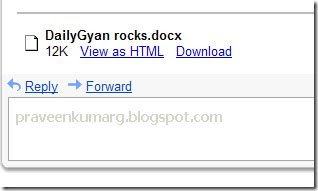
You don’t have to install third-party application like PDF2HTML or Adobe Acrobat for this. You can convert doc, xls, ppt, rtf, pdf files and the new Microsoft Office 2007 formats like docx, xlsx and pptx to HTML, absolutely free by using Gmail.
Just attach the document to a mail and send it to yourself. When you receive the mail open it and click “View as HTML”.


2. Use Gmail As An MP3 Player

gmail-mp3-player

If you want to try out a new audio player, try Gmail!
Send an mp3 file to yourself and see that Gmail contains an option to play it. Clicking it will open a flash MP3 player using which you can play the song without downloading it.


3. Use Gmail As Your OpenID


You can use your Google account username and password to login at a number of sites like Zoho and Plaxo. But what about the sites that accepts only a URL as an OpenID field?
Welcome to openid-provider.appspot.com. This site, built on Google App Engine, allows you to create a OpenID URL from your Google Account Credentials. Login with your Gmail username and password and the site will provide you a URL like http://openid-provider.appspot.com/, which you can use on regular OpenID accepting sites.


4. Use Gmail As Your Online Storage

Gmail provides a virtually unlimited online space that normal users find impossible to fill up with emails alone. So why not use the remaining space as your personal online file storage area?

GMail Drive is a shell extension for Windows that adds the Gmail storage as a disk in My Computer. All operations that you normally do with a regular hard drive – copy, paste, drag and drop, works for Gmail drive too. Just that the data is not residing in your computer but high up in Google clouds.
Linux users can try out GmailFS which provides similar functionality as GMail Drive in windows. Using this tool, you can mount your Gmail storage space as a file system and transfer files between them just like any other disks.


5. Use Gmail To Play Snakey

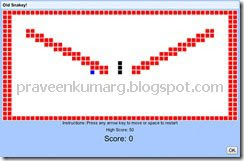
If all that emails are making you bored, try the game that comes packed with Gmail.
Gmail labs contains a game – Old Snakey, that you first need to enable from the settings pane in order to play. Go to Gmail settings –> Labs and set the Old Snakey radio button to enabled. Now, return back to inbox and hit the ‘&’ key to start the game.

Google stuff

Thanks to Gmail, Google knows who you are e-mailing, what you are saying and it will store all your e-mails forever. Thanks to Google Talk,
Watch the articles on the Left side navigation Tab !!!


Google it : Rahul
Google knows who you are talking to and who your closest associates are. And if Gmail and Google Talk were not enough, because of Orkut, Google knows who sits in your circle of friends. Thanks to Google Search, Google knows what you are searching for on the Web, including the news, type of images and newsgroup access. Thanks to Google Video, Google knows what kind of risqué videos you like to watch. Thanks to Google Finance, Google knows what stocks and businesses you are interested in. Thanks to Blogger, Google knows what you rant about and what rants you like reading. Thanks to Google Maps, Google knows where your house is and where you are going. Thanks to Google Calendar, Google knows who you are meeting with, where you are going, and what you are busy doing. Thanks to Picasa, Google even knows what you, your family, and your best friends look like. Best of all, thanks to Google Desktop, Google has access to all your documents, images, files, and everything else on your hard drive. And when Google displays customised adverts based on the e-mails you receive and searches you make, and you happen to click one of them, Google knows the kind of things you are interested in

Chat Right Inside G-mail

I have already mentioned that G-mail is the best web-based free e-mail service. As you might know we can chat right inside G-mail. The chat applet loads while the inbox is loading and connects itself to the chat server so that you can know when your contacts are online. When they come online you can chat with them right from there.

In Gmail the chat applet is present at the left bar below the labels ( or just above it if you have configured to do so in the settings ). That applet shows some of the contacts of you. ( In the settings you can choose the number of contacts to display ). Those ones whom you have chosen to display always will always be there. The remaining gaps will be filled by your frequent contacts.

To always display a purticular contact in the applet hover over the contact and you will get a popup. In that at about the right bottom corner you have display options where you can choose form : Auto , Always and Never. If the required contact is not there in the chat applet go to the contacts and just after their name there is an option to change the settings of display. Choose 'always' to see that contact always.

When a contact comes online ( and If he/she has signed in to chat ) his status will be displayed as online by a green bulb near his name. He can choose to diplay it as red if he chooses his status as busy. When the green bulb is lit you can chat with him by just moving your mouse to that contact and clicking 'chat' on the popup which then appears. It does not take time to load a chat applet. Its already there. A small window insantly appears where you can start chatting.

This chat facility is available only if you have choosen the G-mail view as 'Standard with chat'. This can be seen at the bottom of the inbox and just above the program policies link.

Choosing the 'Standard with chat' loads the chat applet every time you log in to your inbox. So this takes more time. Also the connection to server might get lost frequently if you are using a dial up connection. So dial up users will have to sacrifice the speed and it takes long to lead even a mail.

So if you are not intrested in chatting and is a dialup user its better to use the 'Standard without chat' or 'basic html' view. This will make checking mails more enjoyable.

G-mail have also provided users with a facility to record the chat's This is something which is not available with all chat programs. To record your chats you have to say it to do so in the settings. If you have choosen to record the chats the chats will be stored in the chat link which is found below the inbox link in the left part of the page. Every chat is recorded step wise along with time.

Its good to check your settings atleast once in 3 months. Remember that G-mail is still in the beta state. So they are adding more and more features to it. If you keep checking your settings you wont miss any of their new features.

Actually this was intended for non G-mail users. If you are not using G-mail yet, let me welcome you to G-mail. I had already put an article on G-mail. Read that too.
But to sign up to g-mail you need and invitation. If you are intrested and is looking for an invitaion send me a mail at : arunbasillal@gmail.com. I will send you one ( Remeber, I got limited invitations remaining.. about 94 only ).

Again welcome to G-mail, the best web-based free email service.

b


Use Gmail Generate Unlimited E-mail Addresses

Gmail has an interesting quirk where you can add a plus sign (+) after your Gmail address, and it'll still get to your inbox. It's called plus-addressing, and it essentially gives you an unlimited number of e-mail addresses to play with. Here's how it works: say your address is pinkyrocks@gmail.com, and you want to automatically label all work e-mails. Add a plus sign and a phrase to make it pinkyrocks+work@gmail.com and set up a filter to label it work (to access your filters go to Settings->Filters and create a filter for messages addressed to pinkyrocks+work@gmail.com. Then add the label work).

More real world examples:

Find out who is spamming you: Be sure to use plus-addressing for every form you fill out online and give each site a different plus address.

Example: You could use
pinkyrocks+nytimes@gmail.com for nytimes.com
pinkyrocks+freestuff@gmail.com for freestuff.com
Then you can tell which site has given your e-mail address to spammers, and automatically send them to the trash.

Automatically label your incoming mail: I've talked about that above.

Archive your mail: If you receive periodic updates about your bank account balance or are subscribed to a lot of mailing lists that you don't check often, then you can send that sort of mail to the archives and bypass your Inbox.

Example: For the mailing list, you could give pinkyrocks+mailinglist1@gmail.com as your address, and assign a filter that will archive mail to that address automatically. Then you can just check in once in a while on the archive if you want to catch up.

Update (9/7): Several commentors have indicated that this is not a Gmail specific trick. kl says Fastmail has enabled this feature as well. caliban10 reports that a lot of sites reject addresses with a plus sign. You might use other services like Mailinator for disposable addresses instead. pbinder recommends using services like SpamGourmet, which redirects mail to your real address.

Add your Photo In Gmail - Let the world see you.

Gmail lets you to add your photo to your profile in Gmail. Doing this will send your picture to your friends and they can see you often.
But for your friend to see your picture he has to choose to display the picture of your chioce in the contacts. This is on by default. But he can choose to display a picture of his pick, and if he is doing that he will not see you.

Gmail will show your picture when he hovers over your mail giving your friend a quick glance of you smiling. But on account of 'internet borne diseases' like fake pictures through morphing and related issues, its not always very safe to give your picture to everyone. But you can always have some picture in that place of your picture. Why dont you try giving a picture of a small scenery as your photo..? But you cannot post a very big picture. Only a thumpnail size of 96x96 is allowed. Still it is really good to ahve some picture instead of a blank ghost picture which gmail automatically adds.

To add your picture go to the settings. On the very first page there is a picture link. Clicking that opens a window with an optional browser. Open the browser and open a picture. Gmail will then give you an option to crop your image. Do that if needed and save then save your picture. You are done.

Remember not to use pictures that is copyrighted, or that contain adult content or even those of celebrities ( unless you are on of them ! ).

b

Vacation Responder - Your Personal Manager

We have got a whole lot of free as well as paid e-mail proviers. For instance you got yahoo, msn,hotmail,g-mail,rediffmail,ureach,hoshmail and ofcource a lot more. Unknown to many. Every one using the internet would be having a single mail id atleast.
But most of you wouldnt have noticed the vacation responder in most of the providers. Believe me. You got vacation responder in G-mail, Yahoo, Ureach, Rediffmail and .... I dont know about the rest.
As the name says vactaion responder is something which respondes to the incoming mails right at the moment it is recieved. So u can inform the sender if you are away for quite a long time. It can also be used in firms telling the customers that ' your mail is under processing and we will get back to you soon'. This is a real useful tool but most people do not know of this thing.
I have been using it a for a long time. One day one of my friend called me and asked me to teach him too this technique. I was wonder-stuck. I had thought that everyone around would be using it. And that caller is someone who had his own blog and sub-domain.
So to all my friends who do not know of this vacation responder...
For gmail vaction responder is found in settings. You cannot add graphical messages to it. You can set the vacation responder for infinie time.
For yahoo vacation responer is found in the my-account section. Unlike g-mail you cannot set the vacation responer to infinite time. You can only set for 6 months maximum. You have to give a starting date and a ending date.
For Ureach vacation responer is found in the settings section. I think u can set this for infinite time like g-mail.
For rediffmail users vacation responer is found in the settings.
All these are for free users. Paid users will have lot more options - i think.
Going through the settings of your account is very important. Especially for g-mail whcih is still in its beta state. They at Google wil be constantly working on it. So more functions add on from time to time. To keep track of it do visit ur settings regularly.
For more clarifications and g-mail invitaions ( as per availability ) contact me at arunbasillal@gmail.com.
b

Gmail - Fast And Free

Gmail Fast and FreeGmail is the best webbased free mail service. If I say this i dont think you would object. Because there is no reason to do so. Which other provider gives u such free service without any graphical adds..?

Ok Gmail has got adds. But thats the google addsence running. Those adds might prove useful to us. Addsence as u might know shows content speicfic adds on the right side of your mails. Those adds are not graphical so the pages loads really fast.


Did u get what I meant by content specific adds..? Look. If you got a mail from your friend saying that it's her sisters birthday the next week. Google adds will show some sites that will allow u to send e-cards. So you can do that right from there. Or for instance, if ur mail contains something related to flights between london and moscow , believe me the content specfic adds will come up with something related to that.


Turning back to Gmail.
Even thought it is in its beta version it has got a whole lot of things. Its been over an year I started my gmail account ( arunbasillal@gmail.com ). But even before that I used to get invitations to join Gmail from lots of my friends. Those days i used to think what is so special about Gmail. One day at a Cafe I saw my friend Gautam, using his account. Just by the view of that an idea came to my mind saying that it is really good. So the very next day is sighned up.
And I got.. 2500+( Now 2771 and counting) Mb of space, Bright colours to the inbox, And a brand new neat and clean inbox. First it was a facination. Then it became a craze.


Later Gmail added the inbult chat facility. So we could chat to our online contacts and to those on the google-talk. It had a very minute yet powerful chat utility right inside it.
Now Gmail has got a inbuilt mp3 player so there is no need to load an external player to play ur music files in there.


Its not over. Gmail has got all those standard features found in yahoo or any other mail providers. It has got a spam filter ( very intelligent one ), A mail search engine ( which will bring u the exact mail u want. Just give the subject or somthing related to it ), A vactaion responder, and labels Gmail also has got a very cute thing. If u send a mail to a new emai id, that id will be automatically added to ur contacs. Also when u type the id if it is in ur contact those ids pop down. So u just have to click it.


Gmail also has an option to save all ur chats right in it. You can also create mailing lists . Using indicators in Gmail u can know which all mails are sent to u alone ( >> ) and which all mails are sent to u as a part of a miling list ( > ). U will also get a part of the mail right into your inbox. So you can always find the right mail faster, without opening it.. And speaking of the speed..its supersonic. Most of the things in there are just like on the harddisk of ur pc.


Unlike other providers one cannot sign up for an account in Gmail right from their website. You need an invitaion from an existing Gmail user. That means that all Gmail users form a network which is closed and is opened only through invitaions.
If u are looking for the best e-mail provider send me a mail and I will send u an invitaion.


Come Home to Gmail and all the best google. We are looking forward for the day Gmail will be in its full version.

Group your contacts within Gmail

With Gmail you can create mailing lists so that you can group your contacts with common intrests to one name. Then you can send mail to all these contacts by just selecting the group name.

Lets see how to do that...
Go to contacts and select all those contacts that you wish to make to a group. From the actions drop down menu select new group. Give the name of the group and you are done.

When you wish to send mail to this group just type in the name that you gave. For eg. if you created a group with the name 'school mates', key in 'schoolmates' in the to: box. All the contacts will selected automatically.

To add contacts to this group later, select the new contact and from the actions drop down menu select add to group. You can remove a purticular contact by selecting it and pressing remove from group from the same menu.

Good luck!
b.

All About Labels in Gmail

Gmail, the most impressive email service on the internet has got something called labels.
Labels can be used to label your mails. Just like you star your mails in the gmail inbox.

Where can u find ur labels...
Labels that you have created can be found in the sidebar on the left of gmail

To create a label...
Method 1 .
Go to settings>labels. There you will find all that you need to create a label.
Method 2.
On the labels region on the sidebar of gmail click on edit labels to edit or create new label.

How to apply label...
To label a purticular mail, select the mail and in the actions drop down box choose the label that you wish to apply. All the labels that you have created will be available there.

All the mails with a purticular label can be seen together by clicking the label in the labels region in the sidebar.

Quite useful to sort your emails. For non Gmail users, this is another reason to join gmail.
Good luck!
b.